




 PhotoRoom
 Pixelcut
 CorelDRAW Go
 Lightroom
 Luminar Neo
 Envato
 Affinity
-
Latest Version
Adobe Camera Raw 18.5 LATEST
-
Review by
-
Operating System
Windows 10 / Windows 11
-
User Rating
Click to vote -
Author / Product
-
Filename
AdobeCameraRaw_x64_18_5.exe
Applications that support Adobe Camera Raw (ACR) include Photoshop, Photoshop Elements, After Effects, and Bridge. Additionally, Adobe Lightroom is built upon the same powerful raw image processing technology that powers Camera Raw.
Adobe Camera Raw (ACR) is a powerful and essential tool for photographers and graphic designers who work with Adobe Photoshop and Adobe Lightroom.
It is a plugin that allows users to process and edit raw image files from digital cameras directly within these Adobe applications.
ACR offers a wide range of tools and features to enhance, adjust, and fine-tune raw images, ensuring they reach their full potential in terms of color, exposure, and detail.
Key Features
Raw Image Editing: ACR supports a vast range of raw file formats, allowing users to manipulate the original image data for maximum control and quality.
Non-Destructive Editing: All changes made in ACR are non-destructive, preserving the original raw file. This means you can always revert to the original state of your image.
White Balance Adjustment: Precisely adjust the color temperature and tint to correct any color casts in your images.
Exposure and Tone Control: Fine-tune exposure, highlights, shadows, contrast, and clarity to enhance image details and tonal range.
Color Grading: Use the powerful HSL (Hue, Saturation, and Luminance) controls to manipulate individual color channels, giving you complete control over the look and feel of your images.
Lens Correction: Correct distortions, chromatic aberration, and vignetting caused by specific camera lenses.
Noise Reduction: Reduce noise and grain in high-ISO images to maintain image quality, especially in low-light conditions.
Batch Processing: Apply the same adjustments to multiple images simultaneously, streamlining your workflow.
Presets: Save your favorite adjustments as presets to apply them quickly to other images.
Integration: Seamlessly integrates with Adobe Photoshop and Lightroom, ensuring a smooth workflow for photographers who use these tools.
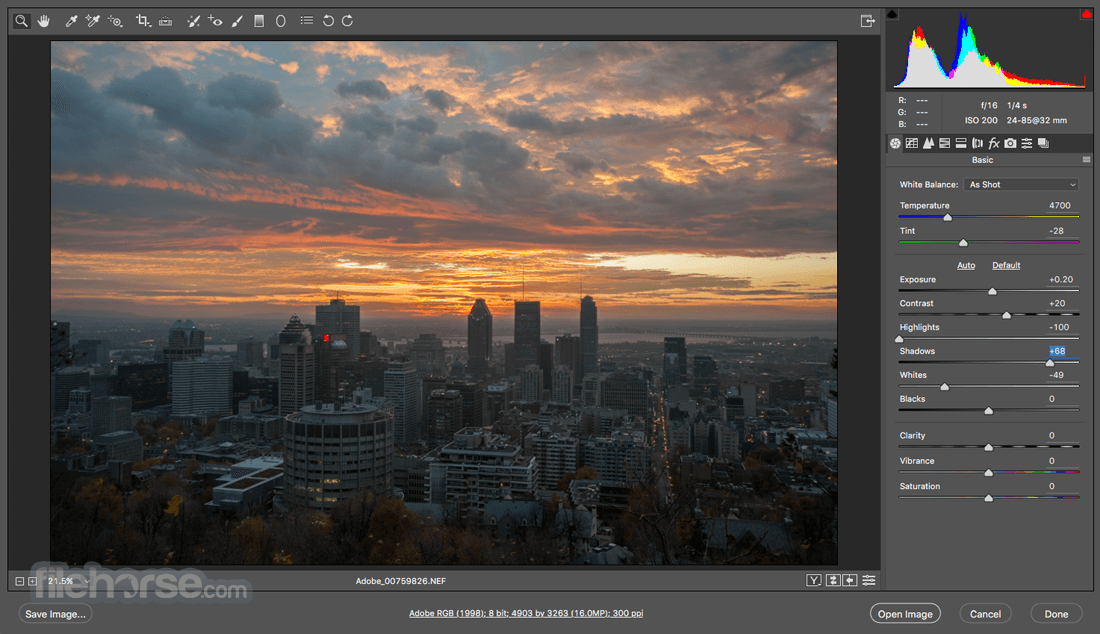
User Interface
It features an intuitive and user-friendly interface that seamlessly integrates with Adobe Photoshop and Lightroom.
Its well-organized panels and sliders make it easy for users of all skill levels to navigate and apply adjustments to their images efficiently.
Installation and Setup
To use Adobe Camera Raw, you need to have either Adobe Photoshop or Adobe Lightroom installed on your computer.
Once you have either of these software applications installed, the program is automatically available as a plugin, and no separate installation is required.
How to Use
- Open Adobe Photoshop or Lightroom.
- Load a raw image.
- Access the program by selecting "Filter" > "Camera Raw Filter" in Photoshop or "Develop" in Lightroom.
- Use the various adjustment sliders and tools to enhance your image.
- Click "OK" or "Done" to apply your changes.
Can I use Adobe Camera Raw without Adobe Photoshop or Lightroom?
No, Adobe Camera Raw is a plugin for Adobe Photoshop and Lightroom, so you must have one of these applications to use it.
Can I apply Camera Raw adjustments to JPEG images?
While the software is designed for raw image processing, you can also use it to adjust JPEG and TIFF images, but the flexibility and benefits are more pronounced with raw files.
What are presets, and how can I use them in Adobe Camera Raw?
Presets are saved sets of adjustments. You can create your own presets or use pre-built ones to apply a consistent look to your images quickly.
Does Adobe Camera Raw support tethered shooting?
Yes, it supports tethered shooting, allowing you to connect your camera to your computer and control it directly from the software.
Alternatives
Luminar Neo: Luminar is known for its AI-enhanced editing tools and can be used as a standalone application or as a plugin for other software.
Capture One: Known for its excellent raw processing capabilities, Capture One is a popular choice among professional photographers.
DxO PhotoLab: DxO PhotoLab offers advanced AI-powered features for image enhancement and raw processing.
Darktable: Darktable is a free and open-source raw image editor that provides a comprehensive set of tools for photographers on a budget.
ON1 Photo RAW: ON1 Photo RAW is a robust editing suite that includes both raw processing and photo organization features.
System Requirements
System requirements may vary based on the specific version of the program and the Adobe software it integrates with. Generally, Adobe's software is designed to run on both Windows and macOS systems.
Ensure your computer meets the minimum requirements for Adobe Photoshop or Lightroom to use Adobe Camera Raw (ACR) effectively.
Supported camera models
Apple | Canon | Casio | Contax | DJI | DxO | Epson | Fujifilm | Google | GoPro | Hasselblad | Huawei | Kodak | Konica Minolta | Leaf | Leica | LG | Mamiya | Motorola | Nikon | Nokia | OM Digital Solutions (formerly Olympus) | OnePlus | Olympus | Panasonic | Parrot | Pentax | PhaseOne | Pixii | Ricoh | Samsung | Sigma | Skydio | Sony | Xiaomi | Yuneec | Zeiss
For a complete list of all the cameras and lenses that Camera Raw supports, see:
PROS
- Professional-grade raw image processing.
- Non-destructive editing.
- Seamless integration with Adobe Photoshop and Lightroom.
- Comprehensive adjustment tools.
- Batch processing capabilities.
- Requires a subscription to Adobe Creative Cloud.
- Steeper learning curve for beginners.
- Limited functionality without Photoshop or Lightroom.
Adobe Camera Raw is an indispensable tool for photographers and graphic designers who work with raw image files. Its robust set of features, non-destructive editing, and seamless integration with Adobe Photoshop and Lightroom make it a go-to choice for professionals seeking to extract the maximum potential from their raw images.
While it does come with a subscription cost, the power and flexibility it offers justify the investment for those serious about their photography or graphic design work. Whether you're a seasoned professional or a budding enthusiast, Adobe Camera Raw is a must-have in your post-processing toolkit.
Note: Requires Adobe Photoshop or Lightroom.
Also Available: Download Adobe Camera Raw for Mac
-
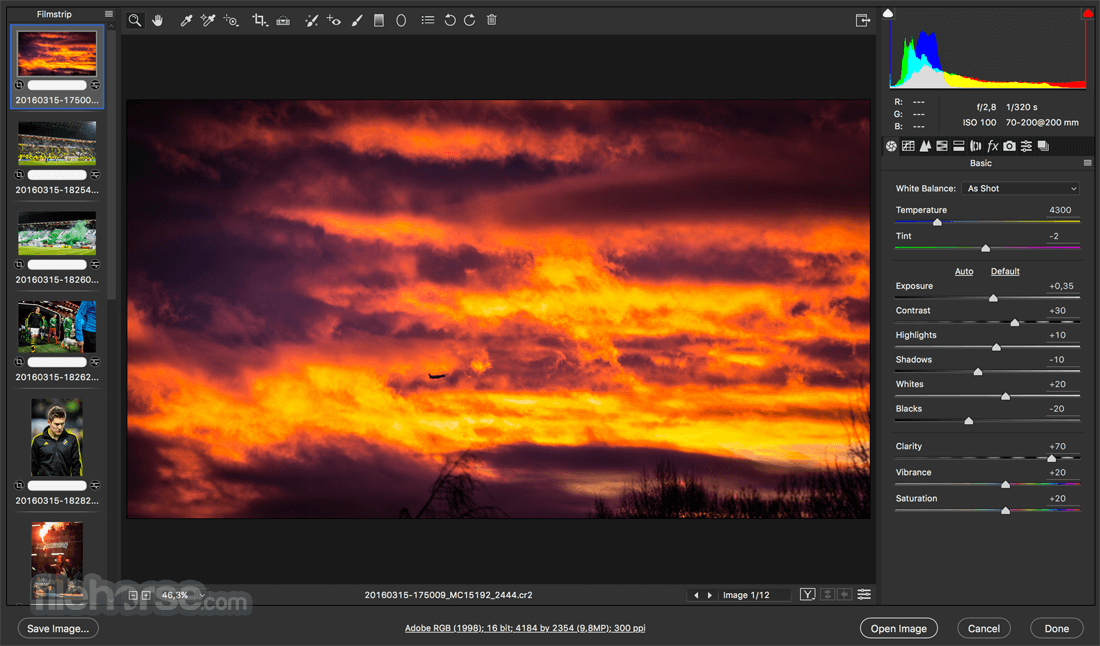
Adobe Camera Raw 18.5 Screenshots
The images below have been resized. Click on them to view the screenshots in full size.
-
What's new in this version:
Remove skin blemishes from photos:
- Eliminate blemishes, spots, moles, and freckles with the AI-powered Blemishes option. Control how prominent each element appears, and then fine-tune individual spots to remove or restore them.
Turn Generative AI features on or off in Camera Raw:
- Choose whether Generative AI features like Generative Expand or Generative Remove are available while editing photos. Modify your preferences if you'd rather work without generative AI features.
Discover the latest Vectorscope display options:
- Customize how you read the Vectorscope so red aligns to a more familiar reference point, and display precise Lab values alongside the scope for exact numeric color readings.
Create rendered DNG files of your photos:
- Save photos as new DNG files with all current edits permanently applied using the Render to DNG option, giving you a non-raw file to build on when you want a clean starting point.
Edit photos from newly supported cameras:
- Find the newly added cameras in the supported camera profile list
Explore support for new lenses:
- Find the newly added lenses in the supported lens profile list
Fixed:
- Manual transformations are constrained to the original image boundaries rather than the enlarged canvas after expanding the photo using the Crop and the Enable Expand options
- C2PA isn't working correctly in the Google Pixel 10
 OperaOpera 134.0 Build 5954.26 (64-bit)
 BlueStacksBlueStacks 10.42.251.1003
 PhotoshopAdobe Photoshop CC 2026 27.9.1 (64-bit)
 LDPlayerLDPlayer - Android Emulator
 GTA 6GTA 6 for PS5
 CapCutCapCut Desktop 9.1.0
 PC RepairPC Repair Tool 2026
 Hero WarsHero Wars - Online Action Game
 TradingViewTradingView - Trusted by 100 Million Traders
 Halo: CampaignHalo: Campaign Evolved
Comments and User Reviews