




 10Web
10Web OnSpace AI
 SQL Server
 Antigravity
 Lovable
 Windsurf
 Replit
 Cursor
-
Latest Version
SQL Server Management Studio 22.9.0 LATEST
-
Review by
-
Operating System
Windows 10 / Windows 11
-
User Rating
Click to vote -
Author / Product
-
Filename
vs_SSMS.exe
Originally introduced to the public as the part of the Microsoft SQL Server 2005, this app enabled professional users to easily manage, administer and configure all components of the Microsoft SQL Server Platform, with access to tools such script editors, graphical tools and everything needed to interact with objects and database features.
The latest version of this app managed to completely integrate itself with all the features and additions that were introduced with the arrival of the SQL Server 2012, enabling users from all around the world to easily manage both their old and new database-related projects of all shapes and sizes.
Microsoft SQL Server Management Studio Express (SSMSE) is an integrated environment for accessing, configuring, managing, administering, and developing all components of the Server.
The software combines a broad group of graphical tools with a number of rich script editors to provide access to SQLServer to developers and administrators of all skill levels.
Developers get a familiar experience, and database administrators get a single comprehensive utility that combines easy-to-use graphical tools with rich scripting capabilities.
Supported SQL offerings
This version of SSMS supports SQL Server 2014 (12.x) and later, with extensive compatibility for cloud features like Azure SQL Database, Azure Synapse Analytics, and Microsoft Fabric.
Key highlights:
Parallel Installations: SSMS 20.x can coexist with earlier versions, including SSMS 19.x, 18.x, 17.x, and 16.x.
Integration Services (SSIS):
- SSMS 17.x and later don't support connections to legacy SQL Server Integration Services services. For earlier versions, use the corresponding SSMS version (e.g., SSMS 16.x for SQL Server 2016 Integration Services).
- Since SQL Server 2012, the recommended method for managing SSIS packages is the SSIS Catalog database (SSISDB).
SSMS might install shared components if it determines they're missing during SSMS installation. SSMS doesn't automatically uninstall these components when you uninstall SSMS.
The shared components are:
- Microsoft OLE DB Driver 18 for SQL Server
- Microsoft ODBC Driver 17 for SQL Server
- Microsoft Visual C++ 2017 Redistributable (x86)
- Microsoft Visual C++ 2017 Redistributable (x64)
- Microsoft Visual Studio Tools for Applications 2019
The current release of SSMS supports the following 64-bit platforms when used with the latest available service pack:
Supported operating systems:
- Windows 11 (x64)
- Windows 10 (x64) version 1607 (10.0.14393) and later versions
- Windows Server 2022 (x64)
- Windows Server Core 2022 (x64)
- Windows Server 2019 (x64)
- Windows Server Core 2019 (x64)
- Windows Server 2016 (x64) 1
- 1 SSMS requires .NET Framework 4.7.2.
1.8 GHz or faster x86 (Intel, AMD) processor. Dual-core or better recommended
2 GB of RAM; 4 GB of RAM recommended (2.5 GB minimum if running on a virtual machine)
Hard disk space: Minimum of 3 GB up to 10 GB of available space
Additional requirements:
- Administrator rights are required to install or update SSMS.
- Running in a virtual machine environment requires a full Windows operating system.
- Windows containers are not supported.
- SSMS is not supported in application virtualization solutions such as Microsoft App-V or MSIX for Windows, or third-party app virtualization technologies.
- Intuitive user interface
- Robust debugging tools
- Excellent query performance tuning
- Advanced reporting features
- Wide integration support
- High system resource usage
- Limited cross-platform compatibility
- Occasional lag with large databases
- Expensive licensing for enterprise
-
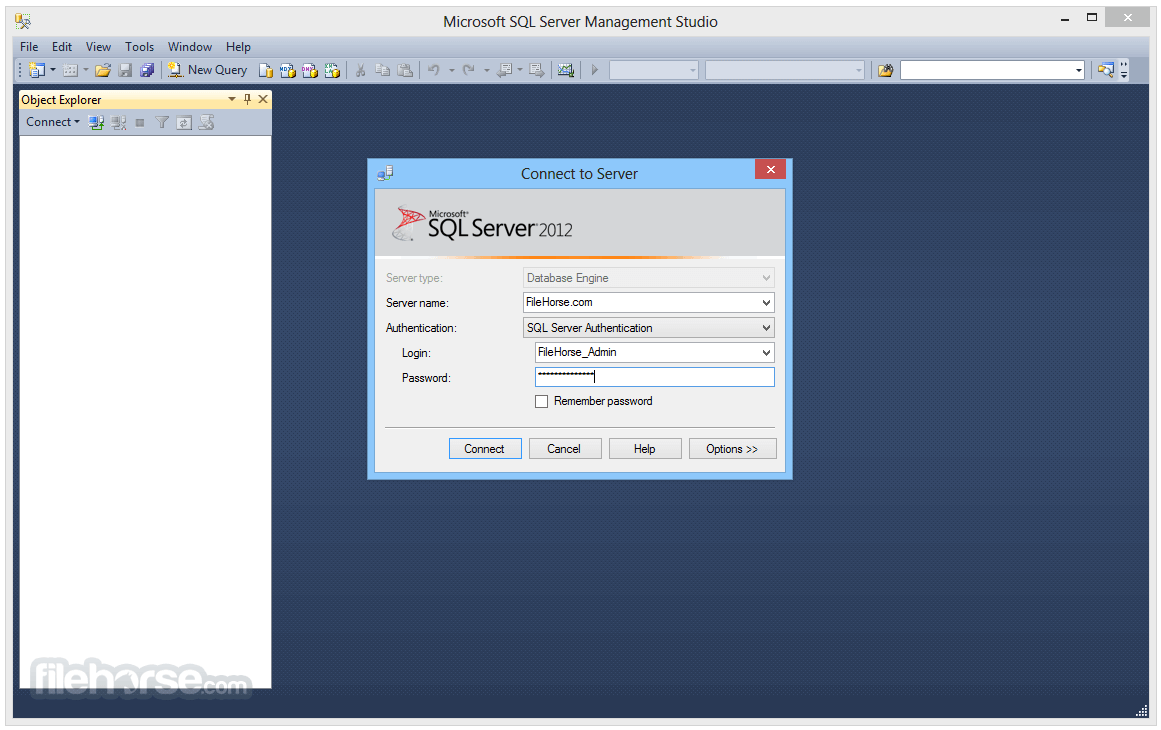
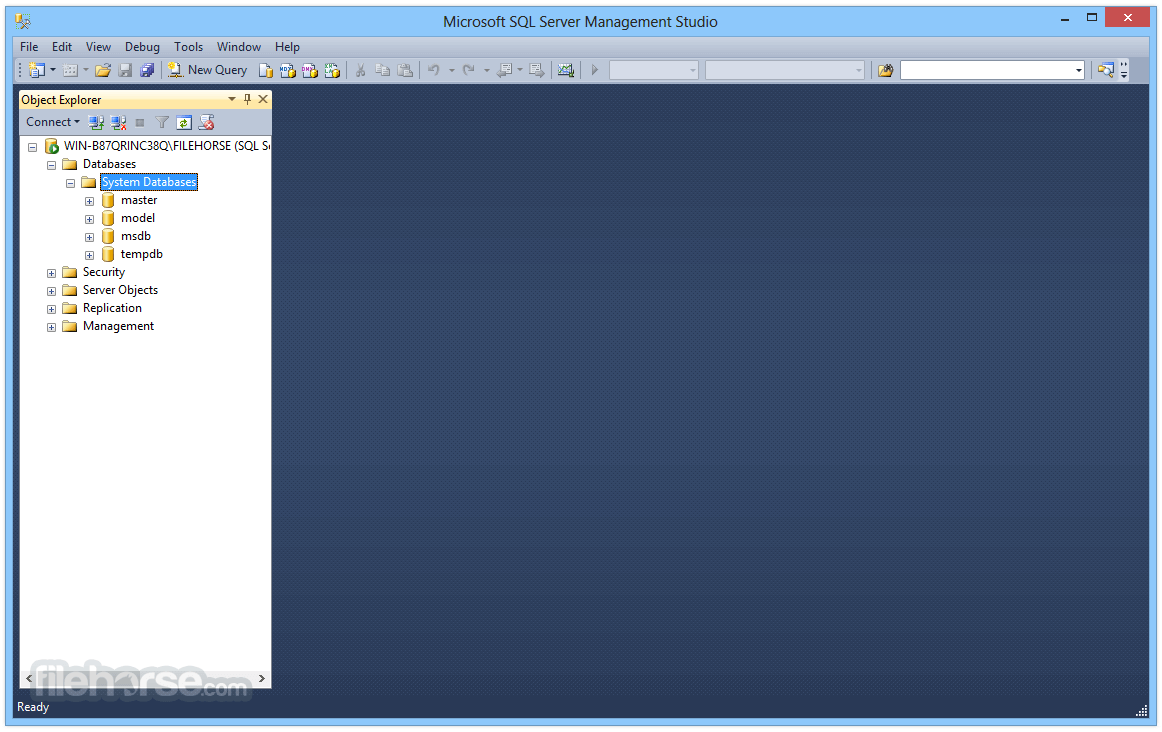
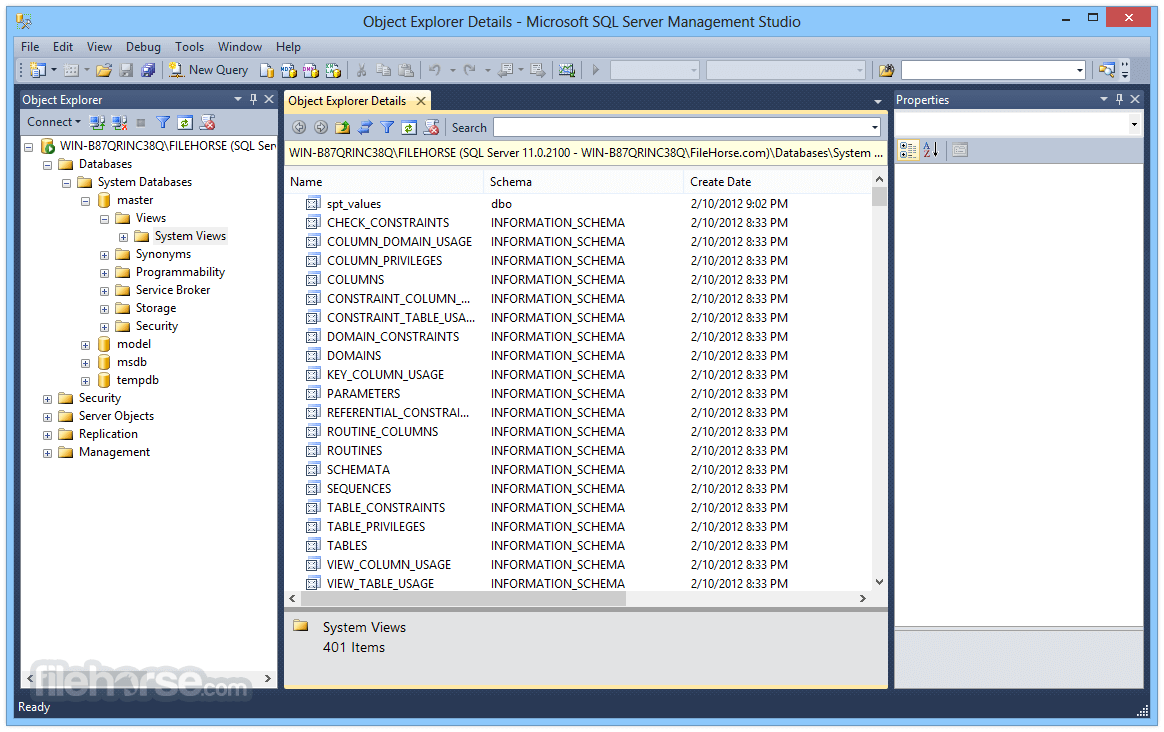
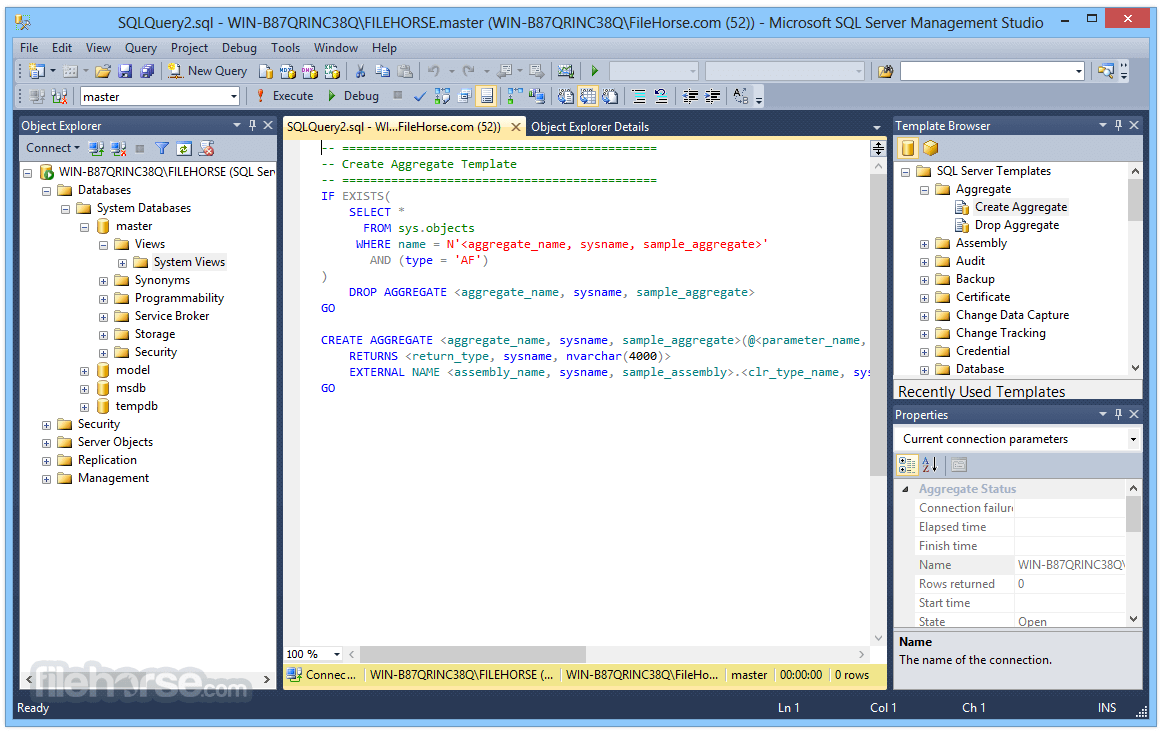
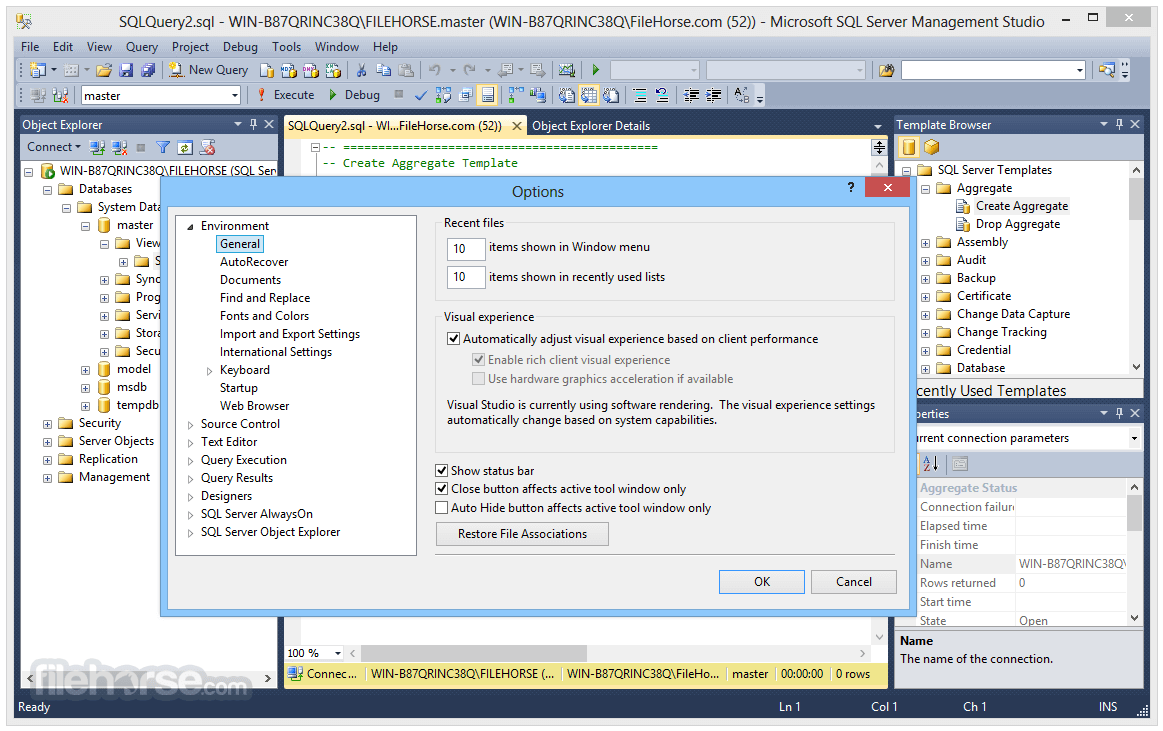
SQL Server Management Studio 22.9.0 Screenshots
The images below have been resized. Click on them to view the screenshots in full size.
-
-
-
-
What's new in this version:
SQL Server Management Studio 22.9.0
New:
- Updated the Create Database dialog for Azure SQL Databases with separate fields for compute and storage selection, removed options that don't apply to Azure SQL Databases, and changed the default tier to Hyperscale Gen5 2 vCore
- Added the hostname in certificate field to the default connection properties view
- Added support for subscription search and filtering when browsing Azure resources and workspaces, and when browsing Fabric resources
- Added horizontal layout support
- Changed the server name field to an editable drop-down menu for improved keyboard accessibility
- Increased the maximum number of recent and favorite connections to 60
- Added support for browsing Managed Instances for Azure
- Added search and filtering support to the Browse tab
- Added support for connection import and export
- Added enhanced support for available SSMS themes
- Improved support for theming in dialogs, including Publish, Generate Script, and Add Database Reference dialogs
- Added more reference types to the Add Database Reference dialog. The dialog now supports four reference types: DACPAC, database project, NuGet package, plus the existing system database
- Updated the SqlProj document tab names to remove the "- not connected" suffix. See Document tab names in SSMS sqlproj are not good
- Added support for schema compare (.scmp) and publish profile (.publish.xml) files in Solution Explorer, including launching Schema Compare and Publish from the associated file type
- Added the TIME_ZONE configuration option
- Added tools that let GitHub Copilot interact with connected objects in Object Explorer
- Updated the behavior of Ask mode and removed the ability to execute arbitrary queries
- Updated the startup settings to remove conflicting options and increase clarity. See Startup configured to open Empty environment still showing Connect windows on startging.
- Added the ability to indent with tabs instead of spaces. See SQL Formatter lacks option to indent with tabs instead of spaces
- Added a setting that configures comma style (trailing or leading). See SQL Formatter lacks configurable option for trailing comma style
- Added a setting that configures column aliases to use the AS keyword, an equals sign, or the original style. See SQL Formatter: add option to preserve column alias style "AS" or "="
- Added settings that control the new line after the JOIN keyword and before the ON keyword. See SQL Formatter forces newline after JOIN and lacks "new line before ON" option
- Added a before-and-after preview to the SQL Formatter settings dialog, which displays example T-SQL with the selected settings. See SQL Formatter settings should preview before/after T-SQL changes
- Removed the Include Semicolons setting
- Updated to Visual Studio 18.9.0 [12105.275]
Fixed:
- Fixed an issue that prevented saving multiple connection strings with different application intent values. See Unable to save 2 connection strings with different application intents using the new connect screen.
- Fixed an issue that generated an initialization error when running Database Tuning Advisor on the Japanese version of SSMS.
- Fixed help links in several error dialogs that generated 404 errors. See SQL Server error 4815 documentation link returns 404 (error message body during CSV import).
- Fixed a stack overflow crash that occurred when mousing over a nested query.
- Fixed an issue that prevented some users from viewing Agent details despite having the proper permissions.
- Fixed an issue that displayed an incorrect value for Stale Threshold when Custom capture mode was initially enabled.
- Fixed an issue that truncated the toolstrip labels in some languages. See Visibility counts completed rows.
- Fixed an issue that did not show comment-only differences immediately before a CREATE VIEW in the diff viewer. See Schema Compare Preview fails to display comment-only differences in front of create views.
- Fixed an issue that caused Schema Compare to show no differences between different database schemas. See Schema compare shows no differences between different database schemas.
- Fixed a bug that ignored comments regardless of the Ignore Comments setting. See Compare Schemas ignores comment differences regardless of Ignore Comments setting.
- Fixed an issue that made SQL stored procedure bodies that differ semantically appear in the diff view as though they were reformatted, even though applying the change preserved the original formatting in the target database. See When comparing stored procedures in Schema Compare, they are reformatted.
- Fixed an issue that incorrectly highlighted whitespace differences in the Schema Compare diff viewer. See Schema Compare incorrectly flags differences in whitespace in table comparison which is due to how SSMS formats the CREATE TABLE script.
- Fixed a potential security issue when replaying traces that invoke stored procedures with table-valued parameters via RPC.
- Addressed vulnerabilities CVE-2025-70873, CVE-2026-11822, and CVE-2026-11824. See SSMS SQLite library needs updating.
- Fixed an issue that required users to have EXECUTE permission on xp_instance_regread to view or run SQL Server Agent jobs. See SQL Agent blocks AD groups from viewing jobs without xp_instance_regread access.
- Fixed an issue that merged CONSTRAINT lines into the preceding commented line. See SQL Formatter merges CONSTRAINT line into preceding -- comment.
- Fixed an issue that caused the SSMS theme to revert to Cool Breeze after restarting. See SSMS theme setting reverts from Dark to Cool Breeze after restart.
- Fixed an issue that caused several toolbar icons to disappear. See SSMS toolbar icons missing for query controls and execution plan buttons.
SQL Server Management Studio 22.8.2
- Updated to Visual Studio 18.8.2 [12023.21]
SQL Server Management Studio 22.8.1
- Updated to Visual Studio 18.8.0 [12016.197].
SQL Server Management Studio 22.8.0
- Added SQL projects system database package references (master, msdb) to Solution Explorer
- Added the Auto Index Compaction option to the Database Properties and New Database dialogs
- Added several skills, including: statistics assessments, geo DR, wait category analysis, slow query investigation, IO pressure, active connections, resource usage, and memory issues
- Updated MSOLEDBSQL MSI to 19.4.2
- Updated the Save Results Grid behavior to default to the last file type used
- Added a label to the schema compare results Group By button, displaying "Action", "Schema", or "Type"
- Updated to Visual Studio 18.8.0 [12009.203]
Fixed:
- Fixed an issue that caused parts of a branched query to be omitted when Edit Query Text selected. See SSMS's Edit Query Text doesn't show contents of all IF branches in a query
- Fixed several bugs that generated various error messages, including ISharedTelemetryNull, ProxyTimeoutOnly, TokenManagerProxy and ICopilotInteractionServiceNull
- Fixed an issue with the SQL Server Import/Export Wizard that generated an error when the data source was Microsoft OLE DB Driver 19 for SQL Server
- Fixed the Czech translation for Select Top and Edit Top N Rows. See Czech translation is horrible AI translation in SSMS 22
- Fixed an issue that caused the Migration Assessment wizard to crash. See Migration assessment fails with same error across multiple machines
- Fixed a bug that caused various rendering issues when scrolling the Object Explorer details window after a refresh. See Object Explorer Details pane eventually goes blank
- Restored syntax coloring in the diff viewer
- Fixed a bug that caused invalid syntax in scripts that had leading commas. See SQL Formatter reformats leading commas to invalid SQL
- Fixed an error that combined block comments with adjacent single line comments. See SQL Formatter merges block comment into - comment, causing Msg 102
- Fixed an issue where the entire editor was eligible for formatting when in SQLCMD mode. Scripts containing SQLCMD syntax can be formatted with non-SQLCMD syntax highlighted. See SSMS SQL formatter fails to parse scripts with SQLCMD Mode commands
- Fixed an issue that caused the query shortcuts menu in Tools > Options > Keyboard > Query Shortcuts to be disabled. See Query Shortcuts menu is disabled and cannot add new shortcuts
- Fixed a regression that caused renamed query tabs to revert to their default tab name after executing a query. See SSMS query tab execution resets renamed tab title to original name
- Fixed an unhandled exception error that was thrown when opening the Database Engine group
SQL Server Management Studio 22.7.2
GitHub Copilot:
- Fixed an HTTP 401 request error that occurred when the access token became stale
GitHub Copilot in SSMS:
- Fixed an issue where GitHub Copilot fails to open with a RemoteInvocationException error. See Copilot window fails to open in SSMS with StreamJsonRpc.RemoteInvocationException
GitHub Copilot in SSMS Agent Mode (preview):
- Fixed an issue where the Syntax Validation Tool could incorrectly execute a query
Visual Studio:
- Updated to Visual Studio 18.7.2
SQL Server Management Studio 22.7.1
Query editor:
- Fixed an issue where the large scripts would cause the query editor to consume excessive memory, causing hangs and other performance issues
SQL Server Management Studio 22.7.0
Authentication:
- Added support for creating a Windows account on Azure SQL Managed Instance
Database DevOps workload:
- Added a target database (platform) selection to the new SQL project dialog
- Added a Create project from database action to the Solution node context menu in Solution Explorer
- Added SQLCMD variable support to the Publish dialog
- Updated the SQL project Properties editor UI to align with the Visual Studio Property Page editor
GitHub Copilot in SSMS Agent Mode (preview):
- Agent Mode for GitHub Copilot in SSMS is now available in preview
- Introduced separate execution context for GitHub Copilot using the database CONSTITUTION.md. For more information, see Execution context for GitHub Copilot in SQL Server Management Studio.
Libraries:
- Updated Microsoft.Data.SqlClient to 6.1.5
Query editor:
- Added SQL formatting (preview)
Schema compare:
- Added schema comparison (preview) for databases, .dacpac files, and SQL projects
Visual Studio:
- Updated to Visual Studio 18.7.0 [11903.348]
SQL Server Management Studio 22.6.0
Feature:
- Added Create new SQL project from existing databases to Object Explorer context menu
- Updated MSODBCSQL to 18.6.2.1
- Migrated Transact-SQL IntelliSense and Keyboard Query shortcuts settings from the Tools > Options dialog to the new Unified Settings tab experience
- Added the right-click menu option Change Column Width in the Show Criteria pane for adjusting an individual column's width
- Added a Cancel button that allows you to cancel a multi-server connection attempt
- Added the column data type to the tooltip when hovering over a column in the results grid
- Updated Storage Browser, DACPAC import/export, and Merge Audit File dialogs to support Entra-based authentication instead of shared key access
- Updated to Visual Studio 18.6.0 [11806.211]
Fixed:
- Fixed a bug in the New Availability Group wizard that caused the Specify cluster connection options menu item to display in the incorrect order when using SQL Server 2025 (17.x)
- Fixed an issue where the password field was shown in plain text when viewing a connection string
- Fixed an issue where the connection dialog appeared when opening a .sql file, despite no need for database connection when offline project editing
- Fixed a crash that occurred when using GitHub Copilot Edit
- Removed GPT-5* models for Ask Mode
- Fixed the Portuguese translation for the Save changes dialog
- Added dark theme support to the Migration Landing Page
- Fixed the exception Object reference not set to an instance of an object when deleting multiple items in Object Explorer
- Fixed an issue that would sometimes cause newly created objects to not show up in Object Explorer until the connection was disconnected and reconnected
- Fixed the error Insufficient memory to continue the execution of the program when the Physical file view in Solution Explorer preview feature is enabled
- Fixed an issue where editor tooltips became unreadable when the theme is dark and the editor appearance is light
- Fixed an issue where the scroll bar blocked the ability to select items in the grid that displays the explored query hints
- Fixed an issue that generated the error Only owner of a job schedule or members of sysadmin role can modify or delete the job schedule when trying to toggle the Enabled checkbox on an existing job schedule
SQL Server Management Studio 22.5.2
- Disabled code completions by default. To enable code completions, go to Tools > Options > Text Editor > Inline Suggestions > General and select Copilot completions (single and multi-line completions from Copilot), or Select all to enable both code completions options. If you previously modified a code completion option, code completions aren't disabled when updating to 22.5.2.
- Updated to Visual Studio 18.5.2 [11723.231]
Fixed:
- Fixed an issue where non-build items were excluded from Solution Explorer instead of being displayed as miscellaneous files in the project
- Fixed an issue where the SQL projects Generate Script button in the Publish dialog incorrectly triggered a publish action in the background
- Fixed an issue where GitHub Copilot slash commands were no longer available in the chat window
SQL Server Management Studio 22.5.0
New:
- Added 74 new item templates for SQL projects, covering a programmability, security, storage, tables, and views
- Added importing objects from an existing database into a SQL project
- Added the Advanced Publish Settings dialog (publish properties) to the Publish Database dialog
- Added support for custom endpoint entry in Tools > Options > Environment > Account > Registered Azure Clouds
- Addressed exception Object reference not set to an instance of an object that occurred when opening the Extended Events filter, see Exception occurs on the Extended Events filter
- Addressed an issue where the monthly limit for the chat had the incorrect date, see SSMS 22.1 GitHub Copilot Chat monthly limit message contradiction (GHCP).
- Addressed an issue where Solution Explorer became blank after opening a file, see Solution Explorer is blank when opening solution from git repo..
Improved:
- Updated the connection dialog to clear the custom name when either the server name, authentication type, username or database name fields change
- Updated the SQL database project icon to use a fluent design
- Improved context handling to only send contents of the active editor for code completions
- Introduced support for interacting with the results pane from the chat window, including execution plan, messages, client statistics, and the results grid
- Introduced the Migrate SQL Server to Azure SQL capability that enables offline migration readiness assessment and supports migration of SQL Server workloads to Azure using existing SSMS wizards or the Azure Database Migration Service. For Azure Arc-managed SQL Server instances, users can view migration readiness assessments and perform migrations through the Azure portal.
- For security issues addressed in this release, see the Visual Studio release notes
- Updated to Visual Studio 18.5.0 [11707.296]
- Solution Explorer now opens automatically when a database project is created
- Model selection now persists after clearing chat or starting a new thread, see GitHub Copilot Chat always selects Claude instead of last used Model (GHCP).
Fixed:
- Resolved an issue where the Execution time-out (seconds) setting, in Tools > Options > Query Execution > Analysis Server, was not respected in the query editor
- Resolved an issue where DTA didn't start with error Failed to open a new connection
- Resolved an application hang that occurred during a rename operation
- Resolved an issue where Object Explorer menus weren't localized, see 22.4.1 The language of the Object Explorer does not match the language of the regional settings..
- Fixed improperly truncated error messages during publish failures
- Fixed the generate script dialog appearing frozen during the process
- Fixed an issue where Ctrl+R didn't open the Filter dialog in the Extended Events viewer, see SSMS22: Ctrl+R does not work for Extended Events
- Fixed a stack overflow crash in Microsoft.SqlServer.Management.SqlParser.dll
- Fixed an issue where chat messages weren't showing even though the chat title was displayed, see GitHub Copilot Chat messages not showing in SSMS 22 even though chat title shows.
- Fixed a typo within the Portuguese (Brazil) connection dialog, see Typo in Portuguese (Brazil) localization: "Ravoritas" instead of "Favoritas".
- Fixed a localization issue where the job schedule frequency dialog was obscured
 OperaOpera 134.0 Build 5954.56 (64-bit)
 BlueStacksBlueStacks 10.42.255.1002
 PhotoshopAdobe Photoshop CC 2026 27.9.1 (64-bit)
 LDPlayerLDPlayer - Android Emulator
 GTA 6GTA 6 for PS5
 CapCutCapCut Desktop 9.1.0
 PC RepairPC Repair Tool 2026
 Hero WarsHero Wars - Online Action Game
 TradingViewTradingView - Trusted by 100 Million Traders
 Halo: CampaignHalo: Campaign Evolved
Comments and User Reviews