




 10Web
10Web Replit
 Cursor
 Windsurf
 SQL Server
 Lovable
 OnSpace AI
 Antigravity
-
Latest Version
VirtualBox 7.2.12 Build 174389 LATEST
-
Review by
-
Operating System
Windows 7 / Windows 8 / Windows 10 / Windows 11
-
User Rating
Click to vote -
Author / Product
-
Filename
VirtualBox-7.2.12-174389-Win.exe
VirtualBox is a free and open-source virtualization software developed by Oracle. It allows users to run multiple operating systems simultaneously on a single physical machine.
This cross-platform software can be installed on Windows, macOS, Linux, and Solaris hosts, and it supports a wide range of guest operating systems, including Windows, Linux, and older versions of macOS.
Oracle VM VirtualBox is particularly popular among developers, testers, and IT professionals who need to create and manage virtual machines (VMs) for testing software, simulating different environments, or securely isolating workspaces.
It allows users to run nearly any operating system on a single machine and to freely switch between OS instances running simultaneously.
This program is a versatile virtualization software designed for x86_64 hardware, supporting a wide range of devices including laptops, desktops, servers, and embedded systems. Version 7.1 also extends compatibility to macOS/Arm architecture.
Not only is Virtual Box an extremely feature-rich, high-performance product for enterprise customers, it is also the only professional solution that is freely available as Open Source Software. Run macOS on Windows for Free with VirtualBox today!

Key Features
VirtualBox’s user interface is straightforward and user-friendly. The main window displays a list of available virtual machines, along with their status and configurations.

A sidebar provides quick access to key functions such as creating, starting, and deleting VMs. The settings menu for each VM is highly detailed, allowing users to customize everything from the amount of allocated RAM and CPU cores to network adapters and storage options.
The interface is designed to be intuitive even for beginners, with clear labels and tooltips explaining each option. The virtual machine console window provides a real-time display of the guest OS, and users can easily interact with it using the mouse and keyboard.
Installation and Setup
Download and Installation: It can be downloaded from the official Oracle website or FileHorse. The installation process is straightforward and requires minimal input from the user. During installation, the software will prompt for the installation of additional components, such as network adapters, which are essential for certain features like Bridged Networking.
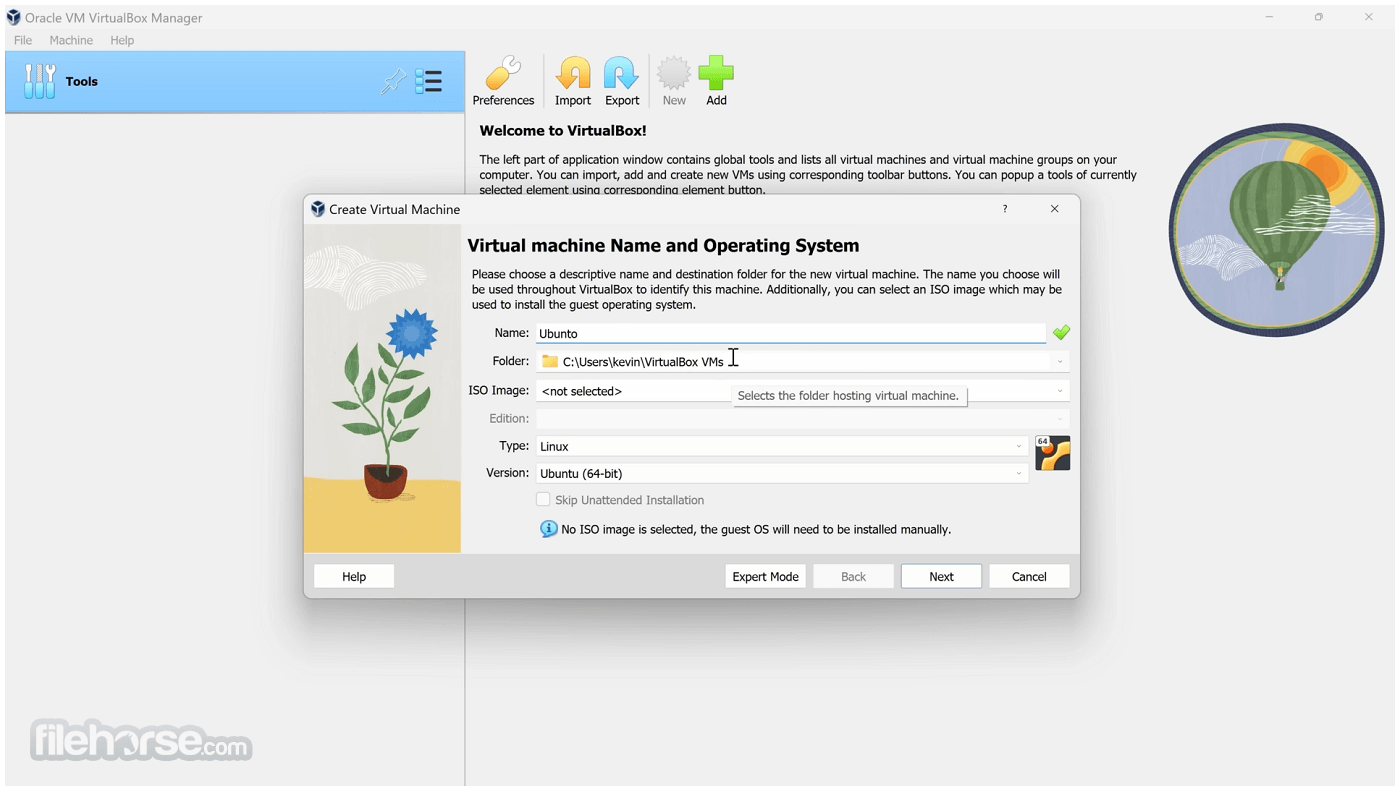
Creating a Virtual Machine: After installation, creating a virtual machine is simple. The “New” button guides users through a wizard where they can select the guest OS type, allocate resources such as memory and storage, and configure initial settings.
Installing a Guest OS: Once the VM is created, users need to install the guest OS. This can be done using an ISO file or a bootable USB drive. It provides an easy-to-follow interface for attaching the installation media and starting the installation process.
Guest Additions: To enhance the functionality of the VM, installing Guest Additions is recommended. This package includes drivers and system applications that improve the integration between the host and guest, such as better video performance, shared folders, and clipboard synchronization.

How to Use
Launching a Virtual Machine: Start this program and select the desired VM from the list. Click the “Start” button to launch it. The VM will boot as if it were a physical machine, and users can interact with the guest OS using their keyboard and mouse.
Configuring Settings: Right-click on a VM and select “Settings” to modify configurations such as memory, storage, and network settings. Changes can be made while the VM is powered off.
Using Snapshots: To take a snapshot, select the VM, go to the “Snapshots” tab, and click the “Take” button. This allows users to save the current state of the VM, which can be restored at any time.
Shared Folders: To set up shared folders, go to the VM’s settings, navigate to the “Shared Folders” section, and add the desired host directory. This feature makes it easy to share files between the host and guest systems.
Networking: It offers various networking modes such as NAT, Bridged, and Host-Only. Configure the network settings based on your requirements, whether it’s for internet access or communication between multiple VMs.
FAQ
Can I run macOS as a guest OS on VirtualBox?
While technically possible, running macOS on VirtualBox is not officially supported and may require additional configurations and adjustments. Legal restrictions also apply based on Apple’s licensing terms.
How can I increase the performance of my virtual machine?
Allocate more system resources (CPU, RAM) to the VM, enable 3D acceleration, and install Guest Additions to improve performance.
What is the maximum number of virtual machines I can run simultaneously?
This depends on the host system’s hardware capabilities, particularly CPU and RAM. VirtualBox itself does not impose a strict limit.
Can I transfer files between the host and guest OS?
Yes, through shared folders and clipboard sharing. You can also use network shares if properly configured.
How do I revert a VM to a previous state?
Use the snapshot feature. Select the desired snapshot from the “Snapshots” tab and click the “Restore” button.
Alternatives
This software is FREE for personal use under the GNU General Public License (GPL) and also offers an extension pack with additional features, such as USB 2.0/3.0 support and Remote Desktop Protocol (RDP) functionality.
The extension pack is free for personal use but requires a license for enterprise deployments.
System Requirements
VirtualBox is a versatile and powerful virtualization solution suitable for both beginners and advanced users. Its rich feature set, cross-platform support, and open-source nature make it an ideal choice for those looking to run multiple operating systems on a single machine.
While it may require some manual configuration for advanced use cases, the benefits it offers in terms of flexibility and cost-efficiency are hard to beat.
Note: To extend VirtualBox capabilities it's recommended to download and install VirtualBox Extension Pack.
Also Available: Download VirtualBox for Mac
This cross-platform software can be installed on Windows, macOS, Linux, and Solaris hosts, and it supports a wide range of guest operating systems, including Windows, Linux, and older versions of macOS.
Oracle VM VirtualBox is particularly popular among developers, testers, and IT professionals who need to create and manage virtual machines (VMs) for testing software, simulating different environments, or securely isolating workspaces.
It allows users to run nearly any operating system on a single machine and to freely switch between OS instances running simultaneously.
This program is a versatile virtualization software designed for x86_64 hardware, supporting a wide range of devices including laptops, desktops, servers, and embedded systems. Version 7.1 also extends compatibility to macOS/Arm architecture.
Not only is Virtual Box an extremely feature-rich, high-performance product for enterprise customers, it is also the only professional solution that is freely available as Open Source Software. Run macOS on Windows for Free with VirtualBox today!
Key Features
- Cross-Platform Support: It supports a variety of host and guest operating systems, making it a versatile tool for users across different platforms.
- Snapshots: Users can take snapshots of a VM's current state, allowing them to revert to a previous configuration without losing data.
- Virtual Networking: It provides a range of networking options, including NAT, Bridged Networking, and Internal Networking, enabling various virtual machine connectivity configurations.
- Seamless Mode: This feature allows users to integrate guest applications with the host desktop, making them appear as if they were running natively.
- Shared Folders and Clipboard: It supports shared folders and clipboard functionality, making it easier to transfer files and text between the host and guest systems.
- USB Device Support: Users can connect USB devices to the virtual machine, enabling direct interaction with peripherals like flash drives, printers, and scanners.
- Command-Line Interface: Advanced users can leverage the CLI for scripting and automation, making it easier to manage multiple VMs.
- 3D Graphics Support: The app provides 3D graphics acceleration, which is particularly useful for running applications that require hardware graphics support.
VirtualBox’s user interface is straightforward and user-friendly. The main window displays a list of available virtual machines, along with their status and configurations.
A sidebar provides quick access to key functions such as creating, starting, and deleting VMs. The settings menu for each VM is highly detailed, allowing users to customize everything from the amount of allocated RAM and CPU cores to network adapters and storage options.
The interface is designed to be intuitive even for beginners, with clear labels and tooltips explaining each option. The virtual machine console window provides a real-time display of the guest OS, and users can easily interact with it using the mouse and keyboard.
Installation and Setup
Download and Installation: It can be downloaded from the official Oracle website or FileHorse. The installation process is straightforward and requires minimal input from the user. During installation, the software will prompt for the installation of additional components, such as network adapters, which are essential for certain features like Bridged Networking.
Creating a Virtual Machine: After installation, creating a virtual machine is simple. The “New” button guides users through a wizard where they can select the guest OS type, allocate resources such as memory and storage, and configure initial settings.
Installing a Guest OS: Once the VM is created, users need to install the guest OS. This can be done using an ISO file or a bootable USB drive. It provides an easy-to-follow interface for attaching the installation media and starting the installation process.
Guest Additions: To enhance the functionality of the VM, installing Guest Additions is recommended. This package includes drivers and system applications that improve the integration between the host and guest, such as better video performance, shared folders, and clipboard synchronization.
How to Use
Launching a Virtual Machine: Start this program and select the desired VM from the list. Click the “Start” button to launch it. The VM will boot as if it were a physical machine, and users can interact with the guest OS using their keyboard and mouse.
Configuring Settings: Right-click on a VM and select “Settings” to modify configurations such as memory, storage, and network settings. Changes can be made while the VM is powered off.
Using Snapshots: To take a snapshot, select the VM, go to the “Snapshots” tab, and click the “Take” button. This allows users to save the current state of the VM, which can be restored at any time.
Shared Folders: To set up shared folders, go to the VM’s settings, navigate to the “Shared Folders” section, and add the desired host directory. This feature makes it easy to share files between the host and guest systems.
Networking: It offers various networking modes such as NAT, Bridged, and Host-Only. Configure the network settings based on your requirements, whether it’s for internet access or communication between multiple VMs.
FAQ
Can I run macOS as a guest OS on VirtualBox?
While technically possible, running macOS on VirtualBox is not officially supported and may require additional configurations and adjustments. Legal restrictions also apply based on Apple’s licensing terms.
How can I increase the performance of my virtual machine?
Allocate more system resources (CPU, RAM) to the VM, enable 3D acceleration, and install Guest Additions to improve performance.
What is the maximum number of virtual machines I can run simultaneously?
This depends on the host system’s hardware capabilities, particularly CPU and RAM. VirtualBox itself does not impose a strict limit.
Can I transfer files between the host and guest OS?
Yes, through shared folders and clipboard sharing. You can also use network shares if properly configured.
How do I revert a VM to a previous state?
Use the snapshot feature. Select the desired snapshot from the “Snapshots” tab and click the “Restore” button.
Alternatives
- VMware Workstation Player
- VMware Workstation Pro
- Parallels Desktop for ChromeOS
- Windows Virtual PC
- Docker
- Citrix Workspace App
This software is FREE for personal use under the GNU General Public License (GPL) and also offers an extension pack with additional features, such as USB 2.0/3.0 support and Remote Desktop Protocol (RDP) functionality.
The extension pack is free for personal use but requires a license for enterprise deployments.
System Requirements
- Host OS: Windows 11/10, macOS, Linux, Solaris
- CPU: Intel or AMD x86 processor
- RAM: Minimum 512 MB, but 2 GB or more is recommended for better performance
- Storage: At least 500 MB for the application, plus additional space for VMs
- Free and open-source
- Cross-platform support
- Rich feature set including snapshots, shared folders, and seamless mode
- Supports a wide range of guest operating systems
- Slightly lower performance compared to some commercial alternatives
- Advanced features require manual configuration
VirtualBox is a versatile and powerful virtualization solution suitable for both beginners and advanced users. Its rich feature set, cross-platform support, and open-source nature make it an ideal choice for those looking to run multiple operating systems on a single machine.
While it may require some manual configuration for advanced use cases, the benefits it offers in terms of flexibility and cost-efficiency are hard to beat.
Note: To extend VirtualBox capabilities it's recommended to download and install VirtualBox Extension Pack.
Also Available: Download VirtualBox for Mac
Why is this app published on FileHorse? (More info)
-
VirtualBox 7.2.12 Build 174389 Screenshots
The images below have been resized. Click on them to view the screenshots in full size.
-
-
-
-

What's new in this version:
- Windows Guest: Added DX11 performance improvements and fixes
 OperaOpera 133.0 Build 5932.34 (64-bit)
 LDPlayerLDPlayer - Android Emulator
 PhotoshopAdobe Photoshop CC 2026 27.7 (64-bit)
 BlueStacks AIBlueStacks AI
 GTA 6GTA 6 for PS5
 CapCutCapCut Desktop 8.7.0
 PC RepairPC Repair Tool 2026
 Hero WarsHero Wars - Online Action Game
 TradingViewTradingView - Trusted by 100 Million Traders
 Forza HorizonForza Horizon 6
Comments and User Reviews