




 OnSpace AI
 Windsurf
 Instapage
 Replit
 SQL Server
 Cursor
 10Web
10Web Antigravity
-
Latest Version
Eclipse SDK 4.40 LATEST
-
Review by
-
Operating System
Windows 7 64 / Windows 8 64 / Windows 10 64 / Windows 11
-
User Rating
Click to vote -
Author / Product
-
Filename
eclipse-SDK-4.40-win32-win32-x86_64.zip
By collaborating and exploiting core integration technology, tool producers can leverage platform reuse and concentrate on core competencies to create new development technology.
The Eclipse Platform is written in the Java language and comes with extensive plug-in construction toolkits and examples. These projects can be conceptually organized into seven different "pillars" or categories:
- Enterprise Development
- Embedded and Device Development
- Rich Client Platform
- Rich Internet Applications
- Application Frameworks
- Application Lifecycle Management (ALM)
- Service-Oriented Architecture (SOA)
It is renowned for its flexibility and robustness, making it one of the most popular choices among developers worldwide. It offers a rich set of tools and features that streamline the development process, from writing and debugging code to managing projects and collaborating with teammates.
Subprojects
Platform
The Platform defines the set of frameworks and common services that collectively make up "integration-ware" required to support the use of Eclipse as a component model, as a rich client platform (RCP) and as a comprehensive tool integration platform.
These services and frameworks include a standard workbench user interface model and portable native widget toolkit, a project model for managing resources, automatic resource delta management for incremental compilers and builders, language-independent debug infrastructure, and infrastructure for distributed multi-user versioned resource management.
JDT - Java development tools
The JDT provides the tool plug-ins for the platform that implement a Java IDE for power-users, that supports the development of any Java application, including plug-ins.
The JDT adds the notion of Java projects and a Java perspective to the platform, as well as a number of views, editors, wizards, builders, and code merging and refactoring tools.
The JDT allows Eclipse to be a development environment for itself. The JDT plug-ins themselves can also be further extended by other tool builders.
PDE - Plug-in development environment
The PDE project provides a number of views and editors that make it easier to build plug-ins for Eclipse SDK for Windows 11/10.
Using the PDE, you can create your plug-in manifest file (plugin.xml), specify your plug-in runtime and other required plug-ins, define extension points, including their specific markup, associate XML Schema files with the extension point markup so extensions can be validated, create extensions on other plug-in extension points, etc. The PDE makes integrating plug-ins easy and fun.
e4 - The next generation of the platform
The e4 project is an incubator for developing the next generation of the platform. The mission of the e4 project is to build a next-generation platform for pervasive, component-based applications, and tools.
Main Features
Rich Plugin Ecosystem: It boasts a vast ecosystem of plugins that extend its functionality. These plugins cater to various programming languages and frameworks, enabling developers to customize their IDE according to their specific needs.
Code Assistance: Eclipse provides comprehensive code assistance features, including code completion, code templates, and real-time error checking. This helps developers write cleaner and more efficient code.
Debugging Tools: Eclipse offers robust debugging tools, including a built-in debugger, breakpoints, and watchpoints. Debugging is made easy with features like step-through debugging and variable inspection.
Integrated Development Environment: Eclipse is not limited to just coding. It offers integrated tools for project management, version control, and collaboration, making it a one-stop solution for developers.
Extensive Language Support: While primarily known for Java development, Eclipse supports other languages like C/C++, Python, PHP, and more through plugins.
User Interface Customization: Eclipse allows users to customize the user interface to suit their preferences, ensuring a comfortable and productive coding experience.
Version Control Integration: It seamlessly integrates with popular version control systems like Git, SVN, and CVS, simplifying team collaboration and source code management.
Cross-Platform: This SDK is cross-platform, making it compatible with Windows, macOS, and Linux, ensuring that developers can work on their preferred operating system.
Installation and Setup
- Visit the official Eclipse website.
- Download the Eclipse IDE package that suits your development needs (Eclipse IDE for Java Developers is a common choice for Java developers).
- Extract the downloaded archive to your preferred directory.
- Launch Eclipse by running the executable file in the extracted folder.
- Upon the first launch, Eclipse will prompt you to select a workspace directory where your projects and settings will be stored. After this setup, you're ready to start coding.
Creating a New Project: To start a new Java project, navigate to "File" > "New" > "Java Project." Enter a project name and choose your preferred settings.
Writing Code: Eclipse provides a code editor with syntax highlighting and auto-completion. Begin writing your Java code within the source files of your project.
Building and Running: To compile and run your Java program, click the "Run" button or use the keyboard shortcut (usually F11). Eclipse will build your code and display the output in the console.
Debugging: For debugging, set breakpoints by clicking on the margin next to your code lines. Then, start debugging (usually F5) to step through your code and inspect variables.
Version Control: If you're working with a team, integrate Eclipse with a version control system like Git to collaborate seamlessly.
FAQ
Is Eclipse SDK for PC FREE to use?
Yes, Eclipse SDK is open-source and available for free, making it an excellent choice for developers on a budget.
Can I use Eclipse for languages other than Java?
Absolutely! It supports various programming languages through plugins. You can extend its functionality to match your development needs.
What are some popular plugins for Eclipse?
Some popular plugins include Eclipse Web Tools Platform (WTP) for web development, Eclipse Data Tools Platform (DTP) for database development, and Eclipse Marketplace for discovering additional plugins.
How can I improve Eclipse's performance?
You can enhance Eclipse's performance by adjusting its memory allocation. Edit the eclipse.ini file to allocate more memory based on your system's capabilities.
Does Eclipse have a dark mode?
Yes, it supports dark themes. You can enable them by going to "Window" > "Preferences" > "General" > "Appearance" and selecting a dark theme.
Alternatives
NetBeans: Another open-source IDE, NetBeans offers support for multiple languages and a user-friendly interface.
Visual Studio Code: If you prefer a lightweight and highly customizable IDE, Visual Studio Code is an excellent choice, with extensive support for various programming languages.
Android Studio: Tailored for Android app development, Android Studio provides a specialized environment for building Android applications.
Pricing
Eclipse SDK for PC is open-source and completely FREE to use. You can download and use it without any licensing fees.
System Requirements
- Operating Systems: Windows 11/10/8/7
- Memory: 2 GB RAM (4 GB recommended)
- Disk Space: 300 MB of free disk space
- Java Runtime: Java Development Kit (JDK) 8 or later
- Open-source and free
- Extensive plugin ecosystem
- Cross-platform support
- Excellent code assistance and debugging tools
- Integrated version control
- Steeper learning curve for beginners
- Resource-intensive with large projects
- Initial setup may require some configuration
It remains a top choice for Java developers due to its rich feature set, extensibility through plugins, and robust debugging capabilities. While it may have a learning curve, the investment pays off with increased productivity and code quality.
Its open-source nature and strong community support make it an ideal choice for both beginners and experienced developers. If you're serious about Java development and looking for a versatile and powerful IDE, Eclipse SDK for PC is a worthy contender.
Note: Requires Java Runtime Environment.
Also Available: Eclipse for Mac
-
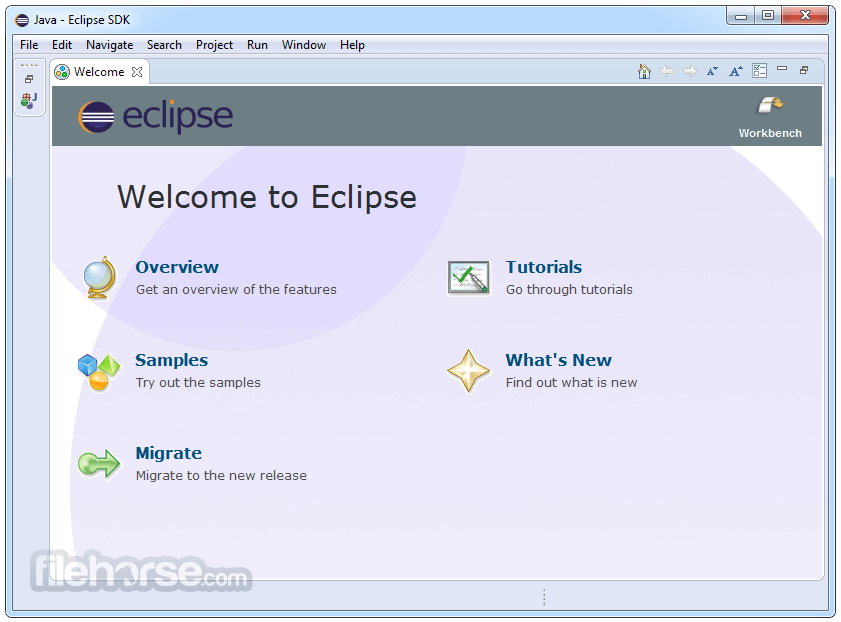
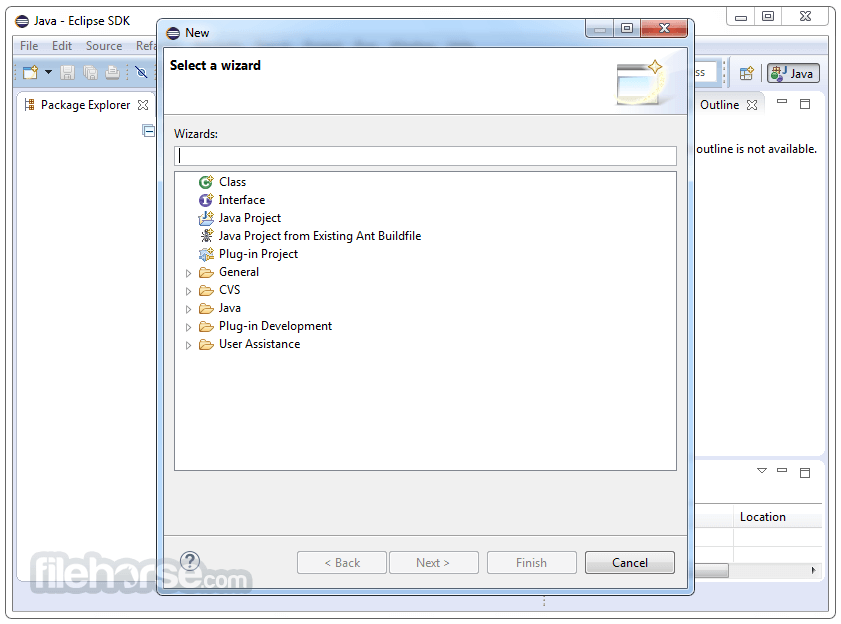
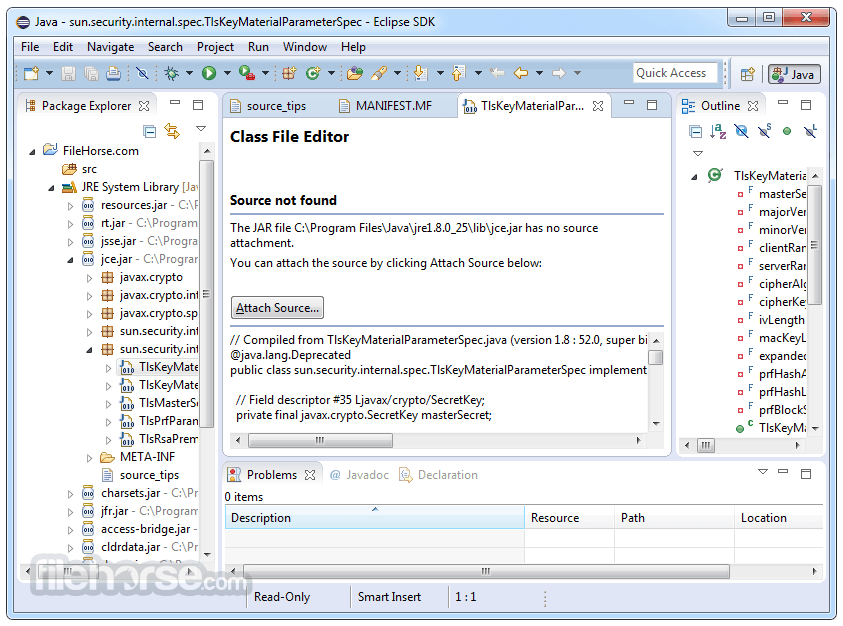
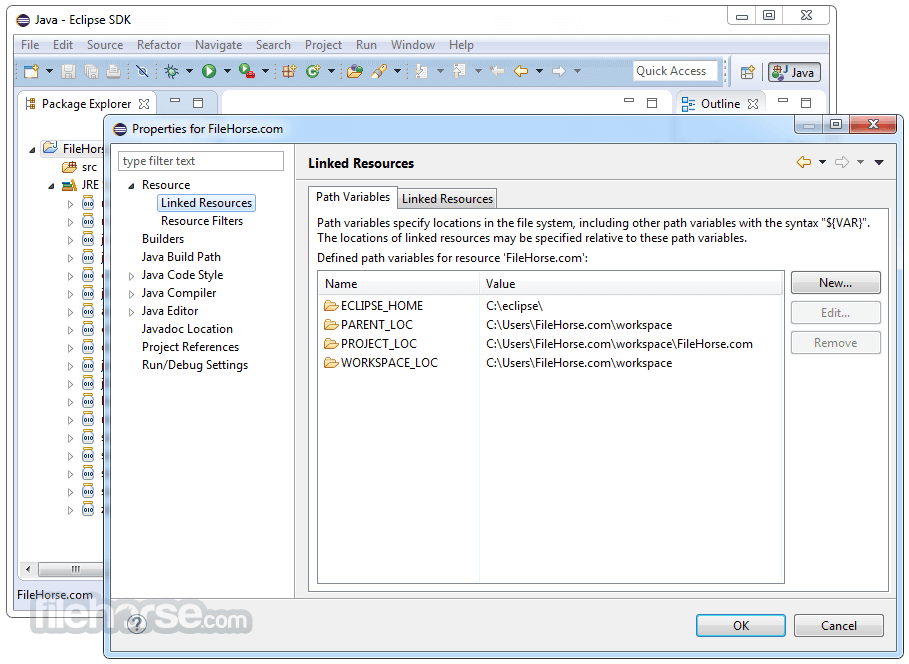
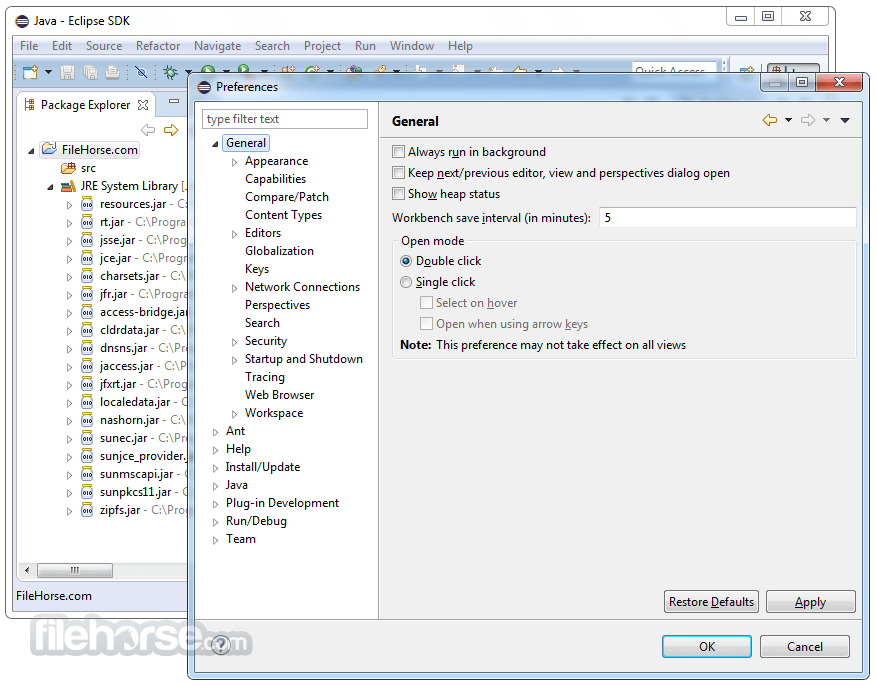
Eclipse SDK 4.40 Screenshots
The images below have been resized. Click on them to view the screenshots in full size.
-
-
-
-
What's new in this version:
Platform and Equinox:
Views, Dialogs and Toolbar:
Line Length Limit in the Console:
- A new option has been added to Console view preferences that lets you control line length in the Console.
- If a launched application produces extremely long lines, displaying them in the Console view can cause the entire Eclipse UI to freeze. To prevent this, you can now enable the new line limit options for the Console view.
- When enabled, the Console view enforces a strict physical maximum line length. Lines that exceed the configured limit are either truncated or hard wrapped, depending on the selected option.
- When truncation is applied, an ellipsis ... is appended to indicate that the line has been shortened. When wrapping is applied, the line is split into multiple lines to fit within the limit, ensuring that all content remains visible without freezing the UI.
Text Editors:
Improved Defaults in Compare Editor:
The default settings of the Compare editor have been modernized to provide a more intuitive and efficient experience out of the box:
- Structural compare shown in Outline by default – the Outline view now shows structural differences automatically when available, making better use of available space and improving navigation.
- Improved visualization of changes – line ranges are now used by default to connect differences, making change flows easier to follow visually.
- Natural diff order – the compare panes now follow the commonly used convention with the original/base content on the left and the modified content on the right.
- These changes align Eclipse with common expectations from modern development tools and reduce the need for manual preference adjustments.
The individual options can be found on the Preferences > General > Compare/Patch page:
- General > Show structural compare in the Outline view when possible
- Text Compare > Connect ranges with single line
- Text Compare > Swap left and right (the toggle is also available in the Compare editor toolbar)
With these settings changed, the Compare editor now looks like below (changes are highlighted with green boxes):
Show Zero-Width Spaces and Characters (ZWSP):
- Zero-width spaces and characters (ZWSP) are invisible characters that can be used for various purposes, such as formatting. They can, for example, appear in content copied from another application.
- These spaces and characters are now visually indicated in text editors by a code mining label, ZWSP
- The visibility of zero-width spaces and characters can be toggled via the new Zero-Width Characters option in Text Editors Show whitespace characters preferences.
Preferences:
Enhanced Colors and Fonts Preference Page with Toolbar Actions:
- The Colors and Fonts preferences page has been modernized with improved usability and UI consistency.
Key improvements include:
- Added a dedicated collapse-all toolbar action for quickly collapsing the full tree.
- Replaced the older-style expand button with modern toolbar-based expand-all and collapse-all actions.
- Improved alignment and spacing of the filter field, tree viewer, and action controls to better match other Eclipse preference pages.
- These updates make the Colors and Fonts page easier to navigate, especially when working with larger theme hierarchies.
Themes and Styling:
New Dirty Indicator for View and Editor Tabs:
- A new bullet-style dirty indicator is available that overlays the tab's close button when a view or editor has unsaved changes, replacing the leading asterisk (*) in the tab title. You can enable it via Indicate unsaved changes by overlaying the close button in Preferences > General > Appearance, under Dirty indicator for view and editor tabs. The setting takes effect immediately for all open stacks. This is planned to become the default in the next release. Please share your feedback in eclipse.platform.ui#4045.
Updated Dark Theme Styling for Form-based UIs:
- The dark theme styling for form-based editors (such as the Plug-in Manifest Editor and the Target Definition Editor) now matches the regular view styling.
Removed Rounded Tabs Support:
- Eclipse now only supports square tabs in CTabRendering. The Use round tabs checkbox in the General > Appearance preference page and the swt-corner-radius CSS property are no longer available. All tabs now have square corners.
Removed Classic Theme:
- The Classic theme (org.eclipse.e4.ui.css.theme.e4_classic) has been removed. Users who previously had the Classic theme selected will be automatically migrated to the Light theme upon the next startup.
Manage Default Theme:
- A new Manage default... button has been added to the General > Appearance preference page, next to the theme selection.
- This allows you to set the currently selected theme as the default for new workspaces or workspaces that do not have an explicit theme configured.
- When switching themes, you also have the option to set the new theme as the default directly from the restart confirmation dialog.
- The default theme preference is product-scoped, allowing different Eclipse-based products to maintain their own independent defaults even when sharing the same user configuration. The workspace selection dialog will use the default theme as well.
General Updates:
Skip Dot-folders When Scanning for Projects to Import:
- You can now skip directories starting with a . (e.g., .git, .svn, .hg) during recursive project scanning in the Smart Import and Import Existing Projects wizards. This significantly improves import performance for repositories with large metadata folders. A new Skip folders starting with '.' checkbox is available in both wizards and is enabled by default.
Global Search Navigation Shortcuts:
- The current search navigation commands Ctrl+, and Ctrl+. allow for navigation to the previous or next search result, respectively. However, one limitation is that these shortcuts only work when the search view is in focus. This feature implements global search navigation commands Alt+, and Alt+. (Cmd+Opt+, and Cmd+Opt+. on macOS) to navigate to previous/next search results even when search view is out of focus, allowing for easier and more intuitive navigation.
- The video demonstrates navigation using the new commands even when the user switches focus out of the Search view.
Debugger:
Paste Multiple Expressions from Clipboard in Expressions View:
- The Expressions view now improves pasting behavior when clipboard content contains line separators (such as n etc). In such cases, a dialog prompts you to choose whether to treat the content as a single expression or split it into multiple expressions, one per line
- This also makes it easier to copy multiple expressions (for example, from the Expressions view) and paste them as separate expressions in another Eclipse instance, simplifying sharing and migration. The selected behavior can be saved as a preference and changed later in the Run/Debug settings.A context menu entry for Expression Paste has also been added, improving discoverability.
Refined Copy Actions in Variables and Expressions Views:
- Copy behavior in the Variables view and Expressions view has been refined to provide more predictable and controlled results. Previously, copying would include the entire row (such as Name, Value, and Types), which could lead to unintended clipboard content.
- Dedicated actions are now available to copy only the Variable name and Expression text, or the full row when needed.
- This makes it easier to copy exactly what is required and ensures that variable names and expressions can be reused directly without unintended content
Java Development Tools - 4.40:
Java Editor:
Improvements for Enhanced Folding and Custom Folding Regions:
- 'Visible Improvements
Several improvements have been made to the enhanced folding and the custom folding regions features introduced in previous releases, including the following:
- The performance of the enhanced folding mechanism has been improved, especially for large files with many foldable elements.
- Folding regions now include the entire body of control statements, including the opening and closing braces, for a more intuitive folding experience.
- Minor glitches in the folding behavior have been fixed.
- The complete list of addressed issues can be found in the PR #2860.
- API/Contract Clarifications
- With these changes, custom subclasses of DefaultJavaFoldingStructureProvider will also contain the enhanced and the custom folding regions in their results if the appropriate preferences have been activated.
Java Formatter:
New Formatter to Place Textblock Quotes on Their Own Line:
- When the option After and before opening and closing quotes of text block in the New Lines section is active the formatter will add a newline before the opening quotes, after the closing quotes, and after the last line of the textblock if the textblock doesn't end in a newline.
Debugger:
Statement-Level Stepping Support:
- A new filtering option has been added to the Step Filtering preferences to enable Statement-Level Stepping. When enabled, the debugger skips intermediate bytecode instructions within a single statement and suspends only at the next executable source statement.
- This is particularly useful for multi-line statements, where stepping would otherwise pause multiple times due to intermediate operations. By filtering out these intermediate steps, the debugger provides a smoother and more source-aligned stepping experience.
Context-Aware Watch Expressions:
- Watch expressions created from the Variables View now correctly include their evaluation context. Previously, creating a watch expression on a field under an object generated only the field name, which led to evaluation failures. With this improvement, both the Watch action and Drag and Drop now generate fully qualified expressions, for example myobj.myfield, ensuring they evaluate correctly for the current context.
Stepping in Class File Editor:
- The class file editor has been enhanced to support highlighting the instruction pointer. When stepping through Java classes without available source code, Eclipse will automatically highlight the next bytecode instruction to execute.
Platform and Equinox API - 4.40:
SWT Changes:
Bullet-style Dirty Indicator for CTabFolder Tabs:
- CTabFolder now supports an opt-in dirty indicator that shows a filled bullet dot (●) at the close button location for tabs with unsaved changes. This is intended as an alternative to the * prefix dirty indicator currently used by the IDE. On hover, the bullet transforms into the close button, matching VS Code behavior.
New API:
- CTabFolder.setDirtyIndicatorStyle(boolean) — enables/disables the bullet-on-close-button style
- CTabFolder.getDirtyIndicatorStyle() — returns whether the dirty indicator style is enabled
- CTabItem.setShowDirty(boolean) — marks an item as having unsaved changes
- CTabItem.getShowDirty() — returns whether the item is marked as dirty
- The feature is disabled by default to preserve backward compatibility.
New Animated Effects in SWT GraphicsExample:
- The SWT GraphicsExample snippet has been extended with a large collection of animated demo tabs in the new Misc category. These effects were migrated from the SWT-OldSchoolEffect project with permission from the original author, Laurent Caron, and serve as useful tests and demonstrations for SWT's Canvas, GC, and Image rendering.
Newly available effects include the following:
- Starfield
- Ripple
- Blob
- Burning Sea
- Copper Bars
- Explosion
- Fire
- Mandelbrot
- Moiré
- Plasma
- Raster Bars
- Shade Bobs
- Twister
- Wave
- Dancing
- Bump Mapping
- Flat Text
- Lens
- Block Effect
- Twirl
- Sine Wave
- Sky
- Unlimited Balls
- Warp
Consistent Scaling of Images across GC#drawImage() Methods:
- Over the last few releases, image scaling in GC#drawImage() has been progressively improved to always pick the best-available image source for the required scale. This includes high-resolution raster variants (e.g., @2x) and on-demand SVG rasterization.
This release completes that work:
- All GC#drawImage() overloads now apply high-quality scaling consistently across all platforms.
- Any Transform active on the GC is now taken into account when choosing the image source and scaling method, preventing blurry output when a non-identity transform is in use.
- You get sharper image rendering in custom-drawn widgets on HiDPI displays or when using zoom features, regardless of which drawImage() variant or platform is used.
Plug-in Development Environment - 4.40:
Editors:
Copy Entries from the Target Editor Content Tab:
- You can now copy entries from the Content tab of the Target Editor. This mirrors the behavior already available on the Locations tab. Copy is available from the context menu or via the platform copy keystroke. That is Ctrl+C on Linux and Windows, and Cmd+C on macOS. Multi-selection and expanded children are included in the copied text. The copy action is wired through the workbench binding service. Any user-remapped key binding for Copy is honored automatically.
Performance:
Performance Improvements:
This release includes several performance and reliability improvements:
- Stable classpath order for plug-in dependencies: The Plug-in Dependencies classpath container now uses a deterministic order when a target contains multiple bundles with the same symbolic name (for example two versions of jakarta.annotation-api), avoiding spurious Updating plug-in dependencies rebuilds at IDE startup.
- Faster syntax highlighting in the target definition editor: The presentation reconciler no longer scans content past the damaged region on every keystroke, so editing large .target files feels noticeably more responsive.
- More reliable target resolution: Resolve jobs are now serialized per target handle, preventing duplicate parallel resolves and the resulting Cannot invoke ProfileLock.unlock() errors when reloading the same target definition.
Complete classpath for plug-in projects:
PDE's Plug-in Dependencies classpath container previously included only direct dependencies. This caused several long-standing problems:
- Spurious compile errors — "The type X cannot be resolved. It is indirectly referenced from required type Y" — appearing non-deterministically depending on which methods the code calls.
- Broken "Remove unused dependencies" action — removing a dependency that is unused at runtime but still required for compilation broke the build, leaving users confused about which entries to keep.
- Inconsistencies with Tycho / Maven builds — code compiled cleanly in the IDE but failed on CI, or vice versa, because Tycho has always used the full transitive classpath.
- Incomplete type hierarchies — code navigation, content assist, and call hierarchy views were silently missing types that the OSGi runtime would have available.
- To fix these problems, PDE now also adds all transitive dependencies of a plug-in to its classpath container, but configures them to be inaccessible from within the project. This makes the complete transitive hull of dependencies available for the Java compiler, fulfilling fundamental requirements of the Java type system.
- Additionally, this aligns PDE's compilation model with Tycho and with what the OSGi runtime would actually have available.
Lean dependency tree:
In setups with large dependency trees, the extended classpath may increase the initial build time, but we are continuously working on improving it. The usual recommendation is to keep dependencies as small as possible:
- Use Find unused dependencies to remove manifest entries for plug-ins you no longer reference. This action now works reliably across the full transitive closure and has been validated against the Eclipse Platform codebase.
- Maintain a clear API/implementation separation in your plug-ins. API plug-ins used by many consumers should not carry heavy implementation dependencies; this limits the transitive fanout for all their consumers. Use Show plug-in dependency hierarchy and Show dependent plug-ins and fragments to understand the impact.
- If the extended classpath reveals cyclic dependencies, use Look for cycles in the dependency graph to trace the root cause.
Temporary workaround:
To support the transition period, a system property is available:
- -Dpde.addTransitiveDependenciesWithForbiddenAccess=false
- Add this to your eclipse.ini to restore the previous (incomplete) classpath behavior for comparison and performance analysis.
Important: This property is intended solely as a temporary diagnostic aid and is planned to become a no-op in a future release without further notice.
Views and Dialogs:
CSS Spy Widget Hierarchy Export:
- You can now use the Copy widget info to clipboard button in the CSS Spy to export the selected widget's hierarchy with detailed CSS-relevant information. The exported information includes the CSS selector notation, filtered SWT style bits, computed versus declared values, and the inheritance chain.
Show Installable Unit ID in Target Editor:
- The Target Editor now always displays the technical ID of each Installable Unit (IU) in the Definition and Content tabs. This ensures a clear mapping between the UI representation and the underlying source. If a descriptive name exists and differs from the ID, both are shown in the format Name [ID]; otherwise, only the ID is displayed.
Version Mapping for Required Bundles and Imported Packages:
- A quick fix is provided for adding the available matching version range for required bundles and imported packages in the MANIFEST.MF file.
- The quick fix is labeled as Require latest available version range. Once the user clicks on Finish, it adds the version range to the specific require bundle or import package. For example, version 7.2.3 is interpreted as the compatible range [7.2.0,8.0.0).
Expand-all and Collapse-all Support in Preference Pages:
- A new toolbar to support expanding and collapsing all preference sections has been added to the Compilers and API Errors/Warnings pages under Plug-in Development. These actions improve navigation on pages with many expandable categories by allowing all sections to be opened or closed in a single operation.
 OperaOpera 132.0 Build 5905.37 (64-bit)
 AdsPowerAdsPower - Antidetect Browser
 PhotoshopAdobe Photoshop CC 2026 27.7 (64-bit)
 BlueStacks AIBlueStacks AI
 NitradoNitrado - Rent a Gaming Server
 CapCutCapCut Desktop 8.7.0
 PC RepairPC Repair Tool 2026
 Hero WarsHero Wars - Online Action Game
 TradingViewTradingView - Trusted by 100 Million Traders
 Forza HorizonForza Horizon 6
Comments and User Reviews