




 Opera GX
 Chrome
 Norton Browser
 iTop Browser
 Firefox
 Comet
Comet Brave
Brave
-
Latest Version
Java JRE 8 Update 481 (64-bit) LATEST
-
Review by
-
Operating System
Windows 7 64 / Windows 8 64 / Windows 10 64 / Windows 11
-
User Rating
Click to vote -
Author / Product
-
Filename
jre-8u481-windows-x64.exe
-
MD5 Checksum
95bcfc0e30b591f3713e3e5be4c80ffb
It's also integral to the intranet applications and other e-business solutions that are the foundation of corporate computing.
It provides the libraries, the Java Virtual Machine, and other components to run applets and applications written in the Java programming language.
In addition, two key deployment technologies are part of the JRE: Java Plug-in, which Enables Applets to Run in Popular Browsers; and Web Start, which deploys standalone applications over a network. Many cross-platform applications also require Java to operate properly.
It is a programming language and computing platform first released by Sun Microsystems in 1995. There are lots of applications and websites that will not work unless you have Java installed, and more are created every day.
The program is fast, secure, and reliable. From laptops to data centers, game consoles to scientific supercomputers, and cell phones to the Internet, Java is everywhere! It is at the heart of the digital lifestyle. It's the platform for launching careers, exploring human-to-digital interfaces, architecting the world's best applications, and unlocking innovation everywhere—from garages to global organizations.
Main Features
- Java Virtual Machine (JVM): JRE includes a Java Virtual Machine (JVM), which is responsible for executing Java bytecode.
- Class Libraries: It includes a set of class libraries that provide a wide range of functionality for Java programs. These libraries include collections, I/O, networking, security, and many other features.
- Security: It provides a robust security model that ensures that Java programs run in a secure environment. It includes features such as sandboxing, code signing, and permission-based access control.
- Automatic Memory Management: It includes automatic memory management, which means that the JVM automatically manages the allocation and deallocation of memory for Java programs.
- Platform Independence: Java programs that run on JRE are platform-independent, which means that they can run on any platform that has JRE installed, regardless of the underlying hardware or operating system.
- Internationalization: It provides support for internationalization and localization, which allows Java programs to run in different languages and regions.
- Deployment: It provides an easy and convenient way to deploy Java programs on various platforms, such as desktops, servers, and mobile devices.
- Install JRE: First, you need to download and install the latest version of JRE from the official Java website or FileHorse.
- Write Java code: Next, write Java code using any text editor or integrated development environment (IDE) like Eclipse, NetBeans, or IntelliJ IDEA.
- Compile Java code: Once you have written your Java code, you need to compile it into byte code using the Java compiler. You can do this by running the "javac" command in the command prompt or terminal.
- Run Java program: After compiling your Java code, you can run it using the "java" command in the command prompt or terminal. This will execute the Java Virtual Machine (JVM) and load your byte code.
- Test and debug: You can test and debug your Java program using various tools provided by the IDE or through the command prompt. This will help you find and fix any errors or bugs in your code.
- Distribute Java program: Finally, once you have tested and debugged your Java program, you can distribute it to others. You can package your code into a JAR (Java Archive) file and distribute it to others who have JRE installed on their computers.
What is Java Runtime Environment (JRE)?
A: Java Runtime Environment (JRE) is a software package that provides the necessary components to run Java programs. It includes the Java Virtual Machine (JVM), libraries, and other components required to run Java applications.
What is the difference between JRE and JDK?
A: JDK (Java Development Kit) is a software development kit that includes the JRE, along with other tools like compilers and debuggers that are needed to develop Java applications. JRE is used to run Java programs, while JDK is used to develop them.
Can I run Java applications without installing JRE?
A: No, you need to install JRE in order to run Java applications.
How do I install JRE on my computer?
A: You can download and install the latest version of JRE from the official Java website. Follow the installation instructions provided on the website.
How do I check if JRE is installed on my computer?
A: You can check if JRE is installed on your computer by typing "java -version" in the command prompt or terminal. If JRE is installed, it will display the version information.
Is JRE free to use?
A: Yes, JRE is free to use for personal and commercial purposes.
Can I install multiple versions of JRE on my PC?
A: Yes, you can install multiple versions of JRE on your computer. However, it is recommended to use the latest version of JRE to ensure security and performance.
Can I uninstall older versions of JRE after installing a new version?
A: Yes, you can uninstall older versions of JRE after installing a new version. It is recommended to keep only the latest version of JRE installed on your computer.
Do I need to update JRE regularly?
A: Yes, it is recommended to update JRE regularly to ensure security and performance. Java updates usually contain bug fixes, security patches, and performance improvements.
Why should I upgrade to the latest version?
A: The latest version contains important enhancements to improve the performance, stability, and security of the applications that run on your machine. Installing this free update will ensure that your applications continue to run safely and efficiently.
What will I get when I download software?
A: The Java Runtime Environment 64-bit (JRE desktop app) is what you get when you download software. The JRE consists of the Java Virtual Machine (JVM), Java platform core classes, and supporting Java platform libraries. The JRE is the runtime portion of the software, which is all you need to run it in your Web browser.
What is Java Plug-in software?
A: The program is a component of the (JRE). The JRE allows applets written in the programming language to run inside various internet browsers. The Plug-in software is not a standalone program and cannot be installed separately.
I have heard the terms Virtual Machine and JVM. Is this software?
A: The Virtual Machine is only one aspect of software that is involved in web interaction. The Java Virtual Machine is built right into your software download and helps run Java apps.
System Requirements
- OS: Windows 7, 8, 8.1, 10, 11, Windows Server 2012, Windows Server 2016, and Windows Server 2019
- Processor: It requires a minimum of a Pentium 2 266 MHz processor, although a faster processor is recommended for optimal performance.
- Memory: It requires a minimum of 128 MB of RAM, although a larger amount of RAM is recommended for running complex Java programs.
- Disk space: It requires a minimum of 124 MB of disk space for installation, although a larger amount of disk space is recommended for running Java programs.
- Display: It requires a minimum display resolution of 800 x 600 pixels, although a higher resolution is recommended for better display quality.
- Widely Supported Language
- Platform Independence
- Robust Standard Library
- Automatic Memory Management
- Strong Community Support
- Slower Execution Speed
- Steeper Learning Curve
- Verbosity of Code
Overall, Java Runtime Environment (JRE) is a software environment that provides a runtime platform for running Java programs. It includes a Java Virtual Machine (JVM), class libraries, and other features that make it easy for developers to create and run Java applications.
JRE is a powerful and flexible platform that offers features such as platform independence, automatic memory management, security, and internationalization. This makes it an ideal choice for developing and running applications on various platforms, including desktops, servers, and mobile devices.
All in all, Java Runtime Environment (JRE) provides a reliable and robust platform for running Java applications, making it an essential tool for Java developers and users.
Note: When your installation completes, you may need to restart your browser (close all browser windows and re-open) to enable the installation.
Also Available: Java Runtime Environment (32-bit) and Java Runtime Environment for Mac
-
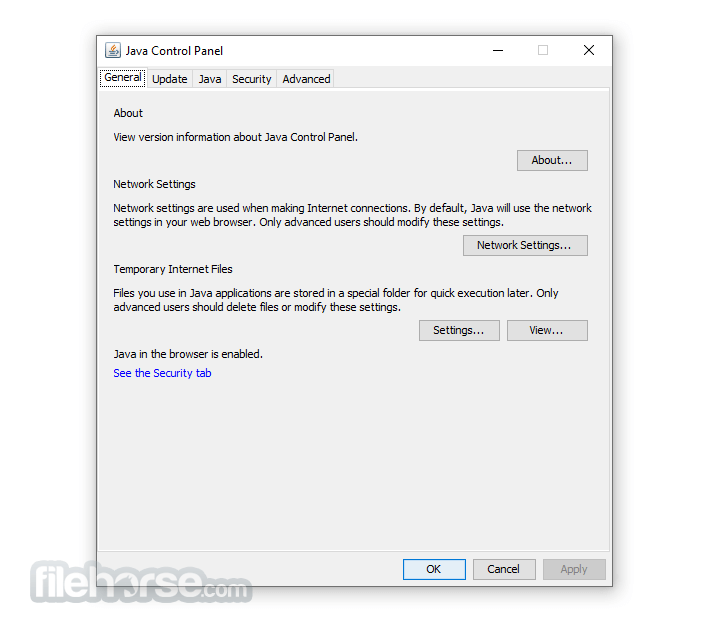
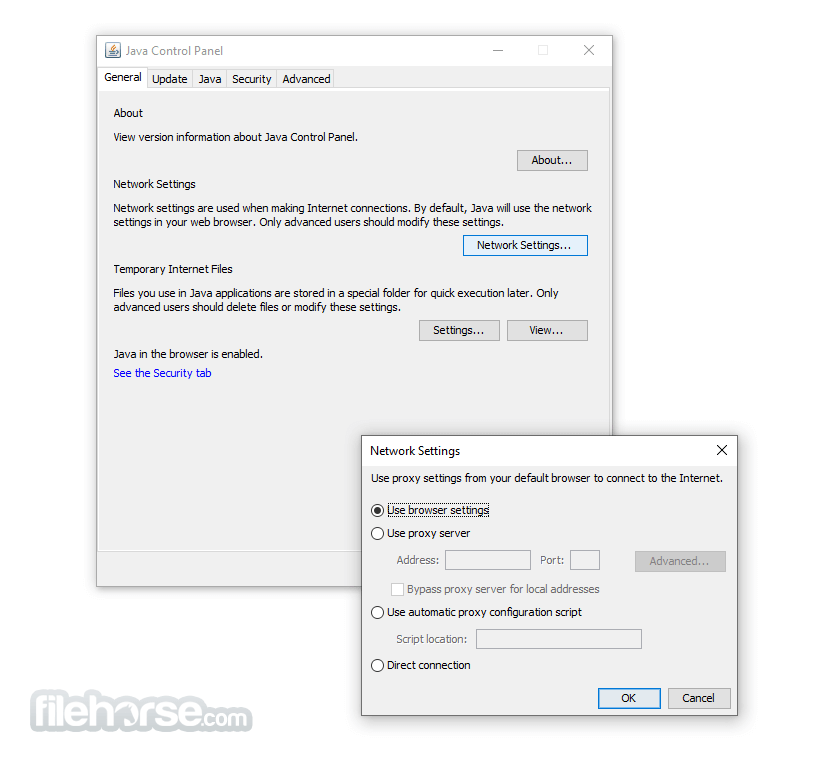
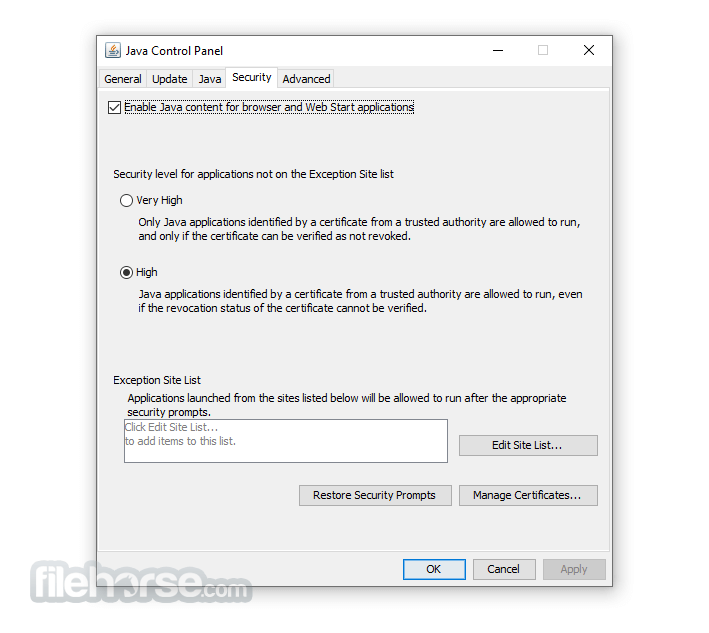
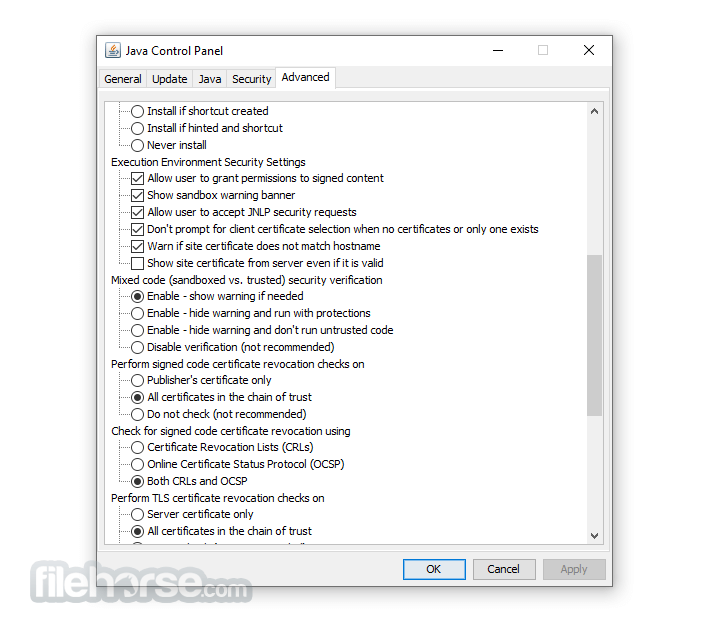
Java JRE 8 Update 481 (64-bit) Screenshots
The images below have been resized. Click on them to view the screenshots in full size.
-

-
-
-
What's new in this version:
New Features:
- core-libs/java.rmi
- ➜ Endpoint Identification Enabled By Default for RMI Connections Over TLS (JDK-8341496 (not public))
- RMI will use TLS connections if the [javax.rmi.ssl.SslRMIClientSocketFactory] class is used. These connections now have TLS endpoint identification enabled by default. This may cause some previously-working TLS connections to fail. If this occurs, ensure that the certificate presented by the server has a Subject Alternative Name that matches the server's hostname. Alternatively, endpoint identification for RMI TLS connections can be disabled on the client side by setting the jdk.rmi.ssl.client.enableEndpointIdentification system property to false.
Other Notes:
security-libs/javax.net.ssl➜ Disabled SHA-1 in TLS 1.2 and DTLS 1.2 Handshake Signatures (JDK-8340321):
- The SHA-1 algorithm has been disabled by default in TLS 1.2 and DTLS 1.2 handshake signatures, by adding "rsa_pkcs1_sha1 usage HandshakeSignature, ecdsa_sha1 usage HandshakeSignature, dsa_sha1 usage HandshakeSignature" to the jdk.tls.disabledAlgorithms security property in the java.security config file. RFC 9155 deprecates the use of SHA-1 in TLS 1.2 and DTLS 1.2 digital signatures. Users can, at their own risk, re-enable the SHA-1 algorithm in TLS 1.2 and DTLS 1.2 handshake signatures by removing "rsa_pkcs1_sha1 usage HandshakeSignature, ecdsa_sha1 usage HandshakeSignature, dsa_sha1 usage HandshakeSignature" from the jdk.tls.disabledAlgorithms security property.
install/install➜ Windows Installers to Return to Full Version Directory and Use of Junction (JDK-8310932 (not public)):
- For the JDK11+ LTS families, the JDK will install into a version-specific installation directory by default. The installation directory of 11+ will have a - before the version-specific string to keep consistency with the past 11+ conventions per family. A junction, also known as a symlink for Windows, will also be created in a "latest" directory. It will point to the latest version of that family. Here is a breakdown example of installation and junction locations 11+ families
- Each junction will always point to the latest JDK of the matching LTS family. The junction for each family will be removed when the last JDK of the matching LTS family is uninstalled.
- install/install➜ Make jcmd Command Available in the Headless JDK RPM (JDK-8359443 (not public)):
- jcmd command will be available in the headless JDK RPM instead of the headful JDK RPM.
- It will be added to the java alternatives group instead of the javac alternatives group.
- security-libs/javax.net.ssl➜ Disabled TLS_RSA Cipher Suites (JDK-8245545):
The TLS_RSA cipher suites have been disabled by default, by adding "TLS_RSA_" to the jdk.tls.disabledAlgorithms security property in the java.security configuration file. The TLS_RSA cipher suites do not preserve forward-secrecy and are not commonly used. Some TLS_RSA cipher suites are already disabled because they use DES, 3DES, RC4, or NULL, which are disabled. This action disables all remaining TLS_RSA cipher suites. Any attempts to use cipher suites starting with "TLS_RSA_" will fail with an SSLHandshakeException. Users can, at their own risk, re-enable these cipher suites by removing "TLS_RSA_" from the jdk.tls.disabledAlgorithms security property. The following previously enabled cipher suites are now disabled:
- TLS_RSA_WITH_AES_256_GCM_SHA384
- TLS_RSA_WITH_AES_128_GCM_SHA256
- TLS_RSA_WITH_AES_256_CBC_SHA256
- TLS_RSA_WITH_AES_128_CBC_SHA256
- TLS_RSA_WITH_AES_256_CBC_SHA
- TLS_RSA_WITH_AES_128_CBC_SHA
- core-libs/java.util:i18n➜ Changes to the Default Time Zone Detection on Debian-based Linux (JDK-8345213):
- On Debian-based Linux distributions such as Ubuntu, the /etc/timezone file was previously used to determine the JDK's default time zone (TimeZone.getDefault()). According to Debian's Wiki, /etc/localtime is now the primary source for the system's default time zone, making /etc/timezone redundant. As a result, the JDK's default time zone detection logic has been updated to use /etc/localtime instead of /etc/timezone. If /etc/localtime and /etc/timezone are inconsistent for any reason, the JDK's default time zone is now determined solely based on /etc/localtime file.
- core-svc/tools➜ jcmd -l and jps Commands Do Not List Java Processes Running in Docker Containers (JDK-8193710):
- The HotSpot runtime code has been updated to allow the jcmd -l and jps commands discover JVMs running in a container.
security-libs/java.security➜ Filter Rules for URIs in the Authority Info Access Extension for Certificates (JDK-8368032 (not public)):
- A new system and security property, com.sun.security.allowedAIALocations, has been introduced. This property allows users the ability to define one or more filtering rules to be applied to URIs obtained from the authority info access extension on X.509 certificates. These filter rules are applied specifically to the CA issuers access method. Any CA issuers URIs in X.509 certificates are only followed when the com.sun.security.enableAIAcaIssuers system property is enabled and the filter allows the URI.
- In order to set the rules, the user must set either the com.sun.security.allowedAIALocations security property or the system property by the same name. If the system property has a value, it will override the security property. By default the property is blank, which enacts a deny-all ruleset.
- For either property, the value consists of a set of space-separated rules that take the form of a URI, with the following constraints:
- The URI must be absolute and hierarchical.
- The URI must only use one of the following schemes: http, https, ldap, or ftp (case-insensitive).
- A hostname or address must be specified and must match (case-insensitive). No name resolution is performed on hostnames to match URIs with IP addresses.
- The port number must match. Where a port number is omitted, the well-known port will be used in the comparison.
For hierarchical schemes (http[s], ftp):
- A rule's normalized path portion of the URI is matched in a case-sensitive manner. If the final component does not end in a slash (/), it is considered to be a file path and must match the CA issuer URI path component. If the rule's path component ends in a slash, then it must match or be a prefix of the CA issuer URI path component. (for example, a filter path of /ab/cd/ will match a CA issuer path of /ab/cd/, /ab/cd/ef and /ab/cd/ef/ghi.).
- Query strings and fragments will be ignored when matching CA issuer URIs.
For ldap URIs:
- The base DN must be an exact match (case-insensitive)
- Any query string in the rule, if specified, will be ignored
Fixed:
- Memory leak in getAllConfigs of awt_GraphicsEnv.c:386
- Enforce limits on the size of an XBM image
- Crashes in getConfigColormap, getConfigVisualId, XVisualIDFromVisual on Linux
- Device.getDisplayMode() doesn't report refresh rate on Linux in case of dual screen
- Cannot list all the available display modes on Ubuntu linux in case of two screen devices
- Memory leak in getAllConfigs of awt_GraphicsEnv.c:585
- java.awt.TextField allows to identify the spaces in a password when double clicked at the starting and end of the text
- java/awt/Frame/FrameLocationTest/FrameLocationTest.java fails
- Cannot resize CheckBoxItemMenu in Synth L&F with setHorizontalTextPosition
- JFileChooser renders file names as HTML document
- JFileChooser in GTK L&F still displays HTML filename
- JPasswordField identifies spaces in password via delete shortcuts
- Right to Left Orientation Issues with MenuItem Component
- Move SimpleSSLContext to jdk/testlibrary
- sun/net/www/protocol/http/RedirectOnPost.java failing
- vmTestbase/gc/lock/malloc/malloclock04/TestDescription.java crashes intermittently
- Solaris: deprecated <pwd.h> and <gid.h> interfaces should be replaced
- Safepoint sync time did not increase
- ClassVerifier::ends_in_athrow() should be removed
- @ignore CheckEBCDICLocaleTest
- NullPointerException in sun.launcher.LauncherHelper.checkJavaFXRemoval
 OperaOpera 128.0 Build 5807.66 (64-bit)
 Kling AIKling AI - Text or Image to Video
 PhotoshopAdobe Photoshop CC 2026 27.4 (64-bit)
 BlueStacksBlueStacks 10.42.167.1001
 OKXOKX - Buy Bitcoin or Ethereum
 CapCutCapCut 7.9.0
 PC RepairPC Repair Tool 2026
 Hero WarsHero Wars - Online Action Game
 TradingViewTradingView - Trusted by 100 Million Traders
 AdGuard VPNAdGuard VPN 2.9.0
Comments and User Reviews