




 Restream
 OpusClip
 Kling AI
 Camo Studio
 Artlist
 Premiere Pro
 LitMedia AI
-
Latest Version
MKVToolNix 100.0.0 (64-bit) LATEST
-
Review by
-
Operating System
Windows 7 64 / Windows 8 64 / Windows 10 64 / Windows 11
-
User Rating
Click to vote -
Author / Product
-
Filename
mkvtoolnix-64-bit-100.0-setup.exe
-
MD5 Checksum
e5b838170e77d0740180a8c06c9df747
Tailored primarily for advanced users and video enthusiasts, MKVToolNix provides a powerful command-line interface along with a user-friendly GUI, making it a go-to solution for working with MKV containers.
The 64-bit version is optimized for modern Windows systems, offering improved performance and compatibility for high-resolution files.
Features
MKV Muxing and Demuxing: Combine video, audio, subtitle, and metadata tracks into a single MKV file or extract individual components.
Track Editing: Modify track names, language settings, default/forced track flags, and compression methods.
Batch Processing: Queue and process multiple jobs in one go using the job queue feature.
Command-Line Integration: Full CLI support for automation and scripting.
Metadata Management: Add or edit chapter information and attachments like fonts or cover images.
Subtitle Support: Compatible with multiple subtitle formats, including SRT, ASS, and PGS.
Preview and Analysis Tools: Examine file properties before and after processing.
User Interface
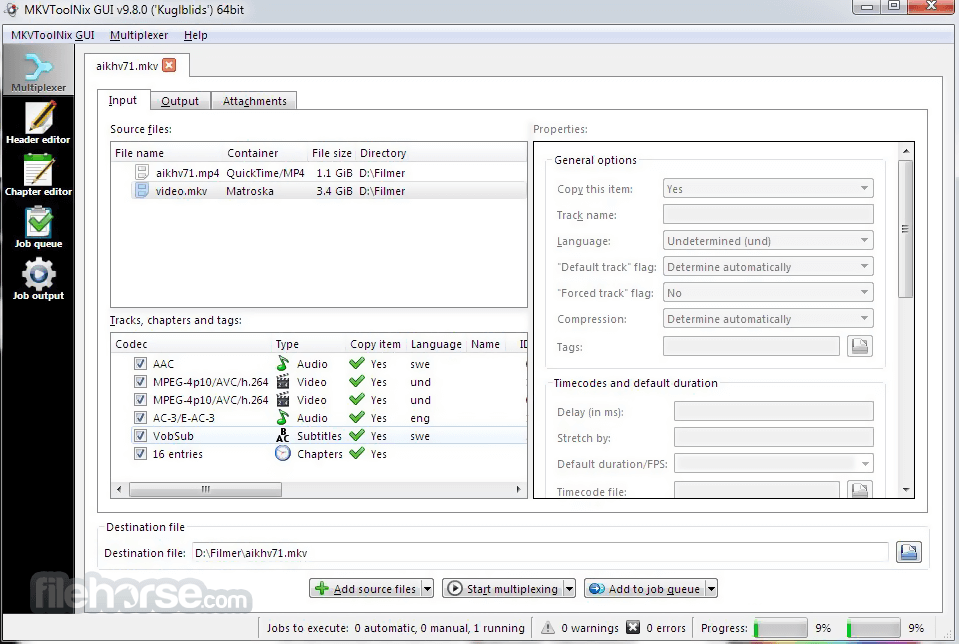
MKVToolNix GUI provides a well-organized, tab-based layout. The interface is split into multiple sections: "Input", "Output", "Attachments", "Chapters", and "Job Queue".
Each section is intuitively laid out, allowing users to drag and drop files, adjust track parameters, and queue up jobs with minimal clicks. Despite its powerful backend, the GUI remains responsive and easy to navigate.
Installation and Setup
Installing MKVToolNix on Windows is straightforward. The 64-bit installer is available on the official website. Once downloaded, setup takes only a few minutes. No bloatware or third-party software is included.
After installation, the application is ready to use without additional configuration, though users can tweak settings for personal preferences.
How to Use
- Drag and drop the MKV or media files into the Input tab.
- Select or deselect video, audio, or subtitle tracks as needed.
- Modify track metadata, language, and flags.
- Set output file destination.
- Click “Start Multiplexing” to begin the muxing process.
- For repetitive tasks, users can save job settings or use the CLI for scripting.
Can MKVToolNix convert videos to MKV?
Yes, it can wrap video/audio files (like MP4, AVI, or MP3) into MKV format, but it does not re-encode the streams.
Does it support subtitles?
Yes, it supports multiple subtitle formats and allows embedding, removal, or editing of subtitle tracks.
Is it safe to use?
Absolutely. MKVToolNix is open-source and regularly updated. It contains no ads or spyware.
Can I extract audio or video from MKV files?
Yes, you can demux (extract) any track using the GUI or command-line tools.
Is there a portable version?
Yes, a portable version is available for users who prefer not to install the software.
Alternatives
HandBrake – Better for video conversion and compression.
FFmpeg – Command-line powerhouse with broader format support.
Avidemux – Lightweight editor for basic cutting and encoding.
System Requirements
- OS: Windows 7/8/10/11 (64-bit)
- RAM: 2GB minimum (4GB+ recommended)
- CPU: Dual-core processor or higher
- Disk Space: ~100MB for installation
- Completely free and open-source
- Powerful muxing/demuxing capabilities
- Regular updates and active development
- User-friendly GUI with advanced features
- Batch processing and CLI support
- Limited video editing features
- No built-in media player for preview
MKVToolNix (64-bit) is a robust, essential tool for users working with Matroska files. Its combination of a powerful engine, versatile features, and clean interface make it a favorite among video editors, archivists, and power users.
Also Available: MKVToolNix (32-bit)
-
MKVToolNix 100.0.0 (64-bit) Screenshots
The images below have been resized. Click on them to view the screenshots in full size.
-

-

What's new in this version:
New features and enhancements:
- all: added new scalable (SVG) application icons for all applications, replacing the existing pixmap (PNG, ICO) icons. Icons from Sarreq Teryx.
- mkvmerge: MP4 reader: track names are now read from the track’s user-data atoms (trak ? udta ? name) if present.
- MKVToolNix GUI: executing actions configuration, type “play audio file”: added a slider to make configuration more intuitive.
- MKVToolNix GUI: executing actions: macOS only: the GUI will now use bundled audio files for “play audio file” actions that Qt can play instead of using macOS’s system sounds.
- MKVToolNix GUI: executing actions: Windows only: added a new type: executing a PowerShell script. Either an existing script file can be selected or custom PowerShell script code entered in a small editor. The executed script has access to all MTX_… variables through the environment, e.g. $env:MTX_DESTINATION_FILE_BASE_NAME. Workaround for the problems talked about in #6254.
- MKVToolNix GUI: job queue: added a context menu for opening copies of the selected queue jobs in the multiplexer as new settings there without removing the queue jobs.
- MKVToolNix GUI: job queue: added a search functionality for jobs that searches in job descriptions, outputs, warnings & errors.
Fixed:
- command-line tools: Windows: switched to Boost’s UTF-8 code-conversion facet (boost::locale::utf8_codecvt) from std::utf8_codecvt included in MingW. This seems to fix an issue with converting certain high code point from wchar_t to char (from UTF-32/16 to UTF-8), preventing interesting exceptions from being thrown.
- mkvmerge: AAC: fixed mis-detection of ADTS streams not starting on a frame boundary. Fixes regression starting with v87 when fixing AAC LATM config not being parsed if it wasn’t present in the first AAC frame. Patch by Corticalcode.
- mkvmerge: MPEG TS reader: under certain rare conditions mkvmerge was skipping a certain amount of content at the start of the main M2TS file when reading MPLS playlists. The amount of content skipped proportional to the probe range percentage. This only happened when the source Blu-ray contains HDMV TextST subtitles.
- MKVToolNix GUI: executing actions configuration, type “play audio file”: fixed audio volume not working since switching to Qt 6 due to its interface taking a float in range 0.0–1.0 instead of the old interface taking an int in range 0–100.
- MKVToolNix GUI: executing actions: fix backslash handling when parsing a Unix-shell escaped string into separate arguments. The user-visible fix is that the command-line in the “executing actions” dialog will not have the quoting changed in wrong ways by the GUI when the GUI adds another variable upon user request, a regression introduced in v99.
Build system changes:
- all: when building for Windows the programs ImageMagick (executable magick) & Inkscape (executable inkscape) are required in order to build ICOs from SVGs
- macOS: include the app’s supported platform(s) in Info.plist to correctly resolve the app’s Kind as Apple Silicon in System Information
- macOS: updated Qt to 6.11.1. The patch that made building Qt from source possible on macOS 26.4 (by Touchstone64) has been removed as Qt 6.11.1 includes the fix upstream
 OperaOpera 133.0 Build 5932.34 (64-bit)
 LDPlayerLDPlayer - Android Emulator
 PhotoshopAdobe Photoshop CC 2026 27.7 (64-bit)
 BlueStacks AIBlueStacks AI
 GTA 6GTA 6 for PS5
 CapCutCapCut Desktop 8.7.0
 PC RepairPC Repair Tool 2026
 Hero WarsHero Wars - Online Action Game
 TradingViewTradingView - Trusted by 100 Million Traders
 Forza HorizonForza Horizon 6
Comments and User Reviews