




 LimeWire
 UltraRepair
 iTop Recovery
 RecoveryFox
 AnyRecover
 Data Recovery
 Drecov
 Proton Drive
-
Latest Version
WinRAR 7.20 (64-bit) LATEST
-
Review by
-
Operating System
Windows 7 64 / Windows 8 64 / Windows 10 64 / Windows 11
-
User Rating
Click to vote -
Author / Product
-
Filename
winrar-x64-720.exe
-
MD5 Checksum
65fc89b05dcee2a1fd712664c539e053
WinRAR 64bit is the most widely used compression software globally, with a user base of over 500 million people. It is compatible with the latest version of Windows 11™ and Windows 10™, and it is available in over 50 languages, both in 32-bit and 64-bit versions.
Furthermore, it is compatible with multiple operating systems, and it is the only compression tool that supports Unicode.
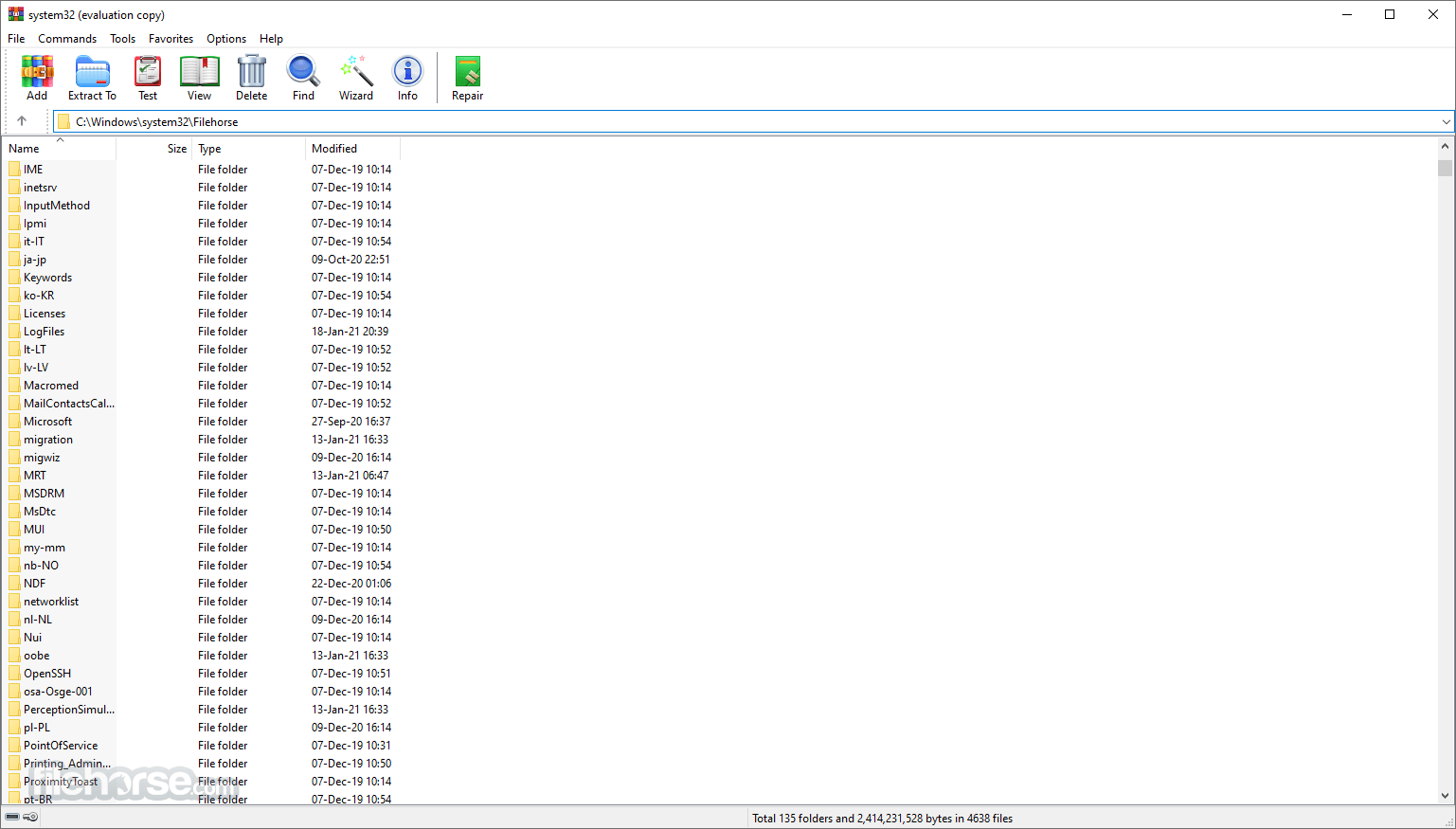
WinRAR is a comprehensive file compression and extraction tool developed by RARLAB. With support for a wide range of file formats, it allows users to compress large files into smaller, more manageable archives.
Additionally, Win RAR can extract files from various compressed formats, including RAR, ZIP, 7Z, TAR, and more.
Whether you need to save disk space, transfer files easily, or protect sensitive data with password encryption, WinRAR offers a multitude of features to meet your archiving needs.
WinRAR's main features are very strong general and multimedia compression, solid compression, archive protection from damage, processing of ZIP and other non-RAR archives, scanning archives for viruses, programmable self-extracting archives (SFX), authenticity verification, NTFS and Unicode support, strong AES encryption, support of multivolume archives, command line and graphical interface, drag-and-drop facility, wizard interface, theme support, folder tree panel, multithread support, and Windows x64 shell integration.
It provides complete support for RAR and ZIP archives and can unpack and convert CAB, ARJ, LZH, TAR, GZ, ACE, UUE, BZ2, JAR, ISO, Z, and 7-Zip archives. It is available in over 50 languages.
Key Features
Compression: It utilizes advanced compression algorithms to create smaller archives without compromising the quality of the files contained within. This feature is particularly useful for transferring large files over the internet or saving space on your storage devices.
Extraction: Apart from compressing files, the program excels at extracting files from a wide range of formats, making it a versatile tool for handling various compressed archives. Its intuitive interface allows users to navigate and extract files with ease.
File Protection: It offers the ability to secure your archives with password encryption, ensuring that only authorized individuals can access the contents. This feature is especially valuable when dealing with sensitive data that needs an extra layer of protection.
Splitting Archives: With the app, you can split large archives into smaller parts, making it easier to transfer or store them on multiple storage devices. This feature proves beneficial when dealing with limited file size restrictions or when you need to distribute files across multiple media.
Integration: It integrates seamlessly with the Windows shell, allowing users to access its functionalities through context menus. This convenient integration streamlines the archiving and extraction process, providing quick and easy access to WinRAR's features.
How to Use
Here are the basic steps to using WinRAR:
- Download and install WinRAR from the official website or FileHorse.com.
- Once installed, open the app by double-clicking on a RAR file or by right-clicking on a RAR file and choosing "Extract files" from the context menu.
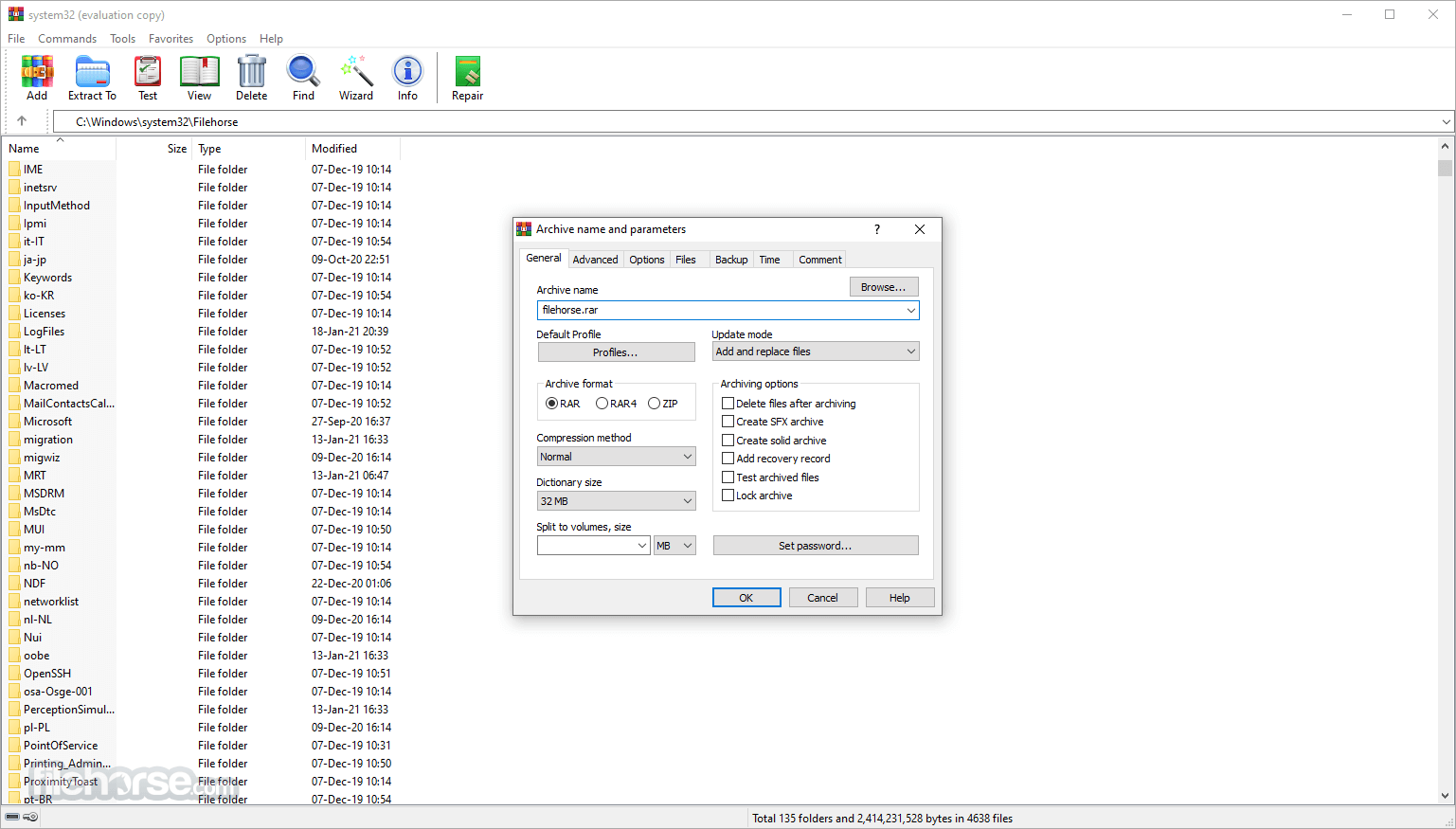
- To create a new archive, click on the "File" menu and select "New Archive." You can also use the keyboard shortcut "Ctrl+N" to create a new archive.
- To add files to an archive, you can drag and drop them into the window or click on the "Add" button and navigate to the files you want to add.
- To extract files from an archive, navigate to the archive in Windows Explorer and double-click on it to open it in the app. Then, click on the "Extract To" button or use the keyboard shortcut "Alt+E." You can also right-click on the archive and select "Extract files" from the context menu.
- You can also password-protect your archive by clicking on the "Advanced" button and then choosing "Set Password"
- You can also create a self-extracting file by clicking on the "Advanced" button and then choosing "Make SFX archive"
- Once you have finished compressing or extracting files, you can close the program.
FAQ
How do I extract files with WinRAR?
In order to extract a file using Win RAR in shell mode, you must first open the required archive in the app. This may be achieved in one of several ways: double-click or press Enter on the archive name in the Windows shell (Explorer or Desktop). If the tool was associated with archives during installation (the default installation option), an archive will be opened in the program.
You also may associate the tool for PC with archives after installation using the Integration settings dialog; double-click or press Enter on the archive name in the window.
How do I handle RAR files?
It provides complete support for RAR files, so you may both create and unpack them. If you installed the program on your computer and downloaded a RAR file from the Internet, you may double click on the RAR file icon to open it in Win RAR, select all files, press the "Extract To" button, enter a destination path and press "OK".
What is the maximum file and archive size limitation?
The size of a RAR or ZIP archive, as well as the size of any single file within a RAR archive, is limited to 8,589,934,591 GB (9,223,372,036,854,775,807 bytes). Note that to create archives larger than 4 GB, you need to use NTFS, as older file systems do not support such large files.
I get an error like "CRC failed in a file name. The file is corrupt"!
File data are corrupt. Archives may be damaged after creation. In this case, it is sometimes possible to repair it if it has a recovery record. It also could have been broken while creating, due to hardware failures (usually caused by an over-clocked CPU or unreliable memory).
Is WinRAR Safe to Use?
The WinRAR software is safe and secure to download and install. However, it is important to exercise caution when working with external files, especially those obtained from emails or web browsers, before compressing or extracting them using the app. These files may potentially contain malware that can harm the application and the device it is installed on, whether it be an Android, Mac, or PC.
Can WinRAR open ZIP files?
Yes, it supports the ZIP extraction files in addition to various other formats.
Is WinRAR available for macOS or Linux?
Yes, the app is available for Windows, macOS, and Linux operating systems.
Can WinRAR create self-extracting archives?
Absolutely! It allows users to create self-extracting archives, which can be executed without the need for any additional software.
Is WinRAR free to use?
While the app offers a free trial period, it is paid software. However, users can continue to use the trial version even after the trial period ends, albeit with occasional reminder notifications.

Alternatives
WinZip: A popular choice for file compression and encryption, known for its user-friendly interface.
7-Zip: An open-source alternative with a similar range of features, supporting multiple file formats.
PeaZip: Another open-source software that supports a wide range of formats and offers strong encryption options.
Bandizip: A lightweight archiving utility with a simple and intuitive interface.
Pricing
WinRAR is available for purchase on the RARLAB website for €29.95.
It offers various licensing options, including a single-user license for personal use and multi-user licenses for commercial purposes.
The pricing structure is reasonable and provides excellent value considering the software's capabilities and long-standing reputation.
System Requirements
It has modest system requirements, ensuring compatibility with a wide range of hardware configurations.
It supports Windows 11/10 (32-bit and 64-bit), macOS, and Linux operating systems.
PROS
- Robust compression algorithms for efficient file size reduction.
- Wide range of supported file formats for both compression and extraction.
- Integration with the Windows shell for seamless access to features.
- Password encryption for secure archiving.
- Ability to split large archives into smaller parts for easy transfer or storage.
- No password recovery option for protected archives.
- Interface design could benefit from a modern update.
Overall, WinRAR is a powerful and reliable tool for managing compressed files. It is easy to use, offers a range of advanced features, and has a long history of reliable performance.
While there are other file compression and archiving tools available, it remains a popular choice for users who require high levels of compression and advanced management features.
Note: 40 days trial version.
Also Available: WinRAR (32-bit) and RAR for Mac
-
WinRAR 7.20 (64-bit) Screenshots
The images below have been resized. Click on them to view the screenshots in full size.
-
-
-

-

What's new in this version:
Performance improvements when deleting files in solid RAR archives:
- if there are no non-zero files after deleted files, archive recompressing isn't performed;
- part of archive before deleted files is copied as is, without repacking. Its contents is unpacked to memory if necessary, but not recompressed;
- semi-solid archive processing involves only solid blocks containing deleted files. Unaffected solid blocks are copied as is.
"Generate archive name by mask" archiving option and -ag command line switch:
- new 'K' format character defines the current day of week name as a text string;
- new 'O' format character defines the current month name as a text string regardless of format character number. Unlike "MMM" mask, it allows to use shorter or longer than 3 character names, such as -agOO;
- excessive format characters exceeding the available field width are now ignored instead of appending to archive name.
- So it is possible to use full month or week day names by providing format characters in the amount equal or exceeding the longest name, such as -agKKKKKKKKKK for day of week names.
Command line -s switch:
- switch -s accepts the optional parameter preceded by '=' character.
- Switches -s, -se, -sv, -sv-, -s- are replaced by -s=f, -s=e, s=v, -s=d, -s=-. Previous versions of these switches are still supported in the current version, but can be removed in the future.
- It is allowed to combine multiple modifiers in the same switch, such as -s=e100f.
- new switch -s=r resets the solid statistics before adding new files to existing archive.
- Switch -tk now accepts the optional date parameter in YYYYMMDDHHMMSS format. If used without parameter when modifying an archive, it preserves the original archive time. If optional parameter is present, it is assigned to archive modification time.
- It is allowed to insert separators like '-' or ':' to the date string and omit trailing fields. For example, switch -tk2025-06-01 is correct.
- "Specified time" is added to "Set archive time to" options on "Time" page of archiving dialog. It allows to assign the manually entered time to newly created or modified archives.
- UTF-8 output format and byte order mark options are added to "Generate report" command.
- "Cloud files" option is added to "Where to check for SFX archives" group in "Settings/Integration/Context menu items..." dialog. If this option is off, WinRAR shell extension will not attempt to detect if archive is self-extracting, when right clicking an executable cloud file not available locally. This detection involves data read and can be slow for such files. This option relies on file attributes returned by a cloud storage provider and can be ignored if required attribute isn't supported by specific cloud service.
- "Copy to clipboard" button at the bottom of "Search results" dialog places current results of "Find files" command to clipboard.
- It takes less time to open a large archive with a lot of files and folders in WinRAR file list. This is most noticeable for ZIP archives containing millions of files.
- Improved extraction speed of TAR and TAR based archives, such as .tar.gz or tar.xz. It is most visible for hard disk drives with slower seek time and large archives containing a lot of files.
- SFX module sets sfxnamenoext environment variable, containing SFX archive name without path and extension. It allows to append the archive name to user defined destination path like: Path=c:Util%sfxnamenoext%"
- "minsize" parameter, defining the minimum file reference size in -oi[0-4][:] switch, now can include an optional trailing unit size character. So -oi:1m is the equivalent of -oi:1048576.
- Switch -x recognizes exclude paths with both Windows and Unix style path separators, so -xfolderfile and -xfolder/file do the same. Previously only -xfolderfile excluded the file.
Fixed:
- "Files to exclude" field of archiving dialog was ignored for all but first ZIP archives if "Put each file to separate archive" option was turned on;
- when processing "Convert archives" command, "Use for all archives" option in the password prompt was available only for encrypted archives with file name encryption and couldn't be enabled when converting archives without encrypted file names.
 OperaOpera 127.0 Build 5778.14 (64-bit)
 Kling AIKling AI - Text or Image to Video
 PhotoshopAdobe Photoshop CC 2026 27.3.1 (64-bit)
 BlueStacksBlueStacks 10.42.163.1003
 OKXOKX - Buy Bitcoin or Ethereum
 CapCutCapCut 7.9.0
 PC RepairPC Repair Tool 2026
 Hero WarsHero Wars - Online Action Game
 TradingViewTradingView - Trusted by 60 Million Traders
 AdGuard VPNAdGuard VPN 2.8.2
Comments and User Reviews