




 SQL Server
 Cursor
 Antigravity
 OnSpace AI
 Lovable
 Replit
 10Web
10Web Windsurf
-
Latest Version
SQLiteStudio 4.0.0 LATEST
-
Review by
-
Operating System
Windows 7 64 / Windows 8 64 / Windows 10 64 / Windows 11
-
User Rating
Click to vote -
Author / Product
-
Filename
Letos-4.0.0-windows-x64-setup.exe
-
MD5 Checksum
cab8c174dc0c25e8a4a5ba66426a01a8
It offers an intuitive, user-friendly environment for developers, data analysts, and database administrators to create, manage, and manipulate SQLite databases without the need for complex command-line operations.
SQLiteStudio for PC is favored for its lightweight nature, simplicity, and wide range of features that allow users to handle SQLite databases efficiently, regardless of their skill level.
Key Features
Cross-Platform Compatibility: It works seamlessly across major operating systems, including Windows, macOS, and Linux, making it highly accessible.
Schema and Data Editing: Easily view and modify table schemas, indexes, and data entries with a few clicks.
Visual Query Builder: The built-in Visual Query Builder helps users construct SQL queries without manual coding, making it great for those who aren’t fluent in SQL.
Syntax Highlighting and Auto-completion: These features are especially useful when writing or editing SQL queries, improving readability and helping to minimize syntax errors.
Database Import and Export: It supports data import/export in multiple formats, such as CSV, SQL, XML, and JSON.
Multiple Database Tabs: Work on multiple databases simultaneously by opening them in separate tabs.
Extensible via Plugins: Users can extend SQLiteStudio’s functionality by installing or developing plugins, making it highly customizable.
Database Comparison and Synchronization: It provides tools to compare databases, detect differences, and synchronize them.
Encryption Support: For enhanced security, it offers encryption options (requires SQLite Encryption Extension).
Comprehensive Error Logs: Detailed error logs make debugging easier and help users resolve issues faster.
User Interface
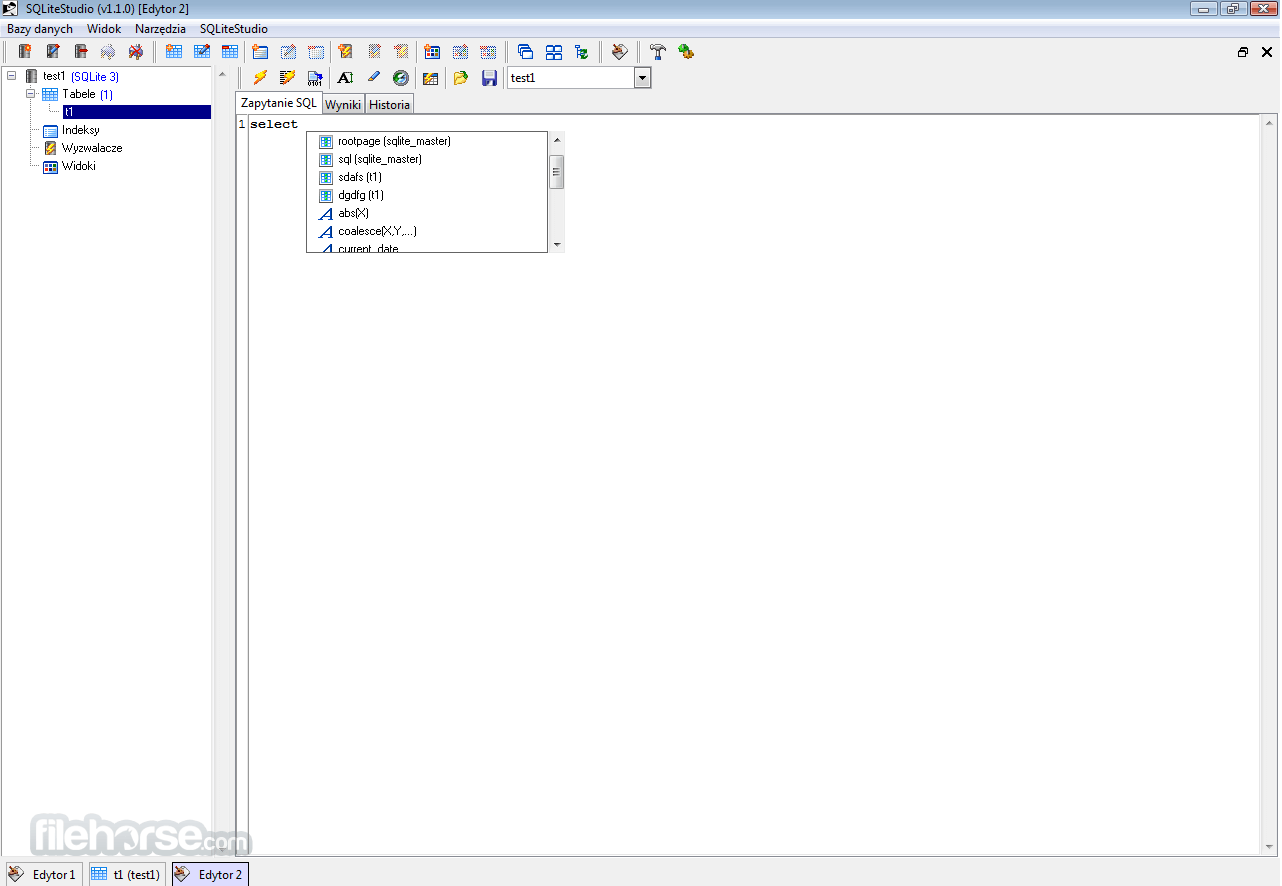
It has a clean and minimalistic interface. It organizes various tools and utilities within a single-window layout, providing easy navigation.
On the left side, you’ll find a database explorer, where all open databases are displayed with their respective tables, views, triggers, and indexes in a tree structure.
The main workspace is on the right, where users can open multiple tabs to edit tables, write queries, or browse data. The interface is highly intuitive and designed to cater to beginners and professionals alike.
Installation and Setup
Download the Software: Head to the official website or FileHorse and download the installer for your operating system.
Installation: Run the downloaded installer file and follow the on-screen instructions.
Launch the Program: Once installed, open the app. You’ll see a splash screen and be taken to the main interface.
Add a Database: To start working, click on the "Database" menu and select "Add a Database," then navigate to your SQLite database file or create a new one.
No additional configurations or dependencies are needed, making SQLiteStudio an efficient tool that’s ready to use immediately after installation.
How to Use
Adding a Database: Click on "Database" > "Add a Database" and select your file to import an existing database or create a new one.
Exploring Database Structure: The database explorer shows tables, views, triggers, and indexes. Expand each section to view or modify the database structure.
Running SQL Queries: Go to the SQL Editor tab to write and run SQL queries. Syntax highlighting and autocomplete make the editor beginner-friendly.
Creating Tables: Right-click on the database in the explorer, select "Create Table," and define the columns and constraints. Click “OK” to save.
Data Import and Export: For importing data, go to “Tools” > “Import.” Choose the file format and configure import settings. For export, follow a similar path under “Export.”
Database Synchronization: Use the “Database Comparison” tool to detect and merge changes across databases.
FAQ
Can I use SQLiteStudio to connect to other database types?
The program is exclusively designed for SQLite databases. For other database types, consider tools like DBeaver or MySQL Workbench.
How do I export my database in CSV format?
Right-click the table you want to export, select "Export," choose CSV, and configure your settings.
Does SQLiteStudio support encryption?
Yes, but only if you use SQLite Encryption Extension (SEE) or an encrypted SQLite library.
Can I automate tasks in SQLiteStudio?
The app doesn’t natively support task automation. However, you can use command-line SQLite or third-party scripts for automated tasks.
How do I resolve installation errors on Linux?
Ensure that you have the required permissions and dependencies. Check the SQLiteStudio documentation for Linux-specific troubleshooting.
Alternatives
DB Browser for SQLite: A similar tool with a slightly simpler interface, focused on basic database operations.
DBeaver: A powerful database management tool that supports multiple databases, including SQLite. Ideal for users needing multi-database support.
dotConnect for SQLite: High-performance ADO.NET Data Provider for SQLite.
Pricing
This program is entirely FREE and open-source software (FOSS).
This accessibility makes it an excellent choice for users who need a high-quality SQLite database management tool without investing in a commercial license.
System Requirements
- Operating System: Windows 11, 10, 8 or 7
- Processor: 1 GHz or faster
- Memory: 512 MB RAM (1 GB recommended)
- Storage: 50 MB for installation
- SQLite Version: Compatible with all recent SQLite versions
- Free and open-source
- Cross-platform compatibility
- Intuitive interface suitable for beginners
- Robust data import/export options
- Extensible via plugins
- Limited to SQLite databases
- Lacks automation features
- Limited data visualization tools
- Some advanced users may find the feature set basic
SQLiteStudio is a highly effective, user-friendly tool for managing SQLite databases. Its combination of simplicity and functionality makes it an ideal choice for developers, analysts, and database administrators seeking a streamlined solution for SQLite database management.
With features like visual query building, multi-format import/export, and an easy-to-navigate interface, this tool is accessible even to users new to SQL.
Also Available: Download SQLiteStudio for Mac
-
SQLiteStudio 4.0.0 Screenshots
The images below have been resized. Click on them to view the screenshots in full size.
-

What's new in this version:
Added:
- ERD editor - a diagram viewer and editor for database schema
- Windows ARM64 binaries provided
- Linux ARM64 binaries provided
- MacOS ARM64 (M1, M2, ...) binaries provided as Universal Binary (both x86_64 and ARM64 architectures supported by a single binary)
- Added image rendering for image data in the Grid View (plugin-based, so more renderers can be added in future)
- Added data editor plugin for JSON - with syntax validation and highlighting for editing table data. Contributed by @calumk
- Added AUTOINCR option directly to column dialog, reducing clicks needed to create the INTEGER PRIMARY KEY AUTOINCREMENT column
- Added support for defining user-defined Aggregate Window Functions in the Functions Editor
- Double-clicking on a cell that clearly contains a value to be edited in the Value Editor dialog will immediately open it in the editor dialog
- Value Editor dialog (and Form View editor) allow now loading/saving value from/into a file by dedicated buttons
- Added Command Palette (Ctrl+Shift+P by default) for quick search & execution of common actions, searching configuration options, etc
- Database List can be now synced/linked with active MDI window using the toggle button on top of the database list
- Objects on Database List (databases, tables, columns, indexes, triggers, views) can be now renamed quickly inline
- Dragging table/view/columns from Database List to SQL Editor will now generate SELECT/UPDATE/INSERT depending on the keyboard modifier during the drop
- ScriptingPython plugin now allow selecting Python installed in your system and it's compatible with all recent (and not so recent) Python versions. Big thanks to @tuffnatty for this
- Syntax highlighting now supports bold/italic settings
- Added Tcl syntax highlighter plugin
- Added Tip of the Day plugin
- User can now change size of icons on toolbars
- Password input (for example in database dialog for encrypted files) has now icon to show/hide the password
- Search function for Form View text fields (with Ctrl+f/Cmd+f hotkey)
- Ctrl+f/Cmd+f hotkey in Grid View now moves focus to filter input
- F2 hotkey in SQL editor opens database object being currently at the cursor position (if any)
- Added the Disable Blinkinig Cursor (for SQL Editor) option in the configuration dialog
- Application will warn in status field if the open database was recently edited by a higher version of SQLite and that it may potentially cause some issues
- Support for new syntax variants of ALTER TABLE
- Double-click on column separator in data view now supports resizing all selected columns at once
- Added Columns node to Views in Database List
- Column widths and Row Height Adjusting in Grid View is now stored in the session and restored upon next application strt
- Much better suppport for dropping various files (databases, SQL files, ...) onto the application Window
- In Configuration dialog the Reset To Defaults button was added for hotkeys page
- Windows executables in the official release are now signed thanks to the SignPath.io
- MacOS executables in the official release are now signed with Apple Developer ID
- Export Dialog now has option to export View(s) together with their triggers and data. View Window now has icon on the toolbar to export the View
- Html Export plugin produces now HTML tables that are sortable by clicking on their headers
- SQL History tab has now function to export executed queries history (or selected subset) to a SQL file
- The Format SQL action added to context menus everywhere where SQL is being being edited. Also the hotkey for actions works for it
- Custom footer and header can be configured for PDF and HTML export
- PDF export now includes query used for the data being exported (when exporting Query Results or a View)
- Tools menu entries to export/import application configuration, such as defined functions, collation sequences, code snippets and SQLite extensions
- When selecting multiple cells, sum of all numerical values will be shown in the toolbar, next to numer of loaded rows
- Column data types are now displayed as labels for column on database list. It can be switched off in configuration
- Columns in Data Grid View can now be pinned from header's context menu
- Form View row number is now an editable input, allowing to jump to arbitraty row number within currently loaded page of data
- Added the Open In Editor button to DDL preview dialog
- Execute From File Dialog now supports 3 execution modes, allowing SQLite CLI dot commands in the executed file
- Execute From File Dialog remembers its settings for another use
- Query results in SQL Editor can be arranged on the right side of the query, apart from the options available so far (below query or on separate tab). The layout is saved in the session and restored upon next start
- Foreign Key constraint configuration dialogs now warns about using foreign column that is neither PRIMARY KEY nor UNIQUE
- The INSTEAD OF triggers on Views are now honored when present. Add/Delete row in the View Window now appears if respective INSTEAD OF trigger is present for the View
- Added 'Cut' entry to context menu of data Grid View
- Added debug(msg) SQL function to print messages to Status Field, for example from TRIGGER body
- Added option in configuration to sort data by single-click on a header. Ehnanced data header tooltips to include this information there
- Added option in configuration to make the Enter key move to the next row, if it was used to finish data editing in Grid View. The option is also available from the Grid's context menu
- Application was fully translated with AI LLM to new languages: Afrikaans, Arabic, Belarusian, Catalan, Czech, Danish, Dutch, Greek, Hugarian, Japanese, Korean, Norwegian, Portuguese (both European and Brazilian), Romanian, Serbian, Slovak, Swedish, Turkish
Changed:
- Project has been renamed to Letos. Together with the name, also domain/homepage has changed to letos.org.
- Application has moved to Qt 6 (dropping Qt 5 support). This solves several technical issues (for example accented characters on MacOS, better UI scaling for high DPI displays, better dark theme support and more).
- All raster icons are replaced with vector icons (SVG). This makes them scalable and work well with high DPI displays.
- SQLite3 version updated to 3.53.2.
- Value Editor (and Form View) got small visual lifting to be more convenient to use (bigger column labels, etc).
- SQL Editor is now tied to a file whenever loads or saves to that file and that tie is restored upon next application session. It also renames editor window to that file name.
- Colors configuration for syntax highlighting now allows defining also bold/italic attributes.
- Plugins Page in Configuration Dialog uses now a material-design-like toggle for loading/unloading plugins + each plugin has more vertical padding and is clickable as a whole row, not just a small box.
- Configuration Dialog filter marks matched widgets with red outline.
- Configuration Dialog items on the categoris list are now a bit taller, icons a bit bigger.
- Database actions on main toolbar simplified, partially moved to Database List panel.
- Application connects to the database that was just added to the list.
- Ctrl+O (Cmd+O on macOS) now always asks for a file to open and if it's a database, it's added to the list. If it's SQL file, the SQL editor opens for it.
- Ctrl+N (Cmd+N on macOS) now always asks for a file to create and adds the new database to the list.
- WxSQLite plugin was renamed to its proper name, the SQLite3MC (SQLite 3 Multiple Ciphers).
- Table Modifier optimization, so at most only single copying data can happen, instead of two. Also views/triggers support got improved for cases with subselects.
- Code Assistant improved to suggest appropriate JOIN conditions when asked at the ON keyword of joining tables. Currently supports only plain table data sources (not subselects).
- Foreign Key editor in Form View and dedicated editor dialog now shows preview of currently selected value of foreign table.
- Column Dialog now shows Composite constraints that affect edited column as read-only checked options, to make it clear why this column has particular constraint icon on it in Table Window.
- Several toolbars cleaned up, simplified.
- Enhanced support for DEFAULT/AUTOINCR/GENERATED columns, so that it's the default value is distinct from NULL and user can always reset new cell value to its default value.
- Database list now expands columns, indexes and triggers whenever the table is expanded.
- Middle-click on an open database closes it. Middle-click on tables/views (in Database List) closes respective Table and View windows.
- Added option to prefer sqlite_master table name over sqlite_schema on the Database List.
- Boundled SQLite extensions now use path relative to the running application.
- Table Window and View Window does not ask for closing confirmation when they were open for creation of new object and not yet modified.
- New Table and New View actions are now disabled if selected item in the Database List does not have open database, as it may be misleading to start designing new table/view and miss the fact that it's still not aimed towards the database.
- The setting to show per-column filters in Grid View is now remembered.
- Default hotkey for Configuration Dialog changed to Ctrl+, on all platforms.
- Config Dialog now remembers the last used page and restores it when its open next time.
- SQLCipher for SQLite3MultipleCiphers plugin now provides small initial pragmas configuration proposal.
- Using RETURNING clause for INSERTing data to optimize the operation.
- File extension in Export Dialog file input is now updated whenever export format is changed.
- Added Select All and Deselect All buttons to Populate Dialog.
- Reported query execution time now shows more decimal places and removes trailing zeros. The precision is now also configurable.
- Default Code Snippet list extended and now they are preferred in the Code Assist when SQL Editor is empty.
- Bind Param Dialog now starts in simplified layout (unless complex values were remembered), which is much cleaner for simple input.
- Functions, Collations, Code Snippets and Extensions windows now show more info on their list (number of databases in which they are registered, etc). Additionally their splitter position is now remembered.
- Status panel now dims older messages, when new messages appear, so they stand up. User can also configure to use older behavior (no dimming), or to remove older messages entirely from the panel and keep only the new one.
- Added metadata to Windows executables.
- Export Dialog respects hotkeys for changing database in the dropdown, using the same hotkey as SQL Editor.
- Import Dialog has now inverted order of pages - the imported file first and then the target table, for which the name is concluded from imported file name. Also filter for CSV import is now extended with tsv files.
- EXPLAIN button in SQL Editor now has dropdown menu with selection between EXPLAIN and EXPLAIN QUERY PLAN modes.
- With hotkeys being reset to defaults in version 4.0.0, the relevant notification message is now printed upon the reset.
- Execute SQL From File dialog no whas a database selector and the action appears in all database list context menus + in the Tools menu of main menubar.
-ws x86 (32-bit) binaries will no longer by provided in official builds.
- The command line application (letoscli) was deprecated and removed from the current code branch. Please use official SQLite3 CLI as a command line app, as it improved a lot in recent versions.
- Application translations were updated with missing translations using AI LLM for languages: Chinese (Simplified and Traditional), French, Italian, Slovak, Spanish
- Application translations were updated with missing translations for lanuages: Polish
Fixed:
- Enterprise Formatter now handles comments much better than before
- Unique indexes are allowed for expressions, as they should be
- Empty/null cells resulting from LEFT JOINs are not editable anymore
- Fixed blank MDI window buttons when using 150% interface scaling under Windows
- Fixed accent characters support under MacOS
- Grid columns do not shrink when unwanted while refreshing data, or entering new values to cells
-ved Code Assistant suggestions when SQL editor contains more than one query
- User-defined functions now follow database renaming in case the function was explicitly registered for the database
- Fixed user-defined collations
- Fixed table labels on Database List to enforce the lazy-loaded table schemas to be loaded at once when this option is enabled
- Fixed SQL syntax highlighter for multi-line comments with empty linies inside
- Fixed PDF export bugs (first page size too small, occasional table overlapping, page numbers cut off)
- Fixed tooltip in Database Dialog with Wayland under Linux
- Select first inserted row after inserting multiple rows in Grid View
- MultiEditor now keeps original line separators from the value loaded, while new separators inserted are alwas n. Also optimized performance for very long text lines in the editor.
 OperaOpera 133.0 Build 5932.60 (64-bit)
 BlueStacksBlueStacks 10.42.241.1001
 PhotoshopAdobe Photoshop CC 2026 27.7 (64-bit)
 WPS OfficeWPS Office Free 12.2.0.23196
 GTA 6GTA 6 for PS5
 CapCutCapCut Desktop 8.9.1
 PC RepairPC Repair Tool 2026
 Hero WarsHero Wars - Online Action Game
 TradingViewTradingView - Trusted by 100 Million Traders
 Forza HorizonForza Horizon 6
Comments and User Reviews