




 Artlist
 Camo Studio
 Premiere Pro
 OpusClip
 Restream
 Kling AI
 LitMedia AI
-
Latest Version
Media Player Classic Home Cinema 2.8.0 (64-bit) LATEST
-
Review by
-
Operating System
Windows 7 64 / Windows 8 64 / Windows 10 64 / Windows 11
-
User Rating
Click to vote -
Author / Product
-
Filename
MPC-HC.2.8.0.x64.exe
It has built-in codecs for MPEG-2 video and codecs for LPCM, MP2, AC3, and DTS audio, and also contains an improved MPEG splitter that supports playback of VCDs and SVCDs using its VCD, SVCD, or XCD Reader. An AAC decoding filter makes MPC suitable for AAC playback in MP4.
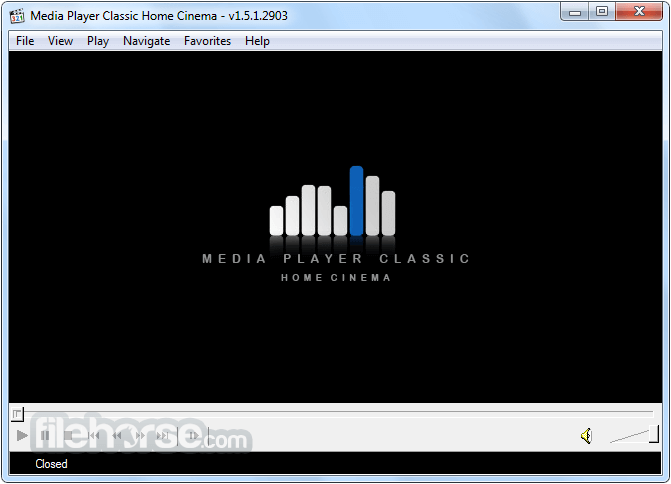
MPC-HC, short for Media Player Classic - Home Cinema 64bit, is a Windows-based, free, and open-source video and audio player. It is an enhanced version of the original Guliverkli project, offering a wide range of additional features and bug fixes.
Highlights
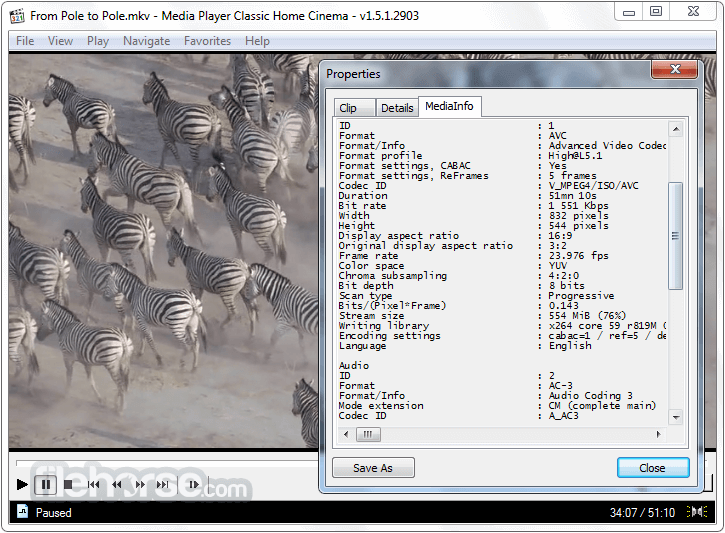
Comprehensive Format Support: It supports an extensive list of media formats, including popular ones such as MP4, MKV, AVI, FLV, MP3, FLAC, and more. This ensures compatibility with a wide range of multimedia content.
Customizable Interface: The user interface of MPC-HC is clean, intuitive, and highly customizable. Users can choose from various skins and apply different color schemes to personalize their media player.
Advanced Playback Controls: It offers a plethora of playback controls, including play, pause, stop, fast forward, rewind, and frame-by-frame navigation. It also provides keyboard shortcuts and supports multimedia keyboard shortcuts for easier control.
Subtitle Support: It allows users to load external subtitle files and adjust settings such as font, size, color, and synchronization. It supports a wide range of subtitle formats, ensuring an optimal viewing experience for users.
Audio and Video Filters: The media player incorporates a robust set of audio and video filters, allowing users to enhance their playback experience. These filters enable adjustments to brightness, contrast, sharpness, noise reduction, audio equalization, and more.
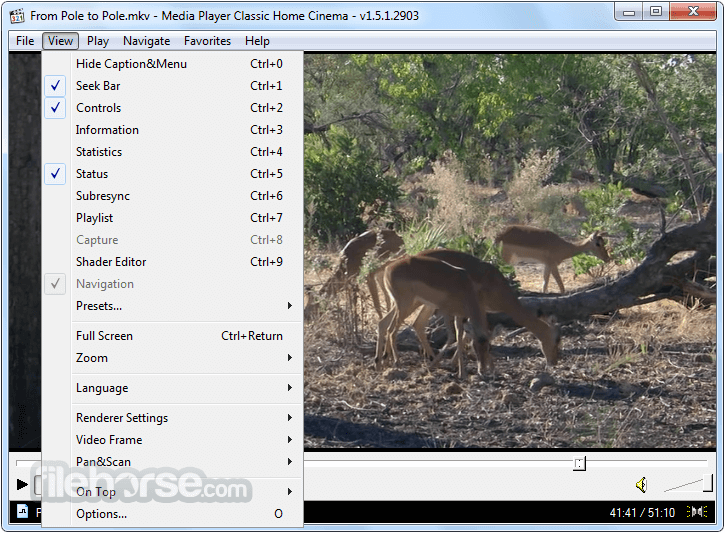
Key Features
Dark Interface
Easily switch to a dark theme: Menu > View > Dark Theme
Customizable Seekbar and Toolbar
Adjust the height of the seekbar and size of the toolbar buttons: Options > Advanced
Video Preview on Seekbar
Enable video preview on the seekbar: Options > Tweaks > Show preview on seek bar
Adjustable Playback Speed
- Change playback speed: Menu > Play > Playback rate
- Customize the playback rate increment: Options > Playback > Speed step
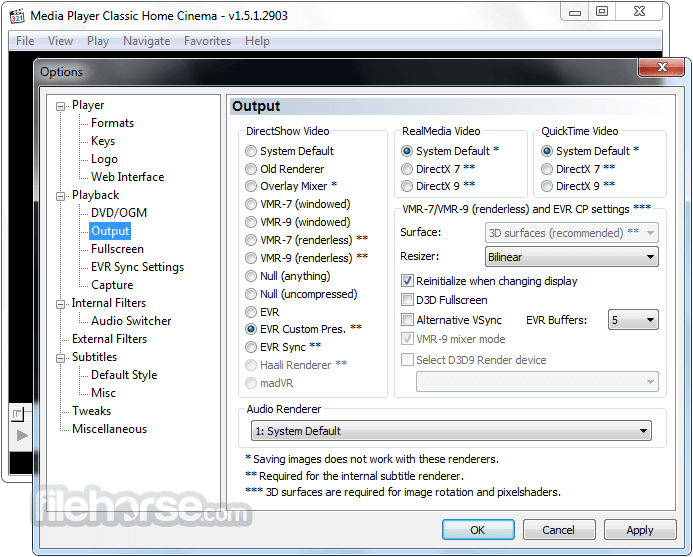
- Improved playback experience with the SaneAR audio renderer: Options > Playback > Output > Audio Renderer
- Automatic pitch correction with SaneAR audio renderer
- MPC-HC remembers the playback position for easy resuming: Options > Player > History
- Fast seek through a video using Ctrl + Mouse Scrollwheel
Jump to the next/previous file in a folder: PageUp/PageDown
After Playback Actions
- Set automatic actions after playback: Options > Playback > After Playback (permanent setting)
- Apply actions for the current file only: Menu > Play > After Playback
- Loop a specific segment of a video: Press [ and ] to set start and stop markers
- Rotate, flip, mirror, stretch, and zoom the video: Menu > View > Pan&Scan
- Convenient hotkeys available for these functions
- Customize keyboard hotkeys and mouse actions: Options > Player > Keys
- Use the search box above the table for quick access to specific settings
- Stream videos directly from YouTube and other websites
- Place yt-dlp.exe in the MPC-HC installation folder
- Open website URLs in the player: Menu > File > Open File/URL
- Download videos: Menu > File > Save a copy
- To enable downloading in the best quality, place ffmpeg.exe in the MPC-HC folder
- Additional configuration options for yt-dlp are available: Options > Advanced
- Play HDR videos using madVR or MPC Video Renderer: Options > Playback > Output
- Search and download subtitles automatically or manually (press D): Options > Subtitles > Misc
- Numerous bug fixes and internal improvements for better performance and stability
- Updated internal codecs with added support for CUE sheets, WebVTT subtitles, and more.
Download and Installation: Visit the official MPC-HC website or FileHorse and download the latest version of the software. Follow the installation instructions provided by the setup wizard.
Opening Media Files: Launch the app and either use the File menu or drag and drop media files into the player window. Alternatively, you can right-click a media file in Windows Explorer and select "Open with MPC-HC."
Playback Controls: Use the toolbar or keyboard shortcuts to control playback, adjust volume, switch between audio tracks and subtitles, and navigate through the media file.
Customization: Explore the various settings and options in the Preferences menu to personalize MPC-HC according to your preferences. You can modify video and audio settings, subtitle options, and interface appearance.
FAQ
Q1. Is Media Player Classic - Home Cinema FREE to use?
A1. Yes, the app is completely FREE and open-source, making it an excellent choice for users who want a high-quality media player without any cost.
Q2. Does MPC-HC work on macOS?
A2. No, MPC-HC is primarily designed for Windows operating systems, and there is no official version available for macOS. However, Mac users can explore alternative media players such as VLC media player or IINA.
Q3. Can I use MPC-HC to stream online videos?
A3. The app is primarily a local media player and does not have built-in streaming capabilities. However, you can download videos using third-party software and then play them using MPC-HC.
Q4. Does MPC-HC support hardware acceleration?
A4. Yes, it leverages hardware acceleration capabilities to provide smooth playback of high-resolution videos. This feature enhances performance, especially when dealing with 4K or HEVC-encoded content.
Q5. Can I use MPC-HC to take screenshots while playing videos?
A5. Yes, it allows users to capture screenshots during video playback. Simply press the designated hotkey or use the toolbar button to take a snapshot.
Alternatives
VLC Media Player: Known for its wide format support and cross-platform availability, VLC is a popular choice among users looking for a versatile media player.
PotPlayer: Developed by the same team behind KMPlayer, PotPlayer offers a customizable interface, comprehensive format support, and advanced playback features.
KMPlayer: An intuitive media player with support for 3D video playback, KMPlayer offers a range of features, including subtitle customization and visual effects.
GOM Player: GOM Player boasts a user-friendly interface, 360-degree VR video support, and the ability to play damaged or incomplete files.
5KPlayer: A multimedia player that supports 4K, 5K, and even 8K video playback. It includes features like AirPlay support, and DLNA streaming, making it a versatile option for both local and online media playback.
System Requirements
- Operating System: Windows 11, Windows 10, Windows 8.1, Windows 8, Windows 7, Windows Vista, or Windows XP.
- Processor: 1.5 GHz or higher.
- RAM: 512 MB or more.
- Hard Disk Space: 50 MB or more.
- Lightweight and resource-friendly
- Extensive format support
- Customizable interface
- Advanced playback controls
- Subtitle support and filters for enhanced viewing experience
- Open-source and free
- Limited platform support (only available for Windows)
- Lacks streaming capabilities
- Less frequent updates compared to some alternatives
Media Player Classic - Home Cinema (MPC-HC) is an exceptional media player that offers a lightweight, user-friendly, and feature-rich experience. Its extensive format support, customization options, and advanced playback controls make it an excellent choice for Windows users. While lacking some features found in other media players, MPC-HC's simplicity, stability, and open-source nature make it a top contender for those seeking a reliable media player without any cost.
Whether you're watching movies, listening to music, or enjoying other multimedia content, MPC-HC is a solid choice to fulfill your media playback needs.
Also Available: Media Player Classic - Home Cinema (32-bit)
-
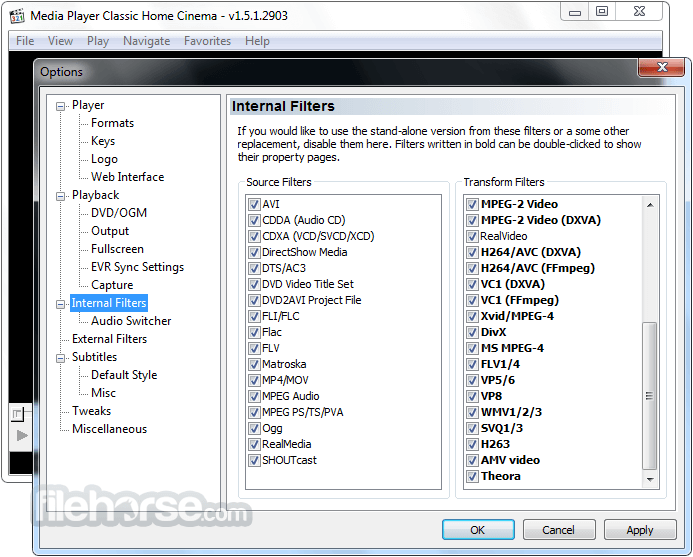
Media Player Classic Home Cinema 2.8.0 (64-bit) Screenshots
The images below have been resized. Click on them to view the screenshots in full size.
-
-
-
-
What's new in this version:
Updates:
- Updated LAV Filters to version 0.82-5-g77c25
- Updated MPC Video Renderer to version 0.10.7.2560
Changes/additions:
- Settings of SaneAR/VMR-9/EVR-CP/EVR-Sync have been moved and can now be accessed through the button behind the renderer on the Output settings page
- Cleaned up the Output settings page and updated the tooltips of the video renderers
- It is now possible to provide default settings through HKLM, which are read whenever creating fresh settings profile in HKCU section of Registry
- When storing settings in INI file, the history is now split off in a separate file. When the application folder is not writable, the history file is placed in %appdata%\MPC-HC. Also added an advanced option to always use appdata folder
- Please note that the Registry is still the preferred location for storing the settings. That has better performance than INI file. Settings backup is as easy as pressing a button here: Options > Miscellaneous > Expor
- Added an advanced option HistoryExcludeFilter to exclude certain content from getting added to recent file history. It is a simple semi-colon separated list of substrings that is matched against the full path or URL
- There also is a HistoryExcludeFilterPrivate setting with exact same purpose, which is not exposed through the user interface
- Added advanced option to automatically prune history entries older than X days. Defaults to 365, and can be disabled by setting to 0
- Added a new Show History entry to recent file menu. This opens a dialog for managing history entries. Allows you to search. Manually remove entries. Clean invalid entries. Clean old entries. Reset position, etc
- When opening a selection of files from Explorer, they are now added to playlist in correct alphabetical order
- Added "sort by date" option in playlist context menu. Note that all sort actions apply once to current list and do not have effect on future playlist changes
- Added advanced option to sort files by date when skipping to next/previous file in folder
- Color controls have been moved from options dialog into a new popup dialog. Accessible through the Play menu or hotkey
- Advanced settings have now been re-ordered and grouped into categories
- Improved performance when using libass for rendering subtitles
- Added stack trace to internal (fallback) exception handler
Fixed:
- Fixed an issue where subtitle styles changes were not dynamically applied during segment change in segmented Matroska files with ordered chapters
- Fixed an issue where seekbar preview could show wrong edition with playing a Matroska file with multiple video editions
- Fixed an issue where video preview was up-side-down in web interface when renderer provided a topdown bitmap
- Fixed an issue with EVR-CP that caused still images to not render immediately
- Improved long path support in a few file dialogs, such as "Load subtitles"
- A few other fixes and small improvements
 OperaOpera 134.0 Build 5954.66 (64-bit)
 BlueStacksBlueStacks 10.42.255.1003
 PhotoshopAdobe Photoshop CC 2026 27.9.1 (64-bit)
 LDPlayerLDPlayer - Android Emulator
 GTA 6GTA 6 for PS5
 CapCutCapCut Desktop 9.1.0
 PC RepairPC Repair Tool 2026
 Hero WarsHero Wars - Online Action Game
 TradingViewTradingView - Trusted by 100 Million Traders
 Halo: CampaignHalo: Campaign Evolved
Comments and User Reviews