




 Envato
 CorelDRAW Go
 Luminar Neo
 Lightroom
 PhotoRoom
 Pixelcut
 Affinity
-
Latest Version
GIMP 3.2.4 LATEST
-
Review by
-
Operating System
Windows 10 / Windows 11
-
User Rating
Click to vote -
Author / Product
-
Filename
gimp-3.2.4-setup.exe
-
MD5 Checksum
654e0fefd839e1ab496e48e2fa25cac1
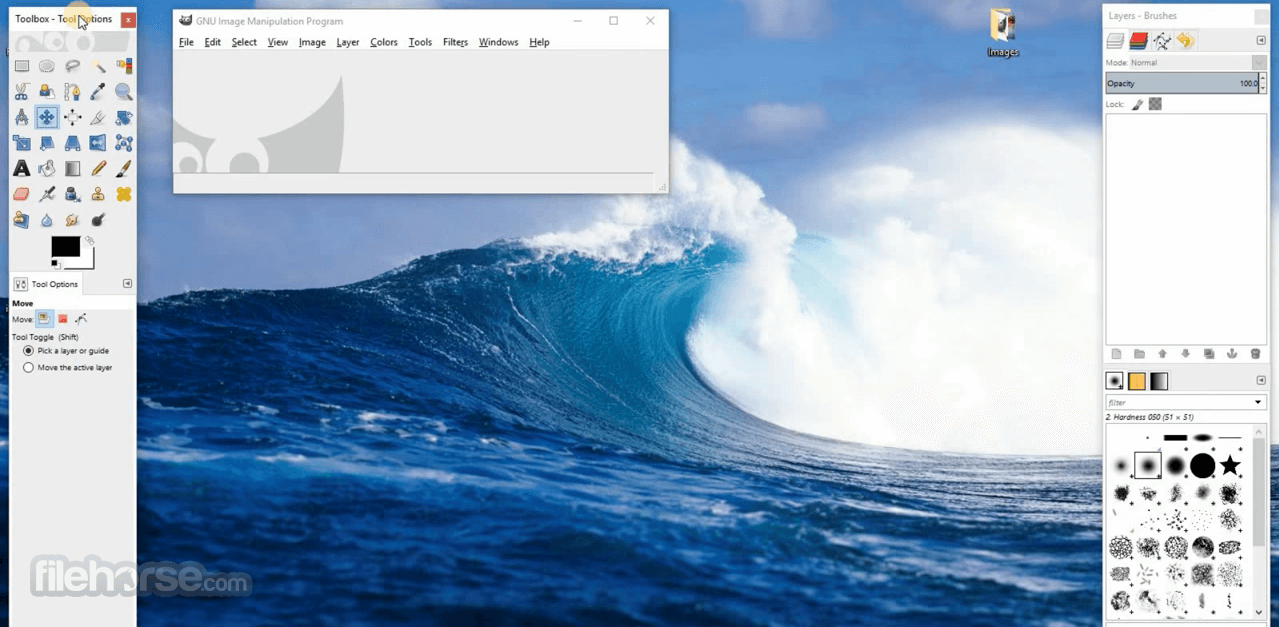
As a free alternative to Adobe Photoshop, GIMP for PC has been a go-to tool for graphic designers, photographers, and hobbyists looking for a comprehensive image editing solution.
Its flexibility and extensive array of features make it a formidable choice for users who need advanced graphic design capabilities without the cost associated with premium software.
What`s New in latest version 2026
- Improved non-destructive editing with enhanced layer handling.
- Updated GEGL engine for better image processing performance.
- Enhanced PSD file compatibility with improved layer support.
- Refined user interface with modernized icons and theme updates.
- Improved high-DPI scaling for sharper UI on 4K displays.
- Expanded file format support including better TIFF and WebP handling.
- Enhanced text tool with more reliable font rendering.
- Improved brush engine responsiveness and tablet support.
- Optimized multi-threading for faster filter application.
- Bug fixes and overall stability improvements across platforms.
Comprehensive Image Editing: It offers a wide range of tools for photo retouching, including color adjustment, cropping, resizing, and layering.
Customizable Interface: Users can adapt the layout to their needs, creating a more efficient workflow.
Extensive Plugin Support: There is a rich ecosystem of plugins and scripts that extend GIMP’s capabilities, including those that mimic Photoshop's behavior.
Supports Various File Formats: It supports popular file formats like JPEG, PNG, GIF, PSD, and more. It can also export to various formats, making it versatile for different projects.
High-Quality Image Manipulation: Users can carry out complex tasks such as image composition, retouching, and restoration with a suite of advanced tools.
Brush Customization and Pencil Tools: For those involved in digital painting, it offers a variety of brush and pencil tools that can be customized for different artistic effects.
Path and Selection Tools: Advanced path tools and selection options like the lasso, magic wand, and color selector make precision editing possible.
Programming Algorithms: This program is a powerful framework for scripted image manipulation that supports multiple programming languages, including C, C++, Perl, Python, Scheme, and more!
User Interface
GIMP’s user interface may seem daunting at first, especially for those used to simpler software. However, once users familiarize themselves with the tool placement, layers panel, and dockable dialogs, the workflow becomes efficient.
The UI is customizable, allowing users to set up the workspace that best suits their projects. The app’s interface supports single-window mode for those who prefer a more unified layout, reducing the clutter of multiple floating windows.
Installation and Setup
Download: Visit the official website or FileHorse.com and download the latest version compatible with your OS.
Install: Follow the on-screen instructions for installation.
First-time Setup: When launching this program for the first time, the software will initialize, set up resources, and load essential plugins.
This software is available on Windows, macOS, and Linux, making it accessible for a broad user base.
How to Use
Basic Editing
- Open an image via File > Open.
- Use tools from the left panel to edit (crop, paint, adjust colors).
- Access advanced adjustments via the Colors menu for brightness, contrast, and color balance.
- Create new layers for non-destructive editing.
- Use the Layers panel to adjust layer opacity and blending modes.
- Select portions of an image using the rectangle, ellipse, lasso, or magic wand tool.
- Apply transformations to selections, such as moving, rotating, or scaling.
- It has a wide variety of built-in filters accessible from the Filters menu, useful for adding effects such as blur, noise, and artistic touches.
- Save your project as a GIMP file (.XCF) to retain layers for future editing.
- Export as a standard image format using File > Export As.
Is GIMP suitable for professional use?
Yes, this program is suitable for professional use, especially for individuals or organizations looking for a free, versatile image editor. However, users who need specific industry-standard features may still prefer paid alternatives.
Can GIMP open and edit Photoshop files?
It can open PSD files, but compatibility is limited to simpler projects without advanced Photoshop-specific adjustments.
Are there tutorials available for learning GIMP?
Yes, there are many resources available, including the official documentation, community tutorials, YouTube videos, and third-party guides.
Does GIMP support vector graphics?
While the app has basic vector tools, it is primarily a raster-based program. For more extensive vector graphic capabilities, using Inkscape alongside GIMP is recommended.
Is GIMP safe to download and use?
Yes, this software is safe when downloaded from the official website or FileHorse. Always ensure you're using the latest version from trusted sources to avoid vulnerabilities.
Key Element in a Desktop Publishing Workflow
It offers excellent color management capabilities to guarantee accurate color representation for both digital and printed media.
It is especially effective when integrated into workflows that include other free software like Scribus and Inkscape.
Alternatives
Krita: A powerful free tool focused on digital painting but with some image editing capabilities.
Adobe Photoshop Express: The industry standard for image editing, known for its vast range of features and extensive plugin support.
Paint.NET: A simpler, free image editor for Windows users, ideal for more basic editing needs.
Affinity Photo: A one-time purchase alternative to Photoshop with many professional-grade features.
Paint 3D: Make 2D masterpieces or 3D models that you can play with from all angles!
MS Paint: The legendary free graphic editor available for your Windows OS.
Corel PaintShop Pro: Another robust alternative for Windows users, offering a wide range of photo-editing tools.
Pricing
This software is completely FREE and open-source.
There are no subscription fees or hidden costs, making it an excellent choice for users on a budget.
System Requirements
OS: Windows 11, 10, 8 or 7 (64-bit recommended)
Hardware: Minimum 2 GB of RAM, multi-core processor recommended for intensive tasks.
PROS
- Free and open-source
- Comprehensive set of editing tools
- Customizable interface
- Supports various file formats
- Extensive community and plugin support
- Steeper learning curve
- Limited support for CMYK color mode (important for print work)
- Occasional bugs and crashes with complex edits
GIMP is a robust and flexible tool that can serve as a reliable alternative to costly image editors. While it has a steeper learning curve and lacks certain advanced features of its commercial counterparts, the software excels in its core functionalities.
Ideal for graphic designers, photographers, and hobbyists, it offers a professional-grade experience without any financial commitment. With regular updates and a passionate community, it continues to evolve, meeting the needs of users worldwide.
Also Available: Download GIMP for Mac
-
GIMP 3.2.4 Screenshots
The images below have been resized. Click on them to view the screenshots in full size.
-

-

-

-

What's new in this version:
Core:
- The "edit-fill-*" actions will now behave accordingly on specific cases. E.g. it will skip layers which can't be filled (content-lock)
- layers and link layers) and it will fill the expected way non-rasterized text and vector layers
- Images opened through command lines are not considered stray images anymore on exit when run without a GUI (scripts, etc.)
- We improved the support of the process temporary folder, so that we can avoid clashes when several users run GIMP on a same computer. Furthermore the temporary folder is now deleted at startup (unless it is not empty, which it should be).
- XCF opened as layers will now always create new layers named as in the source XCF, even if the source XCF had only a single layer
- The "layers-resize" now only works on raster layers
- The "Layers to Image Size" and "Resize Layer to Selection" actions will only work on raster layers too
Tool:
Text tool:
- When editing text, prioritize our global actions when a shortcut matches, before sending the hit keys to the IME (Input Method Engine). Otherwise some IME may consume our keys and block custom shortcuts (e.g. Alt+key events are often used to trigger special characters on macOS or Windows and may block core actions).
- Prevent font size jumping to 0 when using shortcuts on selected text
- Selection tools: when moving a floating layer or selection, temporarily disable the marching ants outline. Among other reasons, it improves performance.
- Select by Color tool: optimized processing when working in Intersect mode
- Crop tool: non-raster layers are not rasterized anymore
- Text tool: on-canvas GUI is now properly positioned when rotating the canvas
Plug-Ins:
- Improve import of: APNG, PAA, PNG, DDS, PSP, PNM, PSD, JIF, PVR texture, TIM, XWD, SFW, ORA
- Improved PDF export
- file-compressor: improved error messaging
- New Windows WIA scanner plug-in, replacing the now deprecated TWAIN scanner plug-in (which is not shipped in our Windows packages anymore as it depends on dropped 32-bit Windows platform)
- Script-Fu: several deprecated functions now cleaned out from scripts
- Filmstrip: the created image will now have the dirty flag set
API:
libgimp/PDB:
- libgimp/PDB functions gimp_context_set_line_width_unit() and gimp_vector_layer_set_stroke_width_unit() now accept pixel as input unit
- Improved error handling in gimp_temp_file()
- New function: gimp_resources_loaded()
libgimp:
- A function gimp_env_exit() was added, but same as gimp_env_init(), it is not declared in public headers and should never be used by plug-ins. It is considered private
- gimp_quit() function is deprecated
PDB:
- (gimp-quit) procedure (without libgimp wrapper) is deprecated
Translations:
- New Lao translation
Build:
- Many build warnings are being cleaned out
- New jobs are being set up with -Werror progressively as we weed out existing build warnings
- The issue bot will now run and create reports when specific jobsfail
- New rules to generate Markdown versions of our man pages for the website
 OperaOpera 134.0 Build 5954.56 (64-bit)
 BlueStacksBlueStacks 10.42.255.1002
 PhotoshopAdobe Photoshop CC 2026 27.9.1 (64-bit)
 LDPlayerLDPlayer - Android Emulator
 GTA 6GTA 6 for PS5
 CapCutCapCut Desktop 9.1.0
 PC RepairPC Repair Tool 2026
 Hero WarsHero Wars - Online Action Game
 TradingViewTradingView - Trusted by 100 Million Traders
 Halo: CampaignHalo: Campaign Evolved
Comments and User Reviews