




 Folder Color
 Raycast
 WindowBlinds
 Wallpaper
 Edge Drop
 Flow Launcher
 Fluent Search
 Logi Options+
-
Latest Version
DimScreen 1.1 LATEST
-
Review by
-
Operating System
Windows XP / Vista / Windows 7 / Windows 8 / Windows 10 / Windows 11
-
User Rating
Click to vote -
Author / Product
-
Filename
DimScreen.zip
-
MD5 Checksum
364ffcc03f00385e84779ab083664d20
DimScreen is a useful system tool that can help all PC users, not only laptop owners, to easily control the screen brightness of a PC display.
Note: It's been a long time since there was an update on the official website.
While laptop users have enjoyed this feature for decades as one of the best ways to prolong the life of the finite built-in battery, PC desktop/laptop users have never gotten a streamlined way to regulate the brightness of their monitor.
Key Features
Dim Screen app is distributed online as a portable archive that features no automated installer or uninstaller. Simply extract the app to any location on your local or external storage drive, and run the app. Its interface is truly minimal after the app has settled on your taskbar.
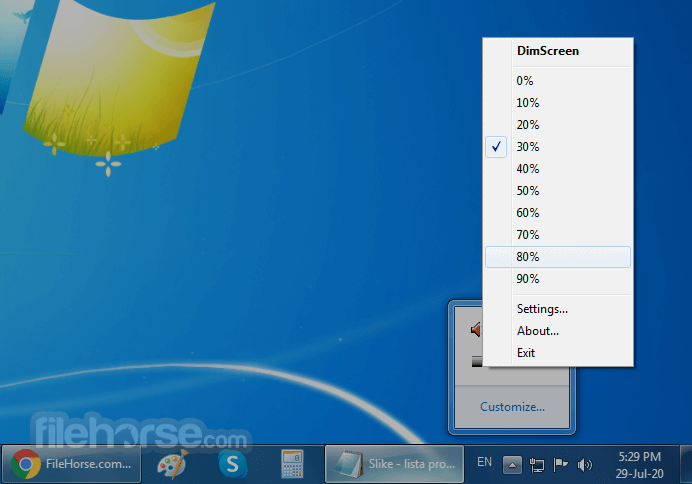
The user can click on its icon and access a large dropdown menu with 0-100% brightness selection in steps of 10%, and a Settings window where keyboard shortcuts can be assigned.
However, only three keyboard shortcut tools are offered: activation of the app, decreasing brightness, and increasing brightness. The user can set their preferred key combination, but the ability to set a shortcut for a specific brightness amount (let’s say 70%) is not possible.
The only alternative to this issue can be found in the setting called “Startup dimming” which can set the display brightness to the desired level on app startup.
DimScreen is a very useful app that does its advertised job very well. It can reduce and increase brightness on any screen, finally enabling desktop PC users to easily set their monitor or TV brightness levels depending on their environment (day or night) or content that they are enjoying (bright documents, multimedia, gaming).
FAQs
What is DimScreen and what does it do?
DimScreen is a lightweight Windows utility that places a dark overlay over the screen, allowing you to make the display appear dimmer than Windows' normal brightness controls allow. It can be controlled from the system tray or with keyboard shortcuts.
Can DimScreen dim multiple monitors?
No. The original DimScreen has a limitation with multi-monitor setups and was designed primarily to dim a single display. Users have also reported that the dimming may not apply correctly to additional monitors.
Is DimScreen still actively developed in 2026?
No. The official page lists version 1.1, with the last update dated December 2017. It remains a tiny and useful legacy utility, but there is no indication of active development by Skrommel.
PROS
Note: It's been a long time since there was an update on the official website.
While laptop users have enjoyed this feature for decades as one of the best ways to prolong the life of the finite built-in battery, PC desktop/laptop users have never gotten a streamlined way to regulate the brightness of their monitor.
Key Features
- Change the brightness by selecting a `% in the tray menu.
- Or use the hotkeys Ctrl++ and Ctrl+-.
- Change hotkeys using Settings in the tray menu.
- Doesn't work properly with video windows.
Dim Screen app is distributed online as a portable archive that features no automated installer or uninstaller. Simply extract the app to any location on your local or external storage drive, and run the app. Its interface is truly minimal after the app has settled on your taskbar.
The user can click on its icon and access a large dropdown menu with 0-100% brightness selection in steps of 10%, and a Settings window where keyboard shortcuts can be assigned.
However, only three keyboard shortcut tools are offered: activation of the app, decreasing brightness, and increasing brightness. The user can set their preferred key combination, but the ability to set a shortcut for a specific brightness amount (let’s say 70%) is not possible.
The only alternative to this issue can be found in the setting called “Startup dimming” which can set the display brightness to the desired level on app startup.
DimScreen is a very useful app that does its advertised job very well. It can reduce and increase brightness on any screen, finally enabling desktop PC users to easily set their monitor or TV brightness levels depending on their environment (day or night) or content that they are enjoying (bright documents, multimedia, gaming).
FAQs
What is DimScreen and what does it do?
DimScreen is a lightweight Windows utility that places a dark overlay over the screen, allowing you to make the display appear dimmer than Windows' normal brightness controls allow. It can be controlled from the system tray or with keyboard shortcuts.
Can DimScreen dim multiple monitors?
No. The original DimScreen has a limitation with multi-monitor setups and was designed primarily to dim a single display. Users have also reported that the dimming may not apply correctly to additional monitors.
Is DimScreen still actively developed in 2026?
No. The official page lists version 1.1, with the last update dated December 2017. It remains a tiny and useful legacy utility, but there is no indication of active development by Skrommel.
PROS
- Easy-to-use brightness adjustment.
- Minimal system resource usage.
- Quick access via the system tray.
- Portable, no installation needed.
- Customizable hotkeys for brightness control.
- Limited advanced features.
- No multi-monitor support.
- No automatic brightness adjustment.
- Basic user interface.
- No support for brightness scheduling.
- Lack of official support and updates.
Why is this app published on FileHorse? (More info)
-
DimScreen 1.1 Screenshots
The images below have been resized. Click on them to view the screenshots in full size.
 OperaOpera 135.0 Build 5973.133 (64-bit)
 LDPlayerLDPlayer - Android Emulator
 BlueStacksBlueStacks 10.42.262.1002
 MalwarebytesMalwarebytes Premium 5.7.0
 Premiere ProAdobe Premiere Pro CC 2026 26.5
 CapCutCapCut Desktop 9.3.0
 PC RepairPC Repair Tool 2026
 Adobe AcrobatAdobe Acrobat Pro 2026.002.21901
 TradingViewTradingView - Trusted by 100 Million Traders
 WARDOGSWARDOGS - All Out Warfare FPS
Comments and User Reviews