




 BookFab
 Genspark AI
 Edraw AI
 Adobe Acrobat
 PDFelement
 WPS Office
-
Latest Version
Sumatra PDF 3.6 (64-bit) LATEST
-
Review by
-
Operating System
Windows 7 64 / Windows 8 64 / Windows 10 64 / Windows 11
-
User Rating
Click to vote -
Author / Product
-
Filename
SumatraPDF-3.6-64-install.exe
-
MD5 Checksum
52b5ced22ecfb12ee1261b8c4e514732
This lightweight and fast reader was created for maximum comfort and useful features, especially targeting users who have either very slow computers that are struggling whenever users start up an official PDF viewing application, Adobe Reader, or to enable users with small technical knowledge to easily get access to all the tools that are needed for reading PDFs.
Overview
Sumatra PDF is a free, open-source PDF reader that focuses on simplicity and efficiency. Developed by Krzysztof Kowalczyk, this lightweight software has gained popularity due to its fast performance and minimal system resource requirements.
Sumatra PDF is compatible with Windows operating systems and is designed to provide a clutter-free reading experience without compromising essential features.
Some of its most notable features are the ability to be used as a portable application that is housed on an external storage device (no installation required), PDF editing and saving, printing, over 69 language translations, and more. Download Sumatra PDF Offline Installer Setup for Windows.
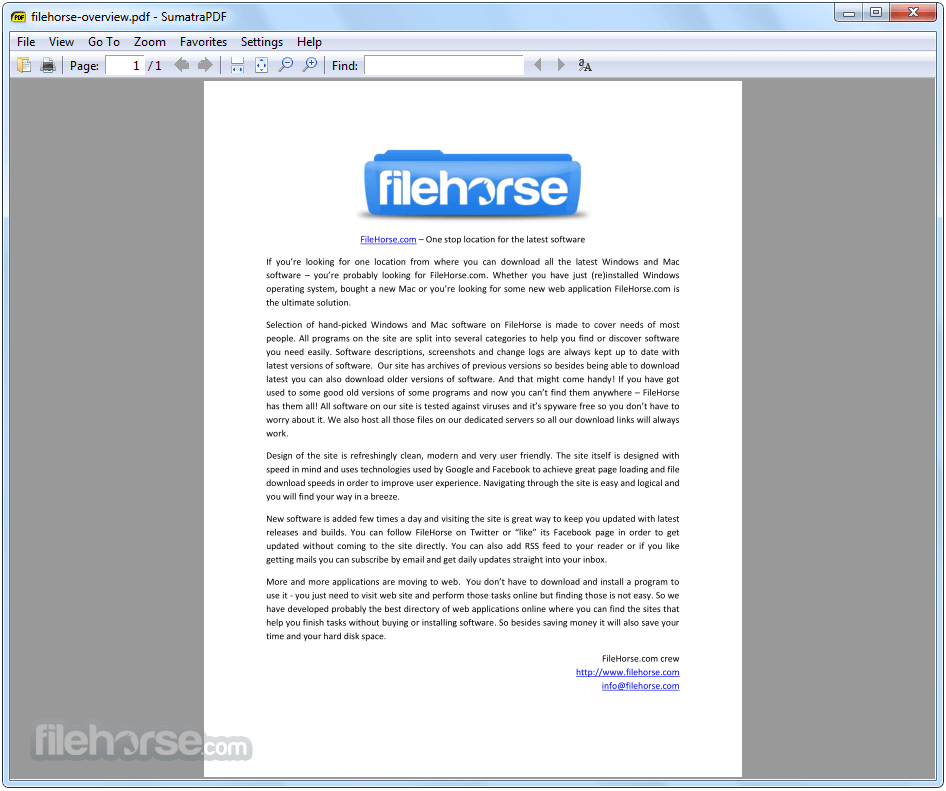
As you would expect from this lightweight and very fast app, the main interface of Sumatra PDF is crafted from the ground up to be as easy to use as possible, with a minimal amount of on-screen tools being available on the top of the app (Search, Print, go to Page, next page, previous page, few modes of rendering pages, zoom, and keyword Find).
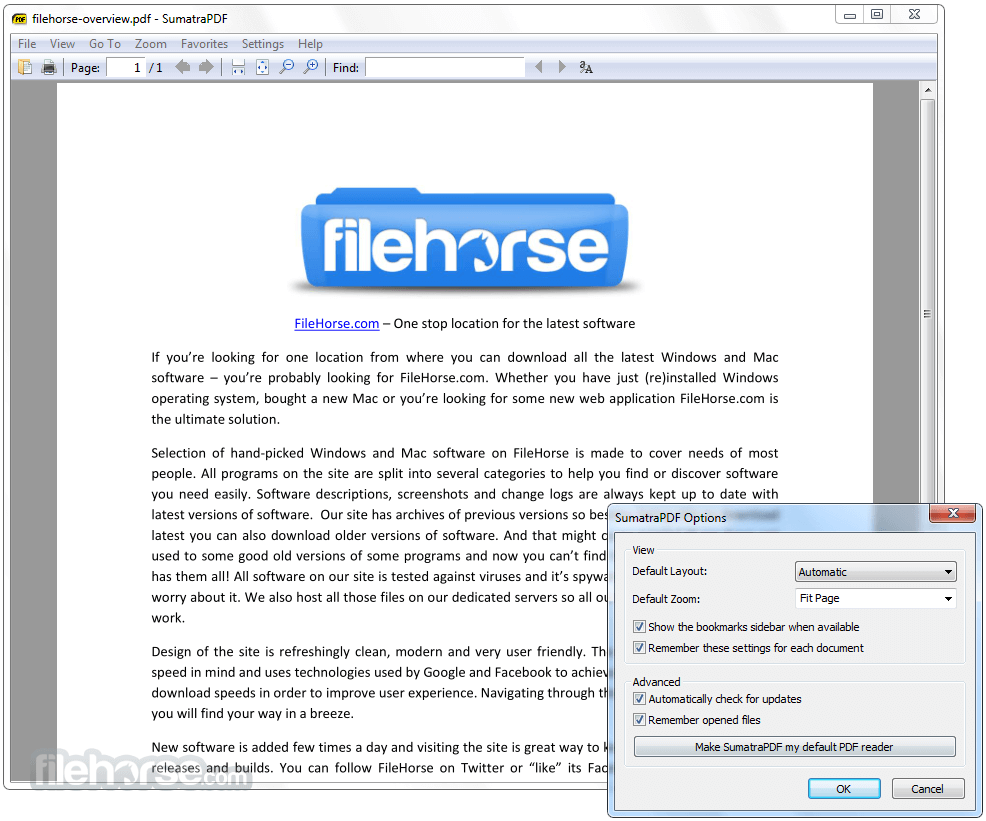
There are no complicated tools, no ways of confusing users, and even the context-sensitive properties menu of the app offers just basic controls that can be easily managed by anyone. The customization screen of the app offers minimal tools for setting the automatic zoom level, default layout, and nothing more. All in all, Sumatra PDF 64-bit is a perfect PDF viewing app for beginners and users with slow PC configurations.
Main Features
Lightweight and Fast
The app is renowned for its minimalistic design and swift performance. It launches quickly, allowing you to open PDF files almost instantaneously.
User-Friendly Interface
The intuitive interface of the utility ensures a seamless experience, even for users who are less familiar with PDF readers. The clean layout and straightforward navigation make it easy to locate and access essential functions.
Multiple Viewing Modes
It offers various viewing modes, including single-page, continuous, facing, and book view, allowing you to choose the one that suits your reading preferences.
Customizable Keyboard Shortcuts
This program provides an extensive range of customizable keyboard shortcuts, enabling you to streamline your workflow and access frequently used features with ease.
Portable Version
It offers a portable version, which can be run directly from a USB drive or external storage device. This feature makes it convenient for users who frequently switch between different computers or need to access PDF files on the go.
How to Use
- Download and install Sumatra PDF from the official website or FileHorse.
- Launch the application.
- Open a PDF file by either clicking on "Open" in the top menu or by dragging and dropping the file onto the Sumatra PDF window.
- Navigate through the document using the provided toolbar or keyboard shortcuts.
- Utilize the various viewing modes to adjust the display to your preference.
- Access additional features like zoom, search, and bookmarks from the toolbar.
Can Sumatra PDF handle large PDF files effectively?
Yes, it performs well with large PDF files due to its efficient resource management. It can handle documents of considerable size without causing lag or delays.
Does Sumatra PDF support annotations and form filling?
It focuses primarily on document viewing and lacks advanced annotation or form-filling capabilities. For extensive editing needs, it is recommended to use dedicated PDF editors.
Is Sumatra PDF compatible with password-protected PDFs?
Yes, it can open password-protected PDFs. However, it does not provide password management or editing functionalities.
Can I customize the interface of Sumatra PDF?
It offers limited customization options. Users can modify keyboard shortcuts and choose between dark and light modes, but there are no options for changing the overall appearance or themes.
Is Sumatra PDF available for platforms other than Windows?
As of now, Sumatra PDF is primarily developed for Windows operating systems. However, there are alternative PDF readers available for macOS and Linux users.
Alternatives
Adobe Acrobat Reader - A comprehensive PDF reader that includes advanced features like annotation, form filling, and document signing. It is available for both Windows and macOS.
Foxit PDF Reader - Known for its extensive feature set, Foxit Reader offers a range of functionalities beyond basic PDF viewing. It supports annotation, form-filling, and advanced collaboration features.
PDF-XChange Viewer - This feature-rich PDF reader provides tools for annotation, form filling, and even basic PDF editing. It is available for Windows and offers a portable version as well.
Xodo PDF Viewer & Editor - Fast & reliable PDF viewer, editor, and annotation tool with Google Drive support.
Pricing
Sumatra PDF is completely FREE and open-source, making it an attractive option for users who require a lightweight and efficient PDF reader without any additional cost.
System Requirements
- Operating System: Windows 7 or later
- Processor: 1 GHz or faster
- RAM: 512 MB or more
- Disk Space: 15 MB of free space
- Lightweight and fast performance
- Clean and user-friendly interface
- Various viewing modes
- Portable version available
- Completely free and open-source
- Limited customization options
- Lacks advanced annotation and form-filling features
It stands out as an excellent choice for users seeking a lightweight, no-frills PDF reader. Its swift performance, intuitive interface, and multiple viewing modes make it a practical tool for everyday document reading.
While it may lack advanced editing features, the program excels in its primary goal of providing a seamless and efficient reading experience. If you value speed, simplicity, and minimal resource usage, Sumatra PDF is definitely worth considering as your go-to PDF reader.
Also Available: Sumatra PDF (32-bit)
-
Sumatra PDF 3.6 (64-bit) Screenshots
The images below have been resized. Click on them to view the screenshots in full size.

-
-
What's new in this version:
- add DisableAntiAlias advanced setting and CmdToggleAntiAlias command
- add CmdShowAnnotations, CmdHideAnnotations, CmdToggleShowAnnotations commands for temporarily hiding / showing annotations
- add CmdToggleInverseSearch to temporarily disable mouse click invoking tex inverse search
- add bgcolor, opacity, textsize, borderWidth arguments to CmdCreateAnnot* commands
- add Annotations.FreeTextBackgroundColor and Annotations.FreeTextOpacity advanced settings
- sort thumbnails on home page by most recently used date. Set advanced setting HomePageSortByFrequentlyRead = true to revert to pre-3.6 behavior of sorting by frequency of use.
- support brotli compression in PDF files
- in Command Palette, if you start search with : we show everything (like in 3.5)
- in Command Palette, when viewing opened files history (#), you can press Delete to remove the entry from history
improved zooming:
- zooming with pinch touch screen gesture or with ctrl + scroll wheel now zooms around the mouse position and does continuous zoom levels. Used to zoom around top-left corner and progress fixed zoom levels shown in menu
- include manual (F1 to launch browser with documentation)
- add LazyLoading advanced setting, defaults to true. When restoring a session lazy loading delays loading a file until its tab is selected. Makes SumatraPDF startup faster.
new commands in command palette (Ctrl + K):
- CmdCloseAllTabs : “Close All Tabs”
- CmdCloseTabsToTheLeft : “Close Tabs To The Left”
- CmdDeleteFile: “Delete File”
- CmdToggleFrequentlyRead : “Toggle Frequently Read”
- CmdToggleLinks : “Toggle Show Links”
- CmdInvokeInverseSearch
- CmdMoveTabRight (Ctrl + Shift + PageUp), CmdMoveTabLeft (Ctrl + Shift + PageDown) to move tabs left / right, like in Chrome
add ability to provide arguments to some commands when creating bindings in Shortcuts:
- CmdCreateAnnot* commands take a color argument, openedit to automatically open edit annotations window when creating an annotation, copytoclipboard to copy selection to clipboard and setcontent to set contents of annotation to selection
- CmdScrollDown, CmdScrollUp : integer argument, how many lines to scroll
- CmdGoToNextPage, CmdGoToPrevPage : integer argument, how many pages to advance
- CmdNextTabSmart, CmdPrevTabSmart (Smart Tab Switch), shortcut: Ctrl + Tab, Ctrl + Shift + Tab
- added UIFontSize advanced setting
- removed TreeFontWeightOffset advanced setting
- increase number of thumbnails on home page from 10 => 30
- add ShowLinks advanced setting and “Toggle Show Links” (CmdToggleLinks) for command palette
- default ReuseInstance setting to true
- added Key arg to ExternalViewers advanced setting (keyboard shortcut)
- added Key arg to SelectionHandlers advanced setting (keyboard shortcut)
- improved scrolling with mouse wheel and touch gestures
- theming improvements
- go back to opening settings file with default .txt editor (notepad most likely)
- don’t exit fullscreen on double-click. must double-click in upper-right corner
- when opening via double-click, if Ctrl is pressed will always open in new tab (vs. activating existing tab)
- register for handling .webp files
- bug fix: Del should not delete an annotation if editing content
- bug fix: re-enable tree view full row select
- change: CmdCreateAnnotHighlight etc. no longer copies selection to clipboard by default. To get that behavior back, you can use copytoclipboard argument instead.
- change: Ctrl + Tab is now CmdNextTabSmart, was CmdNextTab. Ctrl + Shift + Tab is now CmdPrevTabSmart, was CmdPrevTab. You can re-bind it if you prefer old behavior
- CmdCommandPalette takes optional mode argument: @ for tab selection, # for selecting from file history and > for commands.
- command palette no longer shows combined tabs/file history/commands. CmdCommandPalette only shows commands. Because of that removed CmdCommandPaletteNoFiles because now `CmdCommandPalette behaves like it
- removed CmdCommandPaletteOnlyTabs, replaced by CmdCommandPaletteNoFiles @
- Ctrl + Shift + K no longer active, use Ctrl + K. You can restore this shortcut by binding it to CmdCommandPalette > command.
- add Name field for shortcuts. If given, the command will show up in Command Palette (Ctrl + K)
- closing a current tab now behaves like in Chrome: selects next tab (to the right). We used to select previously active tab, but that’s unpredictable and we prefer to align SumatraPDF behavior with other popular apps.
- swapped key bindings: i is now CmdTogglePageInfo, I is CmdInvertColors. Several people were confused by accidentally typing i to invert colors, is less likely to type it accidentally
- allow creating custom themes in advanced settings in Themes section. See docs.
- improve scrolling with middle click drag #4529
- make built-in keyboard shortcuts work on non-us keyboards (cyrillic , hebrew etc.)
- add CmdDuplicateInNewTab (Open Current Document In New Tab) command
 OperaOpera 128.0 Build 5807.77 (64-bit)
 Kling AIKling AI - Text or Image to Video
 PhotoshopAdobe Photoshop CC 2026 27.4 (64-bit)
 BlueStacksBlueStacks 10.42.167.1001
 OKXOKX - Buy Bitcoin or Ethereum
 CapCutCapCut 7.9.0
 PC RepairPC Repair Tool 2026
 Hero WarsHero Wars - Online Action Game
 TradingViewTradingView - Trusted by 100 Million Traders
 AdGuard VPNAdGuard VPN 2.9.0
Comments and User Reviews