




 CleverGet
 4K Download
 Keeprix
 RemotePC
 YTD Download
 WTFast
 TrueNAS
 PRTG
PRTG
-
Latest Version
Microsoft Remote Desktop 10.2.3012 LATEST
-
Review by
-
Operating System
Windows 10 / Windows 11
-
User Rating
Click to vote -
Author / Product
-
MD5 Checksum
c2c26b44b4ac177a41dfdff5409fa66c
Microsoft Remote Desktop allows users of all knowledge levels to establish a direct connection with their distant PC and take control over their desktop, apps, files, attached hardware, and network resources, just as if they were actually sitting at the desk near that computer.
Since the first introduction of this service several decades ago, it has managed to grow into one of the most popular features for remote error troubleshooting and data access for people who are not able to physically visit their PCs.
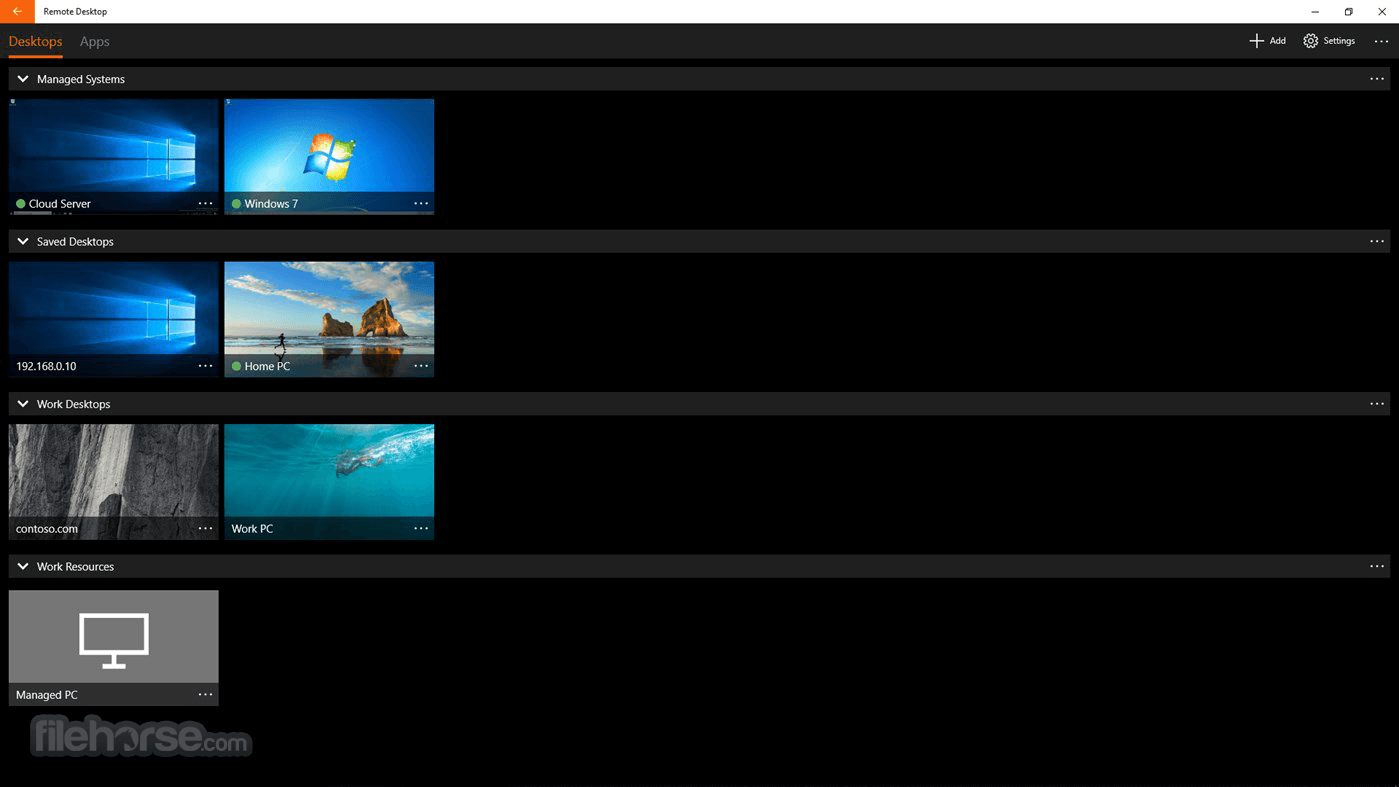
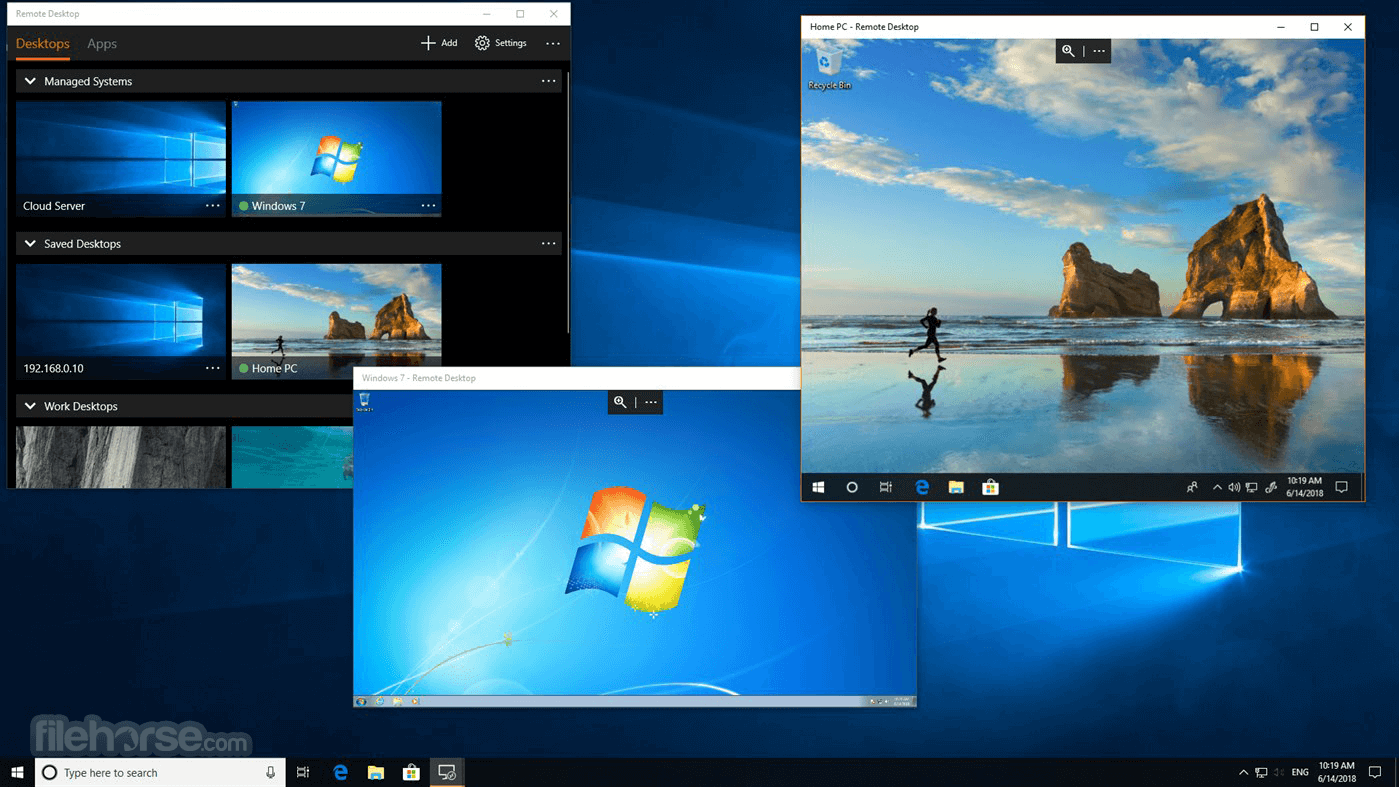
The latest version of Microsoft Remote Desktop is fully optimized for Windows 10/Windows 11 and brings a streamlined way to access remote PCs in the fewest steps possible.

Once the remote connection is established, you can freely copy files between two Windows OS instances, with full support for dragging and dropping files, a touch interface for tablet users, and secure data transfers.
While the remote network connection is established using advanced networking techniques that are perfect for app management and still-image broadcasting, you can also share a desktop view for multimedia (video and games). This latest version of Microsoft Remote Desktop supports high-quality video and audio streaming.
Installation and Use
Before trying to connect to a remote PC, it is highly recommended to first check if all the settings are properly configured, most notably your user permissions, firewall settings, and network access.
The connection can be established both via Ethernet and public internet, via cable, Wi-Fi, or mobile networks.
Be aware that if you activate the Remote Sharing feature on your PC, you are opening your PC to be accessed by anyone who is on your list of approved users, as well as by anyone who has administrative privileges (which is especially notable in work or education organizations).
The entire app weighs in at less than 40 MB and can be downloaded and installed in mere seconds if you have a fast internet connection. Before clicking on the connect button, know that this app will require a wide set of user/admin permissions in order for the connection to the distant PC to be established.
This includes network access, internet connection, access to input capture, microphone, file system, domain credentials, and more.
Features and Highlights
What is Microsoft Remote Desktop, and what is it used for?
Microsoft Remote Desktop allows users to connect to and control Windows PCs or virtual desktops remotely from another device. It’s commonly used for remote work, IT support, accessing office computers from home, and connecting to services like Windows 365 and Azure Virtual Desktop. The app supports features such as multi-monitor setups, device redirection, and remote app access.
Is Microsoft Remote Desktop still supported in 2026?
Partially. Microsoft has been transitioning users away from the classic Remote Desktop app toward the newer “Windows App.” Microsoft announced that older Remote Desktop clients for Windows are reaching the end of support in 2026, meaning users are encouraged to migrate to the newer unified platform for continued updates and features.
What features does Microsoft Remote Desktop offer?
Microsoft Remote Desktop supports multiple monitors, dynamic resolution scaling, printer and storage redirection, webcam support, and Microsoft Teams optimizations for remote work. It also allows users to access remote applications and cloud PCs while maintaining a near-native Windows experience.
Why do some users switch from Microsoft Remote Desktop to alternatives?
Some users move to alternatives because they want easier setup, broader cross-platform support, or features like simpler file sharing and remote assistance. In 2026, tools like AnyDesk, TeamViewer, and Chrome Remote Desktop remain popular alternatives, especially for non-enterprise users or mixed-device environments.
Is Microsoft Remote Desktop still worth using in 2026?
Yes, especially for users already inside the Microsoft ecosystem. It remains one of the best native solutions for accessing Windows PCs and enterprise cloud desktops. However, because Microsoft is actively shifting toward the newer Windows App platform, users starting fresh in 2026 may prefer adopting the newer app instead of relying on legacy Remote Desktop clients.
Alternatives
TeamViewer – A popular remote access tool that enables remote control, file transfer, screen sharing, and online support across multiple platforms.
AnyDesk – A lightweight remote desktop application known for fast connections, low latency, and cross-platform support.
Chrome Remote Desktop – A simple browser-based remote access tool by Google that allows users to securely control computers from anywhere.
PROS
Since the first introduction of this service several decades ago, it has managed to grow into one of the most popular features for remote error troubleshooting and data access for people who are not able to physically visit their PCs.
The latest version of Microsoft Remote Desktop is fully optimized for Windows 10/Windows 11 and brings a streamlined way to access remote PCs in the fewest steps possible.
- Connect to remote PCs running Windows Professional, Enterprise, or Windows Server editions.
- Future access to remote resources from Azure Virtual Desktop.
- Establish remote connections via a Remote Desktop Gateway.
- Enjoy a rich multi-touch experience with full support for Windows gestures.
- Ensure secure access to your data and applications.
- Easily manage your connections from the Connection Center.
- Experience high-quality video and audio streaming.
Once the remote connection is established, you can freely copy files between two Windows OS instances, with full support for dragging and dropping files, a touch interface for tablet users, and secure data transfers.
While the remote network connection is established using advanced networking techniques that are perfect for app management and still-image broadcasting, you can also share a desktop view for multimedia (video and games). This latest version of Microsoft Remote Desktop supports high-quality video and audio streaming.
Installation and Use
Before trying to connect to a remote PC, it is highly recommended to first check if all the settings are properly configured, most notably your user permissions, firewall settings, and network access.
The connection can be established both via Ethernet and public internet, via cable, Wi-Fi, or mobile networks.
Be aware that if you activate the Remote Sharing feature on your PC, you are opening your PC to be accessed by anyone who is on your list of approved users, as well as by anyone who has administrative privileges (which is especially notable in work or education organizations).
The entire app weighs in at less than 40 MB and can be downloaded and installed in mere seconds if you have a fast internet connection. Before clicking on the connect button, know that this app will require a wide set of user/admin permissions in order for the connection to the distant PC to be established.
This includes network access, internet connection, access to input capture, microphone, file system, domain credentials, and more.
Features and Highlights
- The official Windows 11 and Windows 10 remote desktop application of Microsoft Corporation.
- Easily access your remote PCs at home or work.
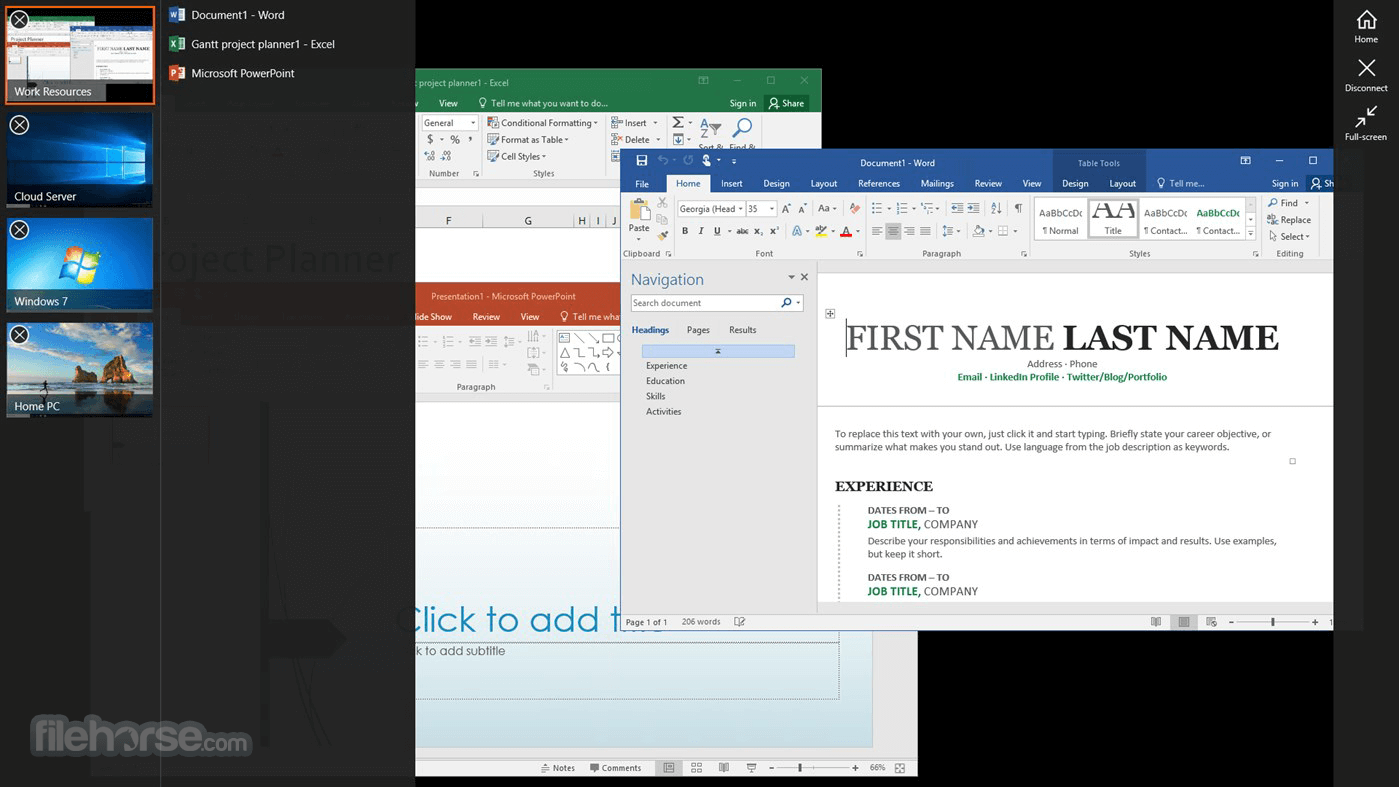
- Establish a remote connection to remote resources made available by your IT admin at work or school.
- Full support for mouse & keyboard and touch interface.
- Access remote storage, control apps, and troubleshoot any issues without physically going to the target PC.
- Simple management of all available remote PC connections.
- Supports high-quality audio and video streaming.
- Built-in support for PC access from modern smartphones.
- 100% FREE.
What is Microsoft Remote Desktop, and what is it used for?
Microsoft Remote Desktop allows users to connect to and control Windows PCs or virtual desktops remotely from another device. It’s commonly used for remote work, IT support, accessing office computers from home, and connecting to services like Windows 365 and Azure Virtual Desktop. The app supports features such as multi-monitor setups, device redirection, and remote app access.
Is Microsoft Remote Desktop still supported in 2026?
Partially. Microsoft has been transitioning users away from the classic Remote Desktop app toward the newer “Windows App.” Microsoft announced that older Remote Desktop clients for Windows are reaching the end of support in 2026, meaning users are encouraged to migrate to the newer unified platform for continued updates and features.
What features does Microsoft Remote Desktop offer?
Microsoft Remote Desktop supports multiple monitors, dynamic resolution scaling, printer and storage redirection, webcam support, and Microsoft Teams optimizations for remote work. It also allows users to access remote applications and cloud PCs while maintaining a near-native Windows experience.
Why do some users switch from Microsoft Remote Desktop to alternatives?
Some users move to alternatives because they want easier setup, broader cross-platform support, or features like simpler file sharing and remote assistance. In 2026, tools like AnyDesk, TeamViewer, and Chrome Remote Desktop remain popular alternatives, especially for non-enterprise users or mixed-device environments.
Is Microsoft Remote Desktop still worth using in 2026?
Yes, especially for users already inside the Microsoft ecosystem. It remains one of the best native solutions for accessing Windows PCs and enterprise cloud desktops. However, because Microsoft is actively shifting toward the newer Windows App platform, users starting fresh in 2026 may prefer adopting the newer app instead of relying on legacy Remote Desktop clients.
Alternatives
TeamViewer – A popular remote access tool that enables remote control, file transfer, screen sharing, and online support across multiple platforms.
AnyDesk – A lightweight remote desktop application known for fast connections, low latency, and cross-platform support.
Chrome Remote Desktop – A simple browser-based remote access tool by Google that allows users to securely control computers from anywhere.
PROS
- Cross-Platform Compatibility: Supports Windows, macOS, iOS, and Android, enabling access from a variety of devices.
- Secure Connections: Uses encryption and Network Level Authentication (NLA) for secure access.
- High Performance: Optimized for a remote desktop experience with minimal lag and high-quality streaming.
- Multi-Monitor Support: Allows remote use with multiple monitors for a seamless workflow.
- Easy Integration: Integrates well with Microsoft services like Azure, Active Directory, and Office 365.
- Limited Availability: Not available in all markets.
- Complex Setup: Initial configuration can be complicated for non-technical users.
- Limited Features on Non-Windows Devices: Some features, like local resource redirection, may not work as well on macOS or mobile devices.
- Dependency on Internet Connection: Requires a stable and fast internet connection for smooth performance.
- No Built-In File Transfer: Lacks direct file transfer capability between host and remote machines, requiring additional tools.
Why is this app published on FileHorse? (More info)
-
Microsoft Remote Desktop 10.2.3012 Screenshots
The images below have been resized. Click on them to view the screenshots in full size.
-
-
-
 OperaOpera 131.0 Build 5877.97 (64-bit)
 AdsPowerAdsPower - Antidetect Browser
 PhotoshopAdobe Photoshop CC 2026 27.7 (64-bit)
 BlueStacks AIBlueStacks AI
 OKXOKX - Buy Bitcoin or Ethereum
 CapCutCapCut 8.5.0
 PC RepairPC Repair Tool 2026
 Hero WarsHero Wars - Online Action Game
 TradingViewTradingView - Trusted by 100 Million Traders
 AdGuard VPNAdGuard VPN 2.9.0
Comments and User Reviews