




 PRTG
PRTG YTD Download
 Streaming
 CleverGet
 WTFast
 RemotePC
 4K Download
 Keeprix
-
Latest Version
TightVNC 2.8.87 (64-bit) LATEST
-
Review by
-
Operating System
Windows 7 64 / Windows 8 64 / Windows 10 64 / Windows 11
-
User Rating
Click to vote -
Author / Product
-
Filename
tightvnc-2.8.87-gpl-setup-64bit.msi
-
MD5 Checksum
d1131d002d9ba5cdd27cec2482261fd5
TightVNC is a free and open-source remote desktop software that enables users to control a computer from another device over a network.
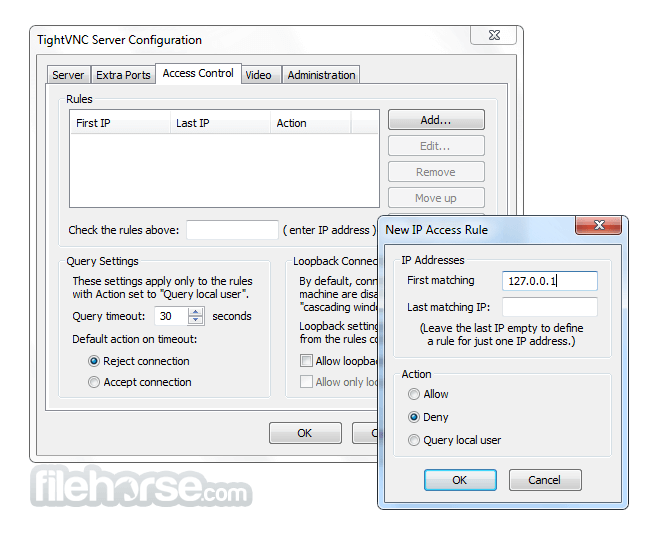
TightVNC for Windows is widely used for remote administration, troubleshooting, and screen sharing.
Features
- Cross-Platform Compatibility – Works on Windows and Linux, with a Java viewer for other platforms.
- Efficient Compression – Optimized for low-bandwidth connections.
- File Transfer – Supports file exchange between local and remote machines.
- Authentication and Security – Offers password protection and optional encryption.
- Multiple Connections – Allows several users to connect to a single computer.
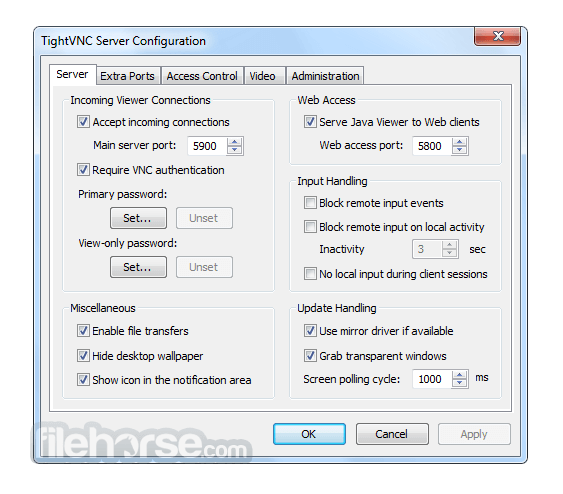
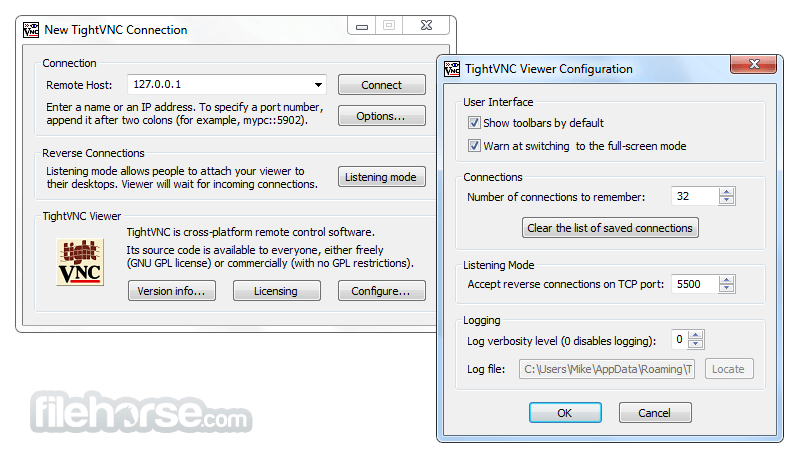
It provides a basic but functional interface. The server runs in the background, while the viewer application allows users to connect remotely.
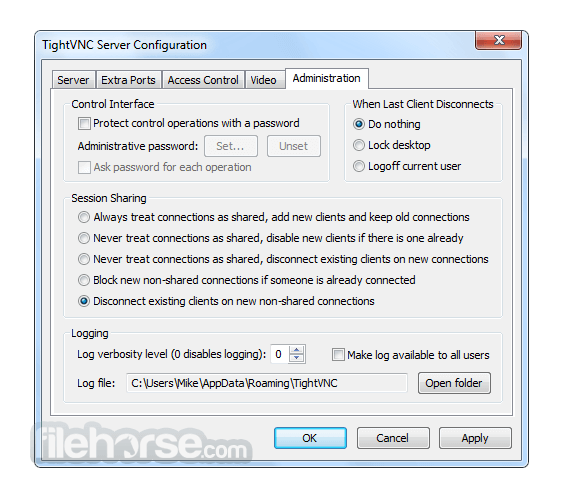
Configuration settings are straightforward, catering to both beginners and advanced users.
Installation and Setup
- Download and install the TightVNC server on the remote PC.
- Set up authentication and security preferences.
- Install the TightVNC viewer on the local PC.
- Enter the remote PC’s IP address and password to establish a connection.
- Launch the TightVNC viewer.
- Input the remote computer’s address.
- Authenticate using the configured password.
- Gain full control of the remote desktop.
Is TightVNC free?
Yes, it is free for both personal and commercial use.
Does TightVNC support file transfer?
Yes, it includes built-in file transfer capabilities.
Is TightVNC secure?
By default, it uses password authentication, but additional encryption may be needed for sensitive data.
Can I use TightVNC over the internet?
Yes, but you may need to configure port forwarding on your router.
Does it work on macOS?
No native macOS version is available, but the Java viewer can be used as an alternative.
Alternatives
TeamViewer – More user-friendly but requires a commercial license for business use.
AnyDesk – Offers fast connections and better security.
UltraVNC – Remote administration and monitoring software for Windows.
VNC Viewer – Control of another Desktop PC across a local network or the Web.
Pricing
TightVNC is completely free, but enterprises can opt for TightVNC Pro, which offers additional features and professional support.
System Requirements
- Windows 7, 8, 10, and 11 (32-bit and 64-bit).
- Requires minimal system resources.
- Free and open-source.
- Low resource consumption.
- Supports multiple connections.
- File transfer capability.
- Works well on slow networks.
- Lacks advanced security features by default.
- No official macOS version.
- Requires network configuration for remote internet access.
TightVNC is an excellent choice for users seeking a lightweight, free, and open-source remote desktop solution. While it may lack some modern security features, it remains a reliable tool for remote access, particularly on local networks. For businesses requiring enhanced security and cloud-based access, alternative solutions like TeamViewer or AnyDesk might be better suited.
-
TightVNC 2.8.87 (64-bit) Screenshots
The images below have been resized. Click on them to view the screenshots in full size.
-
-
-
-

What's new in this version:
- Server for Windows: Fixed operation in application mode for environments with multiple simultaneous RDP sessions
- Server for Windows: Increased maximum screen size (width or height) from 32,000 to 65,535 pixels
- Server and Viewer for Windows: Fixed bugs in buffer size calculation when receiving and converting clipboard data
- Installer for Windows: The uninstaller now correctly removes the TightVNC Service Control Application
 OperaOpera 129.0 Build 5823.65 (64-bit)
 Kling AIKling AI - Text or Image to Video
 PhotoshopAdobe Photoshop CC 2026 27.5 (64-bit)
 BlueStacksBlueStacks 10.42.167.1001
 OKXOKX - Buy Bitcoin or Ethereum
 CapCutCapCut 7.9.0
 PC RepairPC Repair Tool 2026
 Hero WarsHero Wars - Online Action Game
 TradingViewTradingView - Trusted by 100 Million Traders
 AdGuard VPNAdGuard VPN 2.9.0
Comments and User Reviews